

Back to Top
End of Support for Windows Server 2022: Windows Server 2025 vs. 2022 vs. 2019 Is It Worth Upgrading?
July 22, 2026
Views:
97
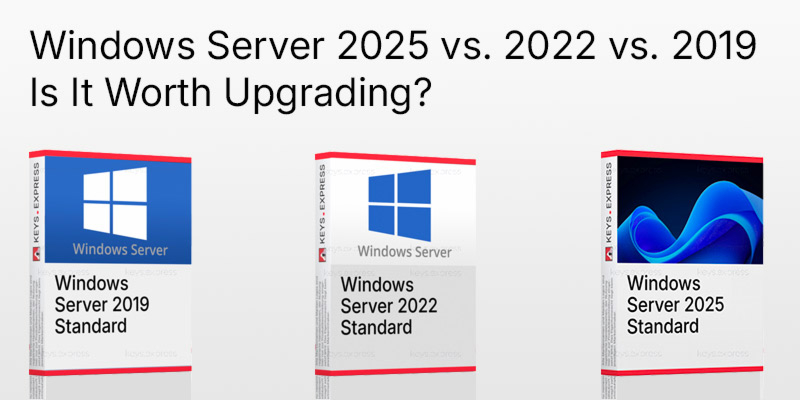
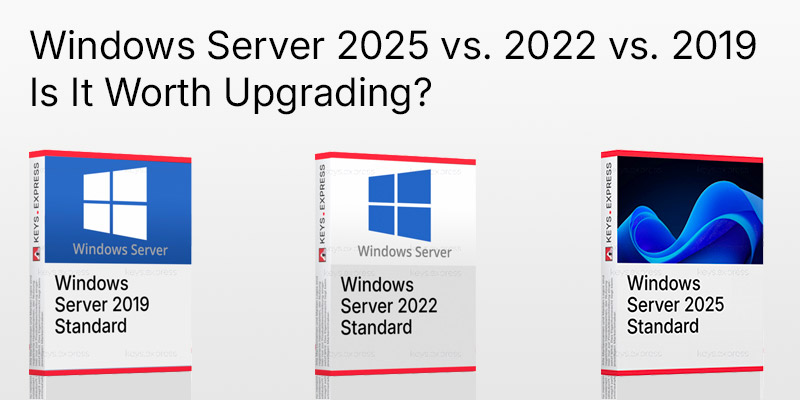
With Windows Server, it’s rarely the most exciting feature that matters—it’s the calendar. Windows Server 2019 already reached the end of mainstream support in January 2024, and Windows Server 2022 will reach the end of mainstream support on October 13, 2026—which is less than three months from the summer of 2026. Anyone replacing hardware now, setting up a new domain controller, or planning a terminal server is making a decision that typically lasts five to eight years. This article breaks down what Windows Server 2025 actually offers technically compared to 2022 and 2019, where the differences become noticeable in operation, when the Datacenter edition pays off compared to the Standard edition, and for which scenarios an older version remains the right choice.
Which Windows Server versions are currently still receiving updates—and for how long?
All three versions compared here receive security updates, but with very different timelines. Microsoft operates on a two-phase model: five years of Mainstream Support with feature updates and bug fixes, followed by five years of Extended Support with security updates only.
- Windows Server 2019: Mainstream support ended on January 9, 2024; Extended Support runs until January 9, 2029.
- Windows Server 2022: Mainstream support ends on October 13, 2026; Extended Support continues through October 14, 2031.
- Windows Server 2025: Mainstream support ends on October 9, 2029; Extended Support continues through October 10, 2034.
Those who are still running Windows Server 2016 have the tightest timeline: Extended Support for that version ends on January 12, 2027. These systems should be at the very top of the migration list.
Why is the end of Mainstream Support more than just a date on the calendar?
Security updates continue, which reassures many administrators—but wrongly so. During Extended Support, non-security-related bug fixes are no longer provided. A bug that causes a file server’s performance to plummet or causes backup software to fail will simply no longer be fixed. Added to this is an effect that almost everyone underestimates: third-party vendors base their support on these dates. Backup vendors, antivirus providers, ERP vendors, and driver developers regularly remove support for a server version from their support matrices shortly after mainstream support ends. A system can therefore technically still be patched yet still fall outside the scope of what its own software vendor supports in the event of a malfunction.
For companies with certifications under ISO 27001, TISAX, or industry-specific standards, there is a second consideration: Auditors are increasingly asking not just “Is it being patched?” but also about the remaining support period.
What has really changed technically with Windows Server 2025?
Windows Server 2025 is based on the Windows 11 24H2 kernel and was released in November 2024. The notable new features can be boiled down to four areas:
- Patching: Hotpatching—applying security updates without a reboot—is available for on-premises servers via Azure Arc for an additional fee.
- Security policies: SMB signing enabled by default, NTLM blocking per share, throttling for failed SMB logins, TLS 1.3 also for LDAP, delegated managed service accounts (dMSA).
- Virtualization: GPU partitioning, Generation 2 VMs by default, workgroup clusters without a domain, significantly higher limits for CPU and RAM.
- Storage: Revamped ReFS with improved deduplication and compression, noticeably higher NVMe throughputs, thin provisioning for Storage Spaces Direct.
What 2025 isn’t: a requirement. Anyone running a stable file server on the 2022 version will gain hardly any new features by upgrading—but they’ll get five years of support.
Hotpatching without a reboot: How does it work, and what does it cost?
Hotpatching applies security updates to the running system without restarting the server. In practice, this means that eight out of twelve monthly patch cycles run without a reboot; four times a year—in January, April, July, and October—there is still a cumulative baseline patch that requires a restart.
Two limitations are key factors in the purchasing decision. First, hotpatching on local servers requires a connection to Azure Arc, so the feature does not work entirely offline. Second, it has been subject to a fee since July 1, 2025: Microsoft charges a subscription fee per core per month. For a two-socket server with 32 cores, this adds up to a four-digit amount per year per server.
The cost is justified where reboots are expensive—production control in three-shift operations, terminal servers with international users, and systems with contractually guaranteed availability. For a file server that’s allowed to reboot at 3:00 a.m. on Sundays, it’s a waste of money. Important to note for the calculation: These are ongoing costs, not a one-time investment like the license itself.
How much more secure is Windows Server 2025 compared to 2019 and 2022?
The biggest difference lies not in new security products, but in changed default settings. What used to require hardening is now enabled by default.
- SMB signing is enabled by default for all connections and blocks relay attacks, which have been a standard tactic in Windows networks for years.
- SMB NTLM blocking allows you to prevent a fallback to NTLM on a per-share or per-client basis.
- Throttling of Failed SMB Logins delays each failed attempt and renders password-spraying attacks on open shares virtually useless.
- Credential Guard is enabled by default—rather than being optional—on systems with the appropriate hardware and edition.
- LDAP over TLS 1.3 and stricter Kerberos policies close gaps in directory communication.
These very requirements are also the most common cause of problems after migration. Old multifunction printers, NAS devices, point-of-sale systems, and industrial control systems that only support SMBv1 or unsigned SMB lose access. This is not a bug, but an intended feature—but these devices must be inventoried beforehand.
What are the practical benefits of SMB over QUIC?
SMB over QUIC transmits file access via UDP/443 in a TLS 1.3-encrypted tunnel. To firewalls, this looks like normal web traffic. The practical benefit: Field staff, remote workers, or branch offices can access shared folders without a traditional VPN, and connection drops when switching from Wi-Fi to cellular data are eliminated because QUIC tolerates IP address changes.
In Windows Server 2022, this feature was reserved for the Azure Edition and was therefore effectively unavailable for on-premises installations. In Windows Server 2025, it is available in all editions, including access control that determines which clients are even allowed to connect via QUIC. Anyone who currently transfers large files—such as CAD drawings, video footage, or database dumps—over a sluggish VPN connection will notice the difference immediately.
Which Hyper-V innovations are relevant for businesses?
Following Broadcom’s acquisition of VMware, many environments are shifting toward Hyper-V. Windows Server 2025 accommodates this shift:
- GPU partitioning: A physical graphics card can be divided into up to 16 partitions and assigned to multiple VMs, rather than being dedicated exclusively to a single VM as was previously the case. Relevant for CAD workstations in RDS, AI inference, and rendering.
- Generation 2 as the Default: New VMs are created by default with UEFI and Secure Boot.
- Workgroup clusters: Failover clusters can be set up without Active Directory—useful in the DMZ or at edge locations.
- Higher limits: up to 2,048 logical processors per host, 240 TB of RAM per VM.
- Live Migration: Improved compatibility between hosts of different CPU generations.
A note on GPU partitioning: Live migration of VMs with assigned GPUs depends on compatible manufacturer drivers. This must be verified before a rollout, not after.
What’s changing with storage—ReFS, deduplication, and NVMe?
This area is often overlooked but delivers measurable benefits. ReFS has been redesigned for deduplication and compression, which directly saves capacity in VHDX storage and backup repositories. Storage Spaces Direct supports thin provisioning. And the NVMe stack has been revamped—Microsoft reports significant gains for I/O-intensive workloads compared to Windows Server 2022 on identical hardware.
Anyone planning a Hyper-V host with NVMe datastores can achieve performance here at no additional cost that would not have been possible in 2019 on the same hardware.
How do Windows Server 2025, 2022, and 2019 differ in a direct comparison?
The following table compares the features that actually tip the scales in sales discussions—support duration, security requirements, virtualization, and licensing model.
| Feature | Server 2025 | Server 2022 | Server 2019 |
|---|---|---|---|
| Mainstream support until | 10/2029 | 10/2026 | Ends |
| Extended Support until | October 2034 | 10/2031 | Jan. 2029 |
| Hotpatching without a reboot | Limited | See note | ✕ |
| SMB over QUIC | ✓ | See note | ✕ |
| SMB signing enabled by default | ✓ | Partial | Partial |
| SMB NTLM blocking | ✓ | ✕ | ✕ |
| Credential Guard (factory-set) | See note | ✕ | ✕ |
| TLS 1.3 | ✓ | ✓ | ✕ |
| Secured-Core Server | ✓ | ✓ | ✕ |
| GPU Partitioning (Hyper-V) | ✓ | ✕ | ✕ |
| Gen 2 VMs by default | ✓ | ✕ | ✕ |
| Workgroup cluster without AD | ✓ | ✕ | ✕ |
| Revised NVMe stack | ✓ | ✕ | ✕ |
| Perpetual license available | ✓ | ✓ | ✓ |
| CAL required (Standard/Datacenter) | ✓ | ✓ | ✓ |
| Recommended for new installations | ✓ | Depends | ✕ |
Notes on limited information: On Server 2025, hotpatching on local systems is available only through Azure Arc and as a paid subscription per core; on Server 2022, it is available exclusively in the Azure Edition. SMB over QUIC was also reserved for the Azure Edition in Server 2022. Credential Guard is enabled by default on Server 2025, depending on the edition and available hardware. SMB signing was enabled for domain controller shares on Server 2019 and 2022, but not for general shares. “Depends” for Server 2022 refers to the fact that a fresh installation only makes sense if a software vendor has strict compatibility requirements.
Standard or Datacenter—at what point does the cost become prohibitive?
Both editions are licensed per physical core, with a minimum of 16 cores per server and 8 cores per processor. The difference lies in the virtualization rights: Standard allows two virtual Windows Server instances per fully licensed set of cores, while Datacenter allows any number.
Standard licenses can be stacked. If you need four VMs, you license all cores twice; for six VMs, three times. This is exactly where the well-known rule of thumb comes into play: Up to about eight VMs, stacked Standard licenses are more cost-effective; in the range of ten to twelve VMs, the cost-benefit analysis shifts toward Datacenter—and beyond that, Standard quickly becomes absurdly expensive. The exact tipping point depends on the number of cores on the host: the more cores, the sooner Datacenter becomes worthwhile, because each stack costs the full core set again.
Datacenter also includes features that Standard does not fully support—Storage Spaces Direct, Shielded VMs, Software-Defined Networking, and the full Storage Replica functionality. Anyone building a hyperconverged infrastructure will end up with Datacenter, regardless of the number of VMs.
Microsoft Server 2025 Standard
The right choice for physical servers, domain controllers, and lightly virtualized environments with one to two VMs per host.
View Windows Server 2025 Standard
Microsoft Server 2025 Datacenter
For Hyper-V hosts with high VM density, Storage Spaces Direct, and cluster environments where unlimited virtualization rights are a deciding factor.
Buy Windows Server 2025 Datacenter
Will my existing hardware even run Windows Server 2025?
That’s the question that’s most often asked too late in the planning process. Windows Server 2025 shares the same codebase as Windows 11 24H2 and therefore requires processors with specific instruction set extensions. Older Xeon generations, which ran without issues on Windows Server 2019 and 2022, fail to meet these requirements—the setup process aborts, or the system fails to boot after the upgrade.
Before a rollout, three things must be checked: the host’s CPU generation, the availability of manufacturer drivers for RAID controllers and network cards under Server 2025, and up-to-date firmware and BIOS versions. Server manufacturers maintain their own compatibility lists for this purpose. If you’re running hardware from 2016 or earlier, it makes sense to plan the operating system upgrade in conjunction with replacing the hardware—in that case, you’ll need to make a new licensing decision anyway.
Can I upgrade directly from Windows Server 2019 to 2025?
Yes, an in-place upgrade from 2019 to 2025 is supported, as is an upgrade from 2016 and 2022. Whether it’s a wise move is another matter entirely.
For domain controllers, Exchange servers, and systems with a complex role landscape, a clean fresh installation followed by role migration is almost always the more stable option. An in-place upgrade carries over legacy registry entries, orphaned services, and remnants of old drivers. For a simple file or application server with a manageable configuration, however, there’s little to argue against a direct upgrade—provided there’s a verified full backup and a tested fallback option.
One detail that can save you trouble: An in-place upgrade spanning two version releases takes longer than most maintenance windows allow. For larger systems, several hours is a realistic estimate.
What do I need to consider with Active Directory?
Windows Server 2025 introduces a new domain and forest functional level. This is a prerequisite for some of the new features, such as delegated managed service accounts (dMSA), which help prevent the theft of service account credentials. The internal database structure has also been revised, which speeds up replication over low-bandwidth site connections.
Here’s how it works in practice: first, add an additional domain controller running Server 2025 to the existing domain, transfer the FSMO roles, demote the old DCs—and only then raise the functional level. This upgrade cannot be easily reversed, so no domain controller running an older version should remain in operation. If you still have 2012 R2 DCs on your network, remove them first.
Which CALs do I need—and can I continue using existing ones?
Standard and Datacenter editions require a Client Access License (CAL) for every user or device accessing the network. The rule here is that CALs must correspond to at least the version of the server. A Server 2019 CAL does not grant access to a Server 2025—conversely, a Server 2025 CAL also covers older servers in the organization. So, if you’re migrating, factor the CAL costs into your calculations, and if you’re operating mixed environments, you’re better off with the newer CALs.
User CALs are worthwhile if a person accesses the system from multiple devices—such as a laptop, smartphone, or terminal. Device CALs are more cost-effective in shift-based operations where multiple employees share a single device.
Microsoft Server 2025 User CAL
Access license for users who access the server from multiple devices—backward-compatible with older server versions on the same network.
Secure a Windows Server 2025 User CAL
What applies to terminal servers and RDS?
Remote Desktop Services require a second licensing tier: In addition to the standard Windows Server CAL, an RDS CAL is required per user or device. Version locking applies here as well, and newer RDS CALs are also backward compatible.
For terminal servers, the version issue is particularly sensitive because that’s where line-of-business applications run. Before upgrading an RDS host to Server 2025, approval must be obtained from each application vendor. Experience shows that ERP and industry-specific solutions lag one to two years behind the latest server version—and an unapproved terminal server means no manufacturer support in the event of a failure.
Anyone who, for this reason, continues to rely on Windows Server 2022 is making a reasonable decision. The remaining support period through October 2031 is sufficient for a typical hardware lifecycle.
Microsoft Server 2022 RDS User CAL
For terminal server environments based on Windows Server 2022, where users access published applications from various end devices.
Buy Windows Server 2022 RDS User CAL
Is Windows Server 2022 still a sensible choice?
For new installations, Server 2025 is the better starting point—three more years of support at a comparable license price. However, there are three situations in which 2022 remains the right choice:
- A software vendor has not released Server 2025 and does not anticipate a release in the near future.
- The existing hardware does not meet the processor requirements for Server 2025 but is expected to remain in use for several more years.
- An existing cluster or farm is to be expanded, and all nodes must be on the same version.
The key is to make a conscious decision and document the date when mainstream support ends.
Microsoft Server 2022 Standard
A proven foundation for physical servers and lightly virtualized environments, with two VM licenses per licensed core set.
View Windows Server 2022 Standard
Microsoft Server 2022 Datacenter
Unlimited virtualization rights for Hyper-V hosts to be integrated into an existing 2022 environment.
Buy Windows Server 2022 Datacenter
When is Windows Server 2019 still a viable option today?
For a new production system, 2019 is no longer a good choice—mainstream support has ended, and only security updates will be available until January 2029. There are still legitimate use cases, however: expanding an existing farm where all nodes must be identical, an isolated system for machine control that is tied to a specific version, or a test environment designed to mirror the production environment.
In these cases, what matters is obtaining a license for the same version, not the feature set. However, if you can plan for the medium term, you should include migration in your roadmap—2029 is closer than it sounds.
Microsoft Server 2019 Standard
For relicensing existing 2019 environments and for systems tied to a specific version.
View Windows Server 2019 Standard
Microsoft Server 2019 Datacenter
Unlimited virtualization for existing 2019 hosts, such as when expanding an existing cluster with a uniform version.
Buy Windows Server 2019 Datacenter
What are the most common issues encountered during the migration?
The stumbling blocks have remained surprisingly consistent over the years, but with Server 2025, they’re shifting toward security requirements:
- Legacy devices using SMB: Printers, scanners, NAS systems, and control devices that do not support signed SMB will lose access to shares.
- Applications that rely on NTLM: Software that uses NTLM instead of Kerberos conflicts with the new blocking rules.
- Backup agents: Older agent versions do not recognize Server 2025 and must be updated before migration.
- Drivers: Storage and network drivers are the most common cause of failed in-place upgrades.
- Scripts and automation: Queries that check for specific build numbers or operating system names will fail.
Taking inventory of SMB clients before the migration prevents most of these surprises. This can be done using built-in tools via SMB server logging.
How do I plan the migration with as little downtime as possible?
A sequence that has proven effective in mid-sized environments:
- Inventory: Which servers, which roles, which applications, which vendor licenses, and which support expiration dates?
- Obtain application approvals before purchasing any licenses.
- Start with the domain controllers—deploy them in parallel, transfer roles, and decommission old DCs.
- Next, file and print services; then application servers; and finally, terminal servers.
- Before each step, perform a full backup with a tested rollback point; for virtual machines, also perform a checkpoint backup.
- Document the fallback plan in writing, including a time window for deciding whether to roll back.
The most effective way to minimize downtime is parallel migration rather than an in-place upgrade: The new server runs alongside the old one; the transition involves changing DNS entries and share paths—and rolling back takes minutes instead of hours.
Which version is right for which company?
As a guide for your decision:
- Small business with one server, up to 25 users: Server 2025 Standard or Essentials, without hotpatching.
- Small-to-medium-sized business with two to three hosts and moderate virtualization: Server 2025 Standard; if there are more than eight VMs per host, double-check the Datacenter pricing.
- Hyper-V farm or hyper-converged cluster: Server 2025 Datacenter, due to Storage Spaces Direct and unlimited VM rights.
- Terminal servers with tied-in line-of-business software: Server 2022, provided the vendor has not yet released the 2025 version.
- Existing environment with a uniform version: Renew licenses for the current version; plan for migration in the medium term.
- 24/7 operation with tight maintenance windows: Server 2025 plus a hotpatching subscription, after offsetting the costs per core.
The licensing decision is actually the smaller part of the effort involved. The deciding factors are the vendor approvals for the specialized software in use and the condition of the hardware.
- Windows Server 2025 vs. 2022 vs. 2019: Which version is worth it in 2026?
- Migrating to Windows Server 2025: An Overview of End-of-Support Dates, Costs, and Pitfalls
- Windows Server Standard or Datacenter? A Comparison for Administrators and Decision-Makers
Disclaimer
This article is for general information purposes only and does not constitute a sales or licensing recommendation. All information has been compiled to the best of our knowledge, but is provided without guarantee of completeness or accuracy. License conditions are subject to change and may be interpreted differently in individual cases. The content does not replace individual legal or licensing advice.
July 22, 2026
Related Products
Windows Server 2019 Standard
From
115,00 €
Windows Server 2019 Datacenter
From
220,60 €
Windows Server 2022 Standard
From
125,60 €
Windows Server 2022 Datacenter
From
231,10 €
Windows Server 2022 RDS User CAL
From
115,00 €
Windows Server 2025 Standard Key
From
136,10 €
Windows Server 2025 Datacenter Key
From
241,70 €
Windows Server 2025 User CAL Key
From
136,10 €
Popular Posts