Back to Top
What are the key benefits of Microsoft Windows 11 Professional?
Advanced security – Built-in protections help reduce modern cyber threats.
Business controls – Join domains and apply policy-based settings easily.
Remote Desktop – Host secure sessions for remote work and support.
Data encryption – Encrypt drives to keep business files protected.
Virtualization tools – Run VMs and sandboxed apps for safer testing.
Device management – Control updates, access, and configuration at scale.
"Original Equipment Manufacturer" key. Is stored in the BIOS for reuse.
A Microsoft account is required for activation. It is not possible to upgrade from Windows 11 Home to Windows 11 Pro. To upgrade, you need the “Windows 11 Pro Upgrade Key.”
Download: Windows 11 Pro OEM
Pro Desktop – Full Windows 11 desktop with business features.
BitLocker Encryption – Full drive encryption for internal and external volumes.
Hyper-V Virtualization – Native hypervisor for running isolated virtual machines.
Remote Desktop – Host incoming RDP sessions, not only connect out.
Domain Join – Local Active Directory and Microsoft Entra ID join supported.
Core Capacity – Supports up to 2 TB RAM and 2 CPU sockets.
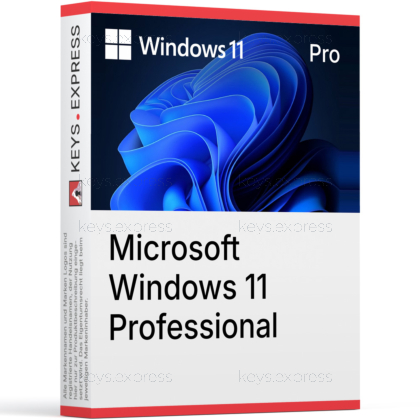
Windows 11 Pro is the business-tier desktop operating system from Microsoft, built on the same core as Home but with added management, encryption, and virtualization features. It targets users who need to join a company network, encrypt entire drives, or run virtual machines without installing third-party software.
Group Policy – Local and domain Group Policy editing available.
Windows Sandbox – Disposable virtual desktop for testing untrusted files.
Update Control – Defer feature updates via Windows Update for Business.
WIP Successor – Modern endpoint data protection through Intune integration.
Assigned Access – Lock device to a single kiosk-mode application.
Pro Licensing – Eligible for Microsoft Entra ID and domain enrolment.
Windows 11 Pro runs as the primary desktop OS on a PC and adds business-oriented features on top of Windows 11 Home. Practical examples are encrypting an entire SSD with BitLocker before taking a laptop on a business trip, joining a workstation to a company Active Directory so user accounts and policies are centrally managed, or running a sandboxed Windows VM inside Hyper-V to test a suspicious installer without touching the host. The interface is identical to Home, including Snap layouts, widgets, and the redesigned Start menu, so the difference is mostly under the hood.
It is aimed at IT-administered workstations, developers, power users, and small-business PCs that need domain join or local virtualization. Compared to Home, the concrete advantage is that the same machine can be added to a corporate Active Directory or Entra ID tenant and pushed Group Policy or Intune settings — a workflow Home blocks at the join step. Developers benefit from Hyper-V because Docker Desktop's Windows containers, WSL 2 in nested scenarios, and Windows Sandbox all rely on the Hyper-V platform that Home does not expose.
Windows 11 Pro sits between Home and Enterprise. The key gap to Home is management and security (BitLocker, Hyper-V, RDP hosting, domain join). The key gap to Enterprise is advanced security and deployment tools such as Credential Guard, Application Control for Business (formerly Windows Defender Application Control), DirectAccess, and AppLocker, which are not fully included in Pro. For most non-corporate buyers, Pro is the highest edition that can be obtained outside of a corporate agreement.
| Feature | Windows 11 Home | Windows 11 Pro | Windows 11 Enterprise |
|---|---|---|---|
| BitLocker Drive Encryption | ✕ | ✓ | ✓ |
| Hyper-V | ✕ | ✓ | ✓ |
| Remote Desktop hosting | ✕ | ✓ | ✓ |
| Active Directory join | ✕ | ✓ | ✓ |
| Microsoft Entra ID join | ✕ | ✓ | ✓ |
| Windows Sandbox | ✕ | ✓ | ✓ |
| Credential Guard | ✕ | ✕ | ✓ |
| Maximum RAM | 128 GB | 2 TB | 6 TB |
Yes — Windows 11 Pro supports both traditional on-premises Active Directory domain join and Microsoft Entra ID (formerly Azure AD) join, including hybrid scenarios. In daily IT work this is the feature that lets a freshly imaged Pro device pick up GPOs, mapped drives, printer connections, and Intune policies from the company tenant during the first sign-in. Home does not allow the join step at all, so a Home device cannot receive Group Policy or company sign-in even on the same network. The setup is reachable under Settings → Accounts → Access work or school, or via the Out-of-Box Experience when a work email is entered.
Yes — Pro includes full BitLocker Drive Encryption with management options that Home's basic device encryption does not expose. Pro allows encrypting the OS drive, fixed data drives, and removable drives (BitLocker To Go), choosing AES-128 or AES-256, suspending protection during firmware updates, and backing up recovery keys to Active Directory, Entra ID, or a printed file. Home only offers a simplified "device encryption" on systems that meet Modern Standby requirements, with no granular control and no BitLocker To Go for USB sticks. For a laptop that leaves the office, this is the difference between a lost device being a hardware loss and a data breach.
Yes to both. Pro can act as a Remote Desktop host, meaning another PC or mobile RDP client can connect into the Pro machine and use it remotely — Home only includes the client side and cannot accept incoming RDP connections. Pro also includes the Hyper-V role as an optional Windows feature, so virtual machines and Windows Sandbox run natively without VirtualBox or VMware. Concurrent RDP sign-ins are limited to one interactive session per device by design, which is the documented Windows desktop limit and not a workaround target.
The hard cutoff is hardware: Windows 11 requires TPM 2.0, UEFI with Secure Boot capability, and a CPU on Microsoft's supported list — older Windows 10 PCs may pass the RAM and storage checks but fail on the CPU or TPM. Run the PC Health Check app or check Settings → Privacy & security → Device security → Security processor before buying. Pro also requires either a Microsoft Account or a work/school account during initial setup in standard installation paths; a fully offline local account is no longer offered in the default OOBE. Note that Pro does not include Credential Guard, AppLocker, or DirectAccess, which are Enterprise-only.
In the default Out-of-Box Experience, Windows 11 Pro requires either a Microsoft Account or a work/school account to complete setup, and an internet connection during that step. Domain-joined devices can sign in with the domain account afterwards, but the initial OOBE flow expects an online account.
Yes, an existing Windows 11 Home installation can be upgraded directly to Pro without reinstalling Windows.
Important: This upgrade does not require the standard full version of Windows 11 Pro, but rather the Windows 11 Professional Upgrade product, which is specifically designed for this purpose. A regular Pro license is intended for the initial activation of a standalone Pro installation and not for the in-place upgrade of a device already running Home.
Here’s how the upgrade works: Open “Settings” → “System” → “Activation” and select the option to change the product key or upgrade the Windows edition. Enter the key from the Windows 11 Professional Upgrade product. After a restart, Windows 11 Pro will be available, while installed apps, files, and user accounts will be fully preserved. Pro features that will then be available include BitLocker, Hyper-V, and the Local Group Policy Editor.
A standard Windows 11 Professional key is not the correct product for upgrading an existing Windows 11 Home installation to Pro. This key is intended for activating a full, standalone Pro installation—such as a fresh install or system rebuild. To upgrade a running Home device to Pro while retaining all data and programs, use the Windows 11 Professional Upgrade product.
The process is straightforward: Go to “Settings” → “System” → “Activation,” change the product key, enter the upgrade key, and restart the device. After the restart, Windows 11 Pro will be activated—without a fresh installation and without losing any apps, files, or user accounts.
No — Office is a separate product. A clean Windows 11 Pro install only ships with the free Office web shortcuts and the Outlook for Windows app; Word, Excel, and PowerPoint desktop applications must be purchased and installed separately.
No, not on supported installations. Microsoft requires TPM 2.0 and Secure Boot for Windows 11, and feature updates are designed around that baseline. Unsupported workarounds exist but block guaranteed driver and security updates, which makes them unsuitable for a production work machine.
| Processor | 1 GHz or faster. |
| Memory RAM | 4 GB. |
| Hard Disk | 64 GB or larger storage device. |
| Display | High definition 720p display that is greater than 9 inches diagonally, 8 bits per color channel. |
| Graphics | Compatible with DirectX 12 or later with WDDM 2.0 driver. |
| Note | UEFI firmware, Secure Boot capable. Trusted Platform Module TPM version 2.0. Windows 11 Pro for personal use requires internet connectivity and a Microsoft account during initial device setup. |