




Back to Top
Speed up a slow Windows PC: Cleaning and SSD migration
June 01, 2026
Views:
82
No need for a new PC: With a cleanup and SSD migration in 2 simple steps, it’ll be almost as fast as a new one – instructions and buying guide
A sluggish computer rarely needs to be replaced. Most of the time, the problem isn’t the age of the hardware, but cluttered storage, an overloaded startup, and a system drive that’s past its prime. If you tackle these issues head-on, you can regain a surprising amount of speed—without buying a new PC.
Two steps yield the greatest results. First, the cleanup: remove junk data, rein in background processes, and tidy up Windows. Then, migrate to an SSD if a traditional hard drive is still installed. These two performance-boosting steps complement each other, and that’s exactly what this buying guide is all about.
Why does a Windows PC slow down over time?
With every installation, every update, and every time you browse the web, data accumulates that nobody needs anymore. Temporary files, cache remnants, orphaned registry entries, and dozens of programs that add themselves to the startup list without asking. The system has to process more at every startup and has less free memory to work with.
Then there’s the hardware. A conventional hard drive reads data mechanically and becomes noticeably slower as it fills up. If Windows constantly accesses an almost full, fragmented HDD, a bottleneck is created that no amount of cleaning alone can resolve.
How can I tell if my PC just needs a cleanup or new hardware?
A simple test can help. Open Task Manager and monitor the usage shortly after booting up. If the CPU and disk are constantly maxed out even though you’re not doing anything, this indicates too many background processes and junk data—a classic case for step one.
If, on the other hand, the disk shows a load close to 100 percent even during small tasks and the system freezes when opening programs, a slow HDD is often the culprit. In that case, switching to an SSD is more worthwhile than any further cleanup effort. Often, the combination of both is the right solution.
- High disk usage while idle: Check for cleanup and autostart items.
- Long load times despite few installed programs: Consider switching to an SSD.
- Low available RAM: Reduce background programs.
What does a real system cleanup actually do?
A thorough cleanup frees up used memory, removes unnecessary startup programs, and clears up the traces left behind by browsers and applications. The effect is measurable: faster startup times, more free space on the system drive, and a system that isn’t constantly busy in the background.
The key difference lies between blindly deleting files and controlled optimization. Good tuning software shows you in advance what it will remove, creates backups if necessary, and does not interfere with critical system areas. This is precisely what distinguishes reputable optimizers from risky “speed boosters.”
Which software is best suited for cleaning and optimizing Windows?
Two programs have proven themselves for this first boost level. Both clean up reliably, but tackle the task with varying degrees of depth.
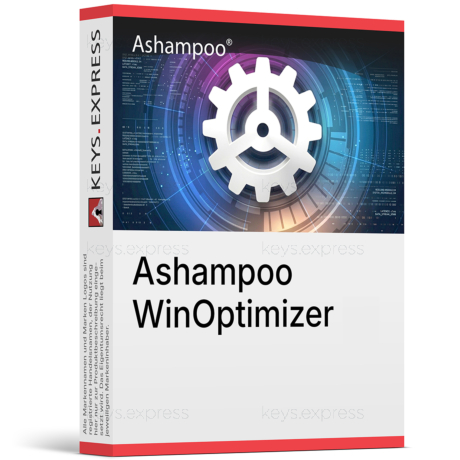
Ashampoo WinOptimizer
Ashampoo WinOptimizer is the more comprehensive suite. In addition to classic cleanup, the current version offers a faster registry optimizer, a profile booster for gaming, work, or browsing, a crash analysis tool, and a firewall manager. The German interface and one-time license make the program particularly appealing to users who want to delve deeper into fine-tuning on a long-term basis.
CCleaner Professional
CCleaner is the well-known classic for quick, hassle-free maintenance. The Professional version cleans automatically in the background, monitors the system in real time, and keeps the interface deliberately simple. If you want to clean up regularly without a long learning curve, this will get you there quickly.
How do Ashampoo WinOptimizer and CCleaner Professional differ?
Both clean up, but they target different users. WinOptimizer offers more modules for diagnostics and fine-tuning, while CCleaner excels in speed and simplicity. The following overview compares the key features relevant to purchasing.
| Function | Ashampoo WinOptimizer | CCleaner Professional |
|---|---|---|
| Junk File Cleanup | ✓ | ✓ |
| Registry optimization | ✓ | ✓ |
| Privacy / Delete traces | ✓ | ✓ |
| Startup optimization | ✓ | ✓ |
| Automatic cleanup | ✓ | ✓ |
| Real-time monitoring | ✓ | ✓ |
| Crash Analysis | ✓ | ✕ |
| Firewall Manager | ✓ | ✕ |
| Profile Tuning (Gaming/Work) | ✓ | ✕ |
| Detailed hardware information | ✓ | Limited |
| German-language interface | ✓ | ✓ |
| Windows 10 / Windows 11 | ✓ | ✓ |
| License model | One-time license | Annual license |
Note: "Limited" in CCleaner's detailed hardware information refers to the fact that the comprehensive hardware analysis (Speccy) is part of the larger CCleaner Professional Plus package and is not fully included in the standard Professional version.
Is a cleaning tool enough to make an old PC fast again?
Often yes—but not always. On a system with an SSD and sufficient RAM, proper maintenance noticeably speeds up the computer. However, if the device has an old, slow hard drive, any software will hit a physical limit. The HDD remains the bottleneck, no matter how tidy Windows is.
In this case, the second boost level is the key: migrating the system to an SSD.
Why does switching from HDD to SSD make the biggest difference in speed?
An SSD has no moving parts and reads data many times faster than a mechanical hard drive. Windows boots in seconds, programs open without delay, and the constant rattling with every access disappears. For many older computers, this is the most noticeable leap of all—greater than what a new processor would provide.
The catch: You don’t want to completely reinstall Windows, programs, and settings. That’s exactly what cloning and migration tools are for.
Why isn’t simply copying files enough for a system migration?
If you copy all files from the old drive to the new SSD, you won’t end up with a bootable Windows installation. The reason lies in the structure of a bootable system. Windows consists not only of visible files but also of hidden boot sectors, the bootloader, the partition table, and system-wide references that a normal copy operation doesn’t include.
A file copy operation transfers content but not the structure that allows the computer to boot from the new drive in the first place. That’s why true cloning or a system migration is needed: These tools transfer the drive sector-by-sector or with precise structure, including boot information, so that the SSD boots up afterward without a reinstallation.
How do I move Windows to a new SSD without reinstalling?
The process is straightforward with the right software: connect the new SSD, start the cloning or migration function, select the source and destination drives, and confirm the operation. After cloning, set the SSD as the boot drive in the BIOS or UEFI. Two programs are particularly well-suited for this second-stage boost step.
EaseUS Disk Copy Pro
EaseUS Disk Copy Pro specializes in exactly one task: reliably cloning disks and systems. The tool copies entire hard drives, individual partitions, or the running Windows system to an SSD, supports sector-based cloning for an exact copy, and creates a bootable emergency medium. The guided process makes it a straightforward choice for a simple migration.
AOMEI Partition Assistant Professional
AOMEI Partition Assistant Professional can do more than just clone. In addition to migrating the system to an SSD, it fully manages partitions, optimizes SSDs for better performance, converts between MBR and GPT, and securely erases disks. If you want to not only migrate but also maintain permanent control over your disk structure, this is the right choice.
Buy AOMEI Partition Assistant Professional
What is the difference between cloning a hard drive and managing partitions?
Cloning means transferring one disk one-to-one to another. That’s exactly what you need for an SSD migration. Partition management goes further—it splits, resizes, moves, or merges disk sections and optimally aligns them.
A pure cloning tool handles the migration quickly and cleanly. A partition manager additionally provides the tools to sensibly partition the SSD afterward and ensure its performance. Which option is better depends on whether it’s a one-time migration or if you’ll be regularly working on the disk structure.
How do EaseUS Disk Copy and AOMEI Partition Assistant differ?
Both transfer Windows to an SSD without reinstalling it. The difference lies in the additional features. The following table shows where the feature sets diverge.
| Function | EaseUS Disk Copy Pro | AOMEI Partition Assistant Pro |
|---|---|---|
| Clone hard drive | ✓ | ✓ |
| Migrate system to SSD | ✓ | ✓ |
| Clone a partition | ✓ | ✓ |
| Sector-based cloning | ✓ | ✓ |
| Bootable rescue media | ✓ | ✓ |
| Manage partitions | ✕ | ✓ |
| Convert MBR ↔ GPT | Limited | ✓ |
| SSD Alignment (4K) | Limited | ✓ |
| Securely erase disks | ✕ | ✓ |
| Windows 10 / Windows 11 | ✓ | ✓ |
| Suitable for administrators | Limited | ✓ |
| License model | Single-use license | One-time license |
Note: "Limited" in EaseUS Disk Copy means that while the tool supports MBR and GPT during migration and can optimize for cloning to SSD, it does not offer standalone partition management or free MBR/GPT conversion as a feature. These tasks are handled by the Partition Manager. When using the software on multiple devices, administrators tend to opt for the more comprehensive Technician or Server editions.
Do I need to optimize anything after cloning to an SSD?
Typically, the SSD runs smoothly right after the migration. Two points are still worth checking, though. First, partition alignment: If the SSD is correctly aligned (4K alignment), it operates at full speed and has a longer lifespan. A partition manager checks and corrects this if necessary.
Second, TRIM should be enabled—this keeps the SSD fast over the long term. Windows usually activates TRIM on SSDs automatically. If you want to be absolutely sure, check the alignment with a tool like AOMEI Partition Assistant to avoid unnecessary performance losses.
What should you keep in mind when cloning to a smaller SSD?
The destination drive must have enough space for the data that is actually in use, not necessarily for the full size of the old drive. Before cloning, it is recommended to clean up the old hard drive and remove large, unnecessary files—this is where the tools from step one come into play.
For sector-by-sector cloning, the destination should be at least as large as the source. For migrating to a smaller SSD, an intelligent cloning mode is therefore recommended, which transfers only the occupied areas and resizes the partitions to fit the new capacity.
Which solution is best for home users, and which for businesses and administrators?
For home users, a streamlined combination is usually sufficient: a cleaning tool for ongoing maintenance and a cloning tool for the one-time SSD migration. CCleaner Professional and EaseUS Disk Copy Pro directly address these needs.
- Home users and beginners: easy to use, quick migration, clear processes.
- Power users: deeper tuning with WinOptimizer, more control over partitions.
- Administrators: comprehensive partition management and tools for multiple devices.
Those who manage multiple computers or regularly work with storage media will benefit from the more extensive features of Ashampoo WinOptimizer and AOMEI Partition Assistant Professional. For pure server environments, there are also dedicated editions that go beyond the scope of this buying guide.
Lifetime license or annual subscription – which is worth it?
The licensing models differ significantly. Ashampoo WinOptimizer and the disk tools are often available as a one-time purchase with permanent use, sometimes with free upgrades. CCleaner primarily relies on annual licenses for personal use.
Mathematically, the one-time license is worth it if a program is used for years. A subscription is attractive if you always want the latest version with ongoing support. For a one-time project like an SSD migration, an affordable one-year license for the cloning tool is often sufficient.
How do I combine both boost levels for the best result?
The order matters. Clean up first: remove junk files, streamline startup, and uninstall unnecessary programs. A lean system can be cloned faster and without bloat. Only then should you migrate the cleaned-up system to the SSD.
The result is a computer that benefits twice over: a streamlined Windows on fast storage. This combination gets more out of most older PCs than any single measure on its own—and costs a fraction of the price of a new device.
Disclaimer
This article is for general information purposes only and does not constitute a sales or licensing recommendation. All information has been compiled to the best of our knowledge, but is provided without guarantee of completeness or accuracy. License conditions are subject to change and may be interpreted differently in individual cases. The content does not replace individual legal or licensing advice.
June 01, 2026
Related Products

EaseUS Disk Copy Pro
From
22,50 €
AOMEI Partition Assistant Professional
From
13,50 €
Ashampoo WinOptimizer
From
14,50 €
CCleaner Professional
From
6,95 €
Popular Posts