

What are the main features and advantages of Foxit RMS UnProtect for Foxit Reader Plugin?
Secure Access – Opens protected PDFs for authorized users only.
Rights Integration – Works smoothly with Microsoft rights management environments.
Policy Support – Honors existing protection rules during document access.
Enterprise Compatibility – Fits well into controlled business document workflows.
Protected Viewing – Helps users access secured files with confidence.
Professional Standards – Reliable access controls preserve document integrity and compliance.

AD RMS decryption – Opens PDFs encrypted by Active Directory Rights Management.
SharePoint IRM support – Decrypts PDF files protected through SharePoint IRM.
Azure RMS support – Works in Azure Active Directory Rights Management environments.
Reader-level integration – Rights management appears directly inside Foxit PDF Reader.
Core Capacity – Plugin availability covers Windows, macOS and Linux clients.
Important – Applying RMS protection and dynamic watermarks is not included.
This plugin extends Foxit PDF Reader so it can decrypt and display PDF files that have been protected with Microsoft AD RMS, Azure RMS or SharePoint IRM. It is a read-side component: it removes the access barrier for authorised viewers, but it does not create protected documents.
Reader-only licensing – Viewing staff do not need a full editor.
No file export – Protected PDFs stay inside the rights-managed workflow.
Existing infrastructure – Uses the AD RMS server your organisation already runs.
Cross-platform teams – Windows, macOS and Linux users share one workflow.
Familiar interface – Rights options sit in the standard Protect area.
Low admin overhead – No separate decryption tool or manual conversion step.
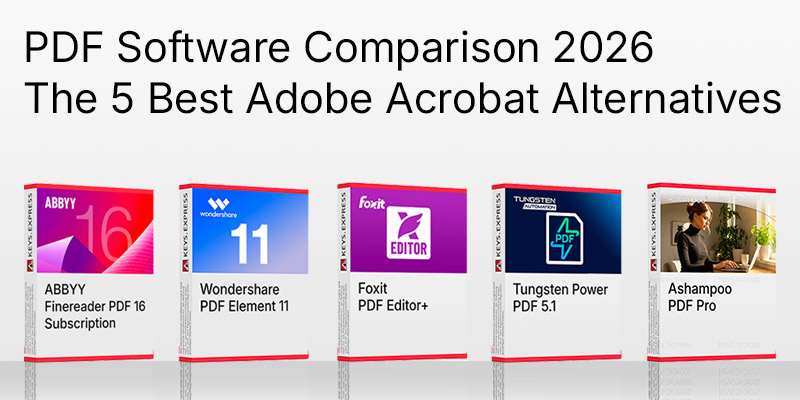
PDF Software Comparison 2026 - The 5 Best Adobe Acrobat Alternatives
Side-by-side look at the leading Acrobat alternatives:
It decrypts PDF documents that carry Microsoft Rights Management protection so they can be opened in Foxit PDF Reader. Without a licensed RMS plugin, an AD RMS-protected PDF sent from Outlook or pulled from a SharePoint library will not render in Foxit Reader at all. The plugin covers three protection sources: on-premises AD RMS, SharePoint IRM, and Azure Active Directory Rights Management. Once installed, the RMS options appear under the Protect area or in Preferences, and the document opens with the permissions the rights owner assigned.
It fits organisations where a small group creates rights-protected PDFs and a much larger group only needs to read them. A finance department that publishes AD RMS-protected reports, for example, can license full PDF editors for the handful of authors and equip everyone else with Foxit PDF Reader plus this plugin. The alternative — giving every reader a full PDF editor purely to open protected files — costs considerably more per seat for capability nobody uses. It is not the right choice for users who also need to apply protection themselves.
The UnProtect plugin decrypts only; the UnProtect & Protect plugin also applies AD RMS protection to PDF files. The Protect variant additionally supports local policy templates, which means it can use security settings that SharePoint's standard policy templates do not offer, and it adds dynamic security watermarks and wrapper-page customisation. If your users will ever need to classify or encrypt a document themselves, the UnProtect-only plugin will not cover that task and cannot be extended to do so.
| Function | RMS UnProtect | RMS UnProtect & Protect |
|---|---|---|
| Decrypt AD RMS PDFs | ✓ | ✓ |
| Decrypt SharePoint IRM | ✓ | ✓ |
| Azure RMS environments | ✓ | ✓ |
| Apply RMS encryption | ✕ | ✓ |
| Dynamic watermarks | ✕ | ✓ |
| Local policy templates | ✕ | ✓ |
| Wrapper page customisation | ✕ | ✓ |
No. This plugin only removes RMS protection for authorised viewers; it does not apply certificate-based digital signatures, qualified electronic signatures, or RMS encryption. Signature workflows in the Foxit range are handled by Foxit PDF Editor or Foxit eSign, which are licensed separately. Buyers who assume that a document-security plugin also covers signing will need one of those products alongside it. The same applies to OCR text recognition, which belongs to the editor line and is not part of any RMS plugin.
The plugin is offered for Foxit PDF Reader on Windows, macOS and Linux, and it covers both on-premises AD RMS and cloud-based Azure Active Directory Rights Management. That matters for mixed environments where engineering runs Linux workstations and administration runs Windows, since one rights-management policy then applies across all three platforms. On the cloud side, Azure RMS lets the reader sign in to the rights server directly rather than requiring a domain-joined machine. Confirm which environment your organisation actually operates before purchase, because the deployment steps differ between AD RMS and Azure RMS.
Check that a Microsoft rights management infrastructure already exists, because the plugin is a client component and provides no rights server of its own. On-premises AD RMS deployments require the Active Directory Rights Management Service Client to be installed on the workstation first, and Office 365-based Azure RMS additionally expects the Microsoft Online Services Sign-in Assistant. The plugin version should match the installed Foxit PDF Reader version to avoid compatibility problems. Also confirm whether any of your users need to create protected documents, since that requires the UnProtect & Protect variant instead.
Foxit lists the RMS plugin for Foxit PDF Reader and for PhantomPDF Standard, the earlier name of the Standard editor tier. Higher editor tiers include rights management functions natively, so a separate plugin is not the intended route there.
No. The RMS PDF Protection Tool is a server-side product within Foxit PDF Security Suite that protects and unprotects PDFs programmatically through command line and C interfaces for batch and event-driven jobs. This plugin is a desktop reader component with no scripting or batch interface.
RMS functions appear in the Protect area of the ribbon and under the RMS settings in Preferences. If they are missing after installation, the usual causes are a version mismatch with Foxit PDF Reader or a missing Active Directory Rights Management Service Client.
| Operating Systems | Windows 11 Windows 10 Windows 8.1 Windows 7 |
| Processor | 1.3 GHz or faster processor. |
| Memory RAM | 512 MB minimum. |
| Hard Disk | 1 GB available disk space. |
| Display | 1024 x 768 screen resolution. |
| Note | Internet connection required for activation and RMS services. All available Foxit Reader updates should be installed. |
| Operating Systems | macOS Sierra 10.12 or later |
| Processor | Intel or Apple Silicon processor. |
| Memory RAM | 512 MB minimum. |
| Hard Disk | 1 GB available disk space. |
| Display | 1024 x 768 screen resolution. |
| Note | RMS capability is available in the Foxit Reader edition downloaded from Foxit's official website. The Mac App Store edition does not include RMS capability. Internet connection required for activation and RMS services. |
| Operating Systems | Linux kernel 2.6 or later |
| Processor | 1.3 GHz or faster processor. |
| Memory RAM | 512 MB minimum. |
| Hard Disk | 1 GB available disk space. |
| Note | Linux compatibility and hardware requirements are based on the exact product listing because no current Foxit technical page for this exact Linux plugin SKU was found. Internet connection required for activation and plugin use. |