If you have Office 365 installed on your machine, you need to uninstall it completely by following the
Microsoft 365 Deinstallation.
Office Installation
- Download the two files — Office Standard (installer) and Product Key (serializer) — from the links provided in your email or invoice.
- Check your macOS version before installation:
- For macOS 10.14 (Mojave) through macOS 12 (Monterey), use Office 2021 version 16.53 (Intel or early Apple Silicon via Rosetta).
- For macOS 11 (Big Sur) through macOS 14 (Sonoma), use Office 2021 version 16.77 (Intel and Apple Silicon, Universal Binary).
- Double-click the installer and follow the on-screen prompts until it finishes.
- Run the serializer file to activate your license once installation is complete.
- Open Word, Excel, PowerPoint, or Outlook from the Applications folder. Office will automatically check for updates — allow it to finish.
Hint: If a message appears saying you must update macOS for newer Office updates, you can safely close it — your current version is already up to date.
- When prompted to sign in, select "Skip sign in" to continue without a Microsoft account.
Hint: Each Office app may ask you to sign in again — just skip it each time.
- After confirming all apps open and save files normally, you may sign in later if you prefer — it’s optional.
Microsoft 365 Deinstallation
- In the Applications folder, select and move Word, Excel, PowerPoint, Outlook, and OneNote to the Trash.
- Use Spotlight search (the magnifying glass icon at the top right) and type: Microsoftregistrationdb

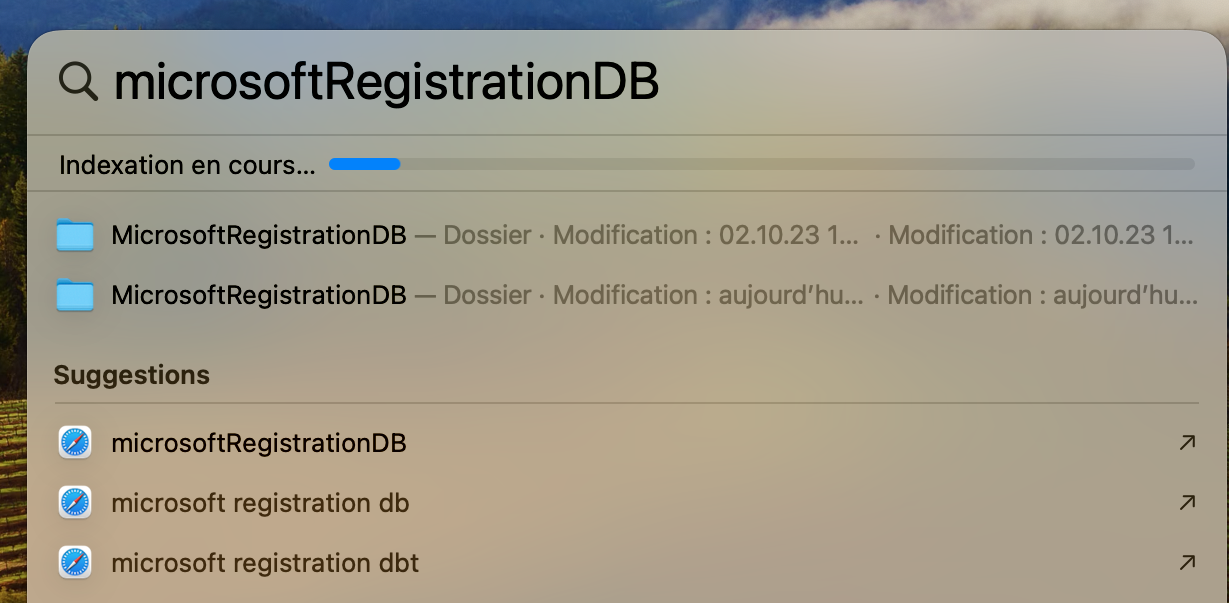
- Click on the Microsoftregistrationdb folder to open it.
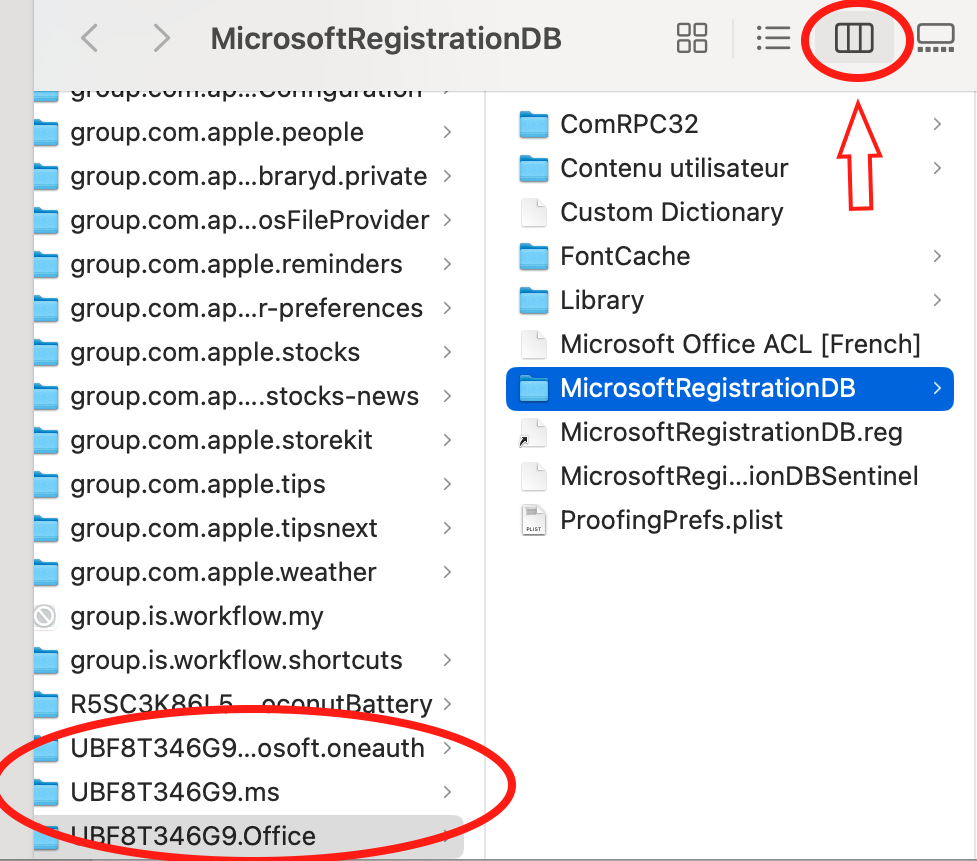
- Select Column View to display the folder containing MicrosoftRegistrationDB.
- Select and move the following three folders starting with “UBF8T346G9” to the Trash:
- UBF8T346G9.com.microsoft.oneauth
- UBF8T346G9.ms
- UBF8T346G9.Office
- Empty the Trash.
- Office 365 is now completely removed. Reinstall Office by following the Office Installation steps above.
Installation Error
If you encounter an error and Office does not activate:
- Confirm that the version of Office you are installing matches your macOS version:
- Use the 16.53 installer for macOS Mojave through Monterey.
- Use the 16.77 installer for macOS Big Sur through Sonoma.
- If Office asks you to log in to a Microsoft account, this means Office 365 was not completely uninstalled. Follow the Microsoft 365 Deinstallation procedure again.
- After removing all Office 365 components, reinstall the correct Office version followed by the Serializer.
- Open any Office app and wait for automatic updates to complete.
- When prompted to sign in, choose "Skip sign in".
- Each program (Word, Excel, PowerPoint, Outlook) may request sign-in again — skip it each time.
- After confirming all applications work properly, you may sign in later if desired.
If you still experience installation or activation issues, please contact us through our
contact form and include a screenshot of the error message. We are happy to assist you.
Your Keys.Express Team
SKU:
1929, 1480, 1959, 1919