
For a detailed guide with screenshots, visit our step-by-step tutorial.
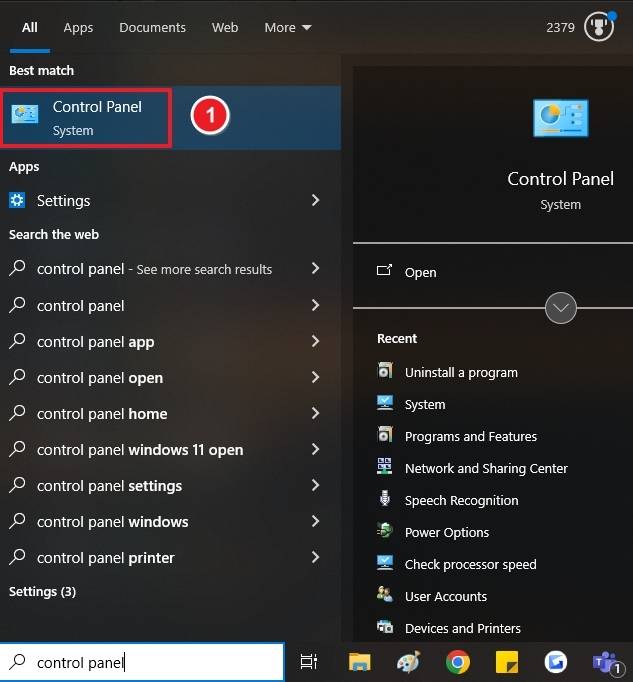
EN_Excel2019Retail.img in your Downloads folder.1. Uninstall Old Office Versions: In the Windows search bar, type Control Panel and select it.
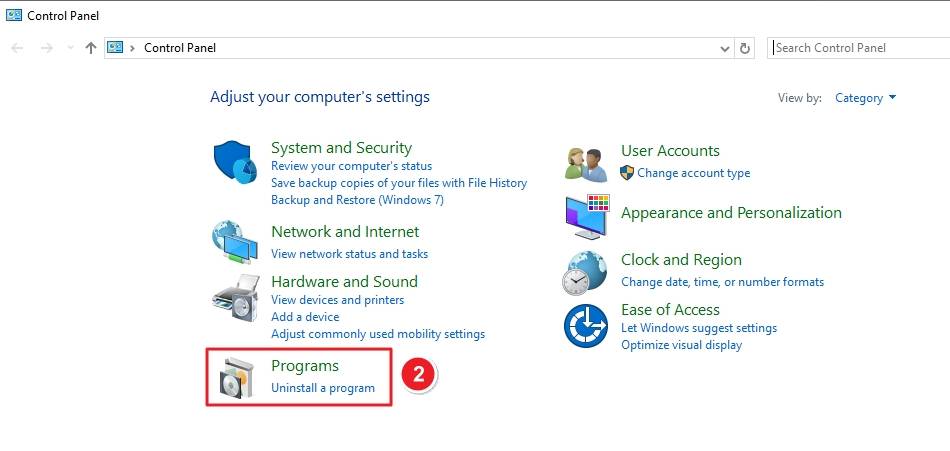
2. Inside Control Panel, click Programs → Uninstall a program.
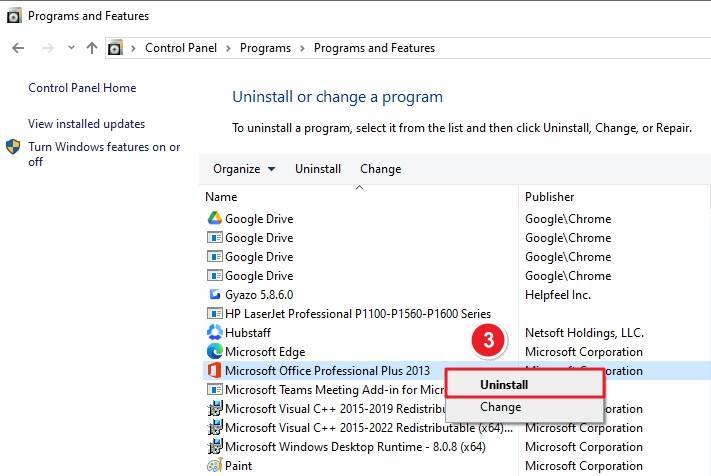
3. Locate your existing Microsoft Office version (e.g., Office 2013), right-click it, and choose Uninstall.
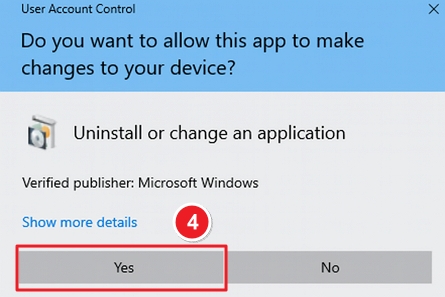
4. If prompted by User Account Control, click Yes.
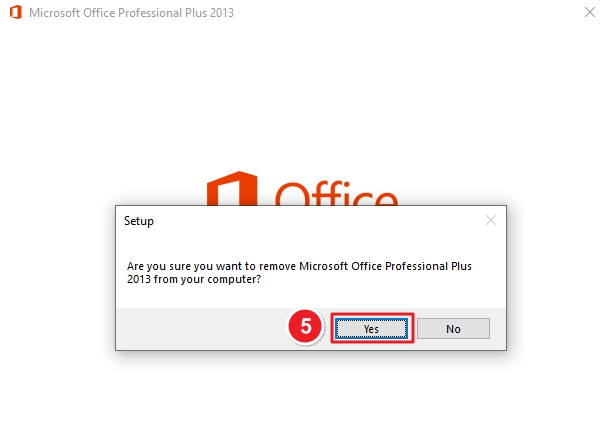
5. When asked to confirm, click Yes again.
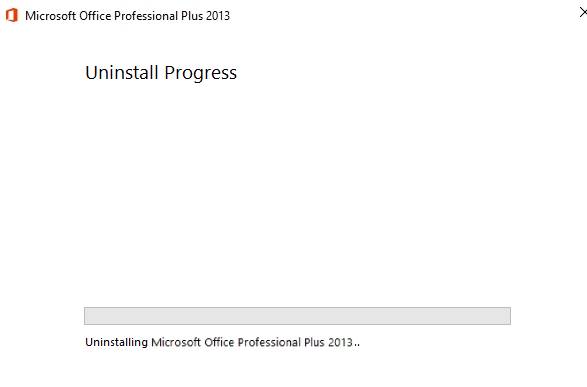
6. Wait for the Uninstall Progress to complete.
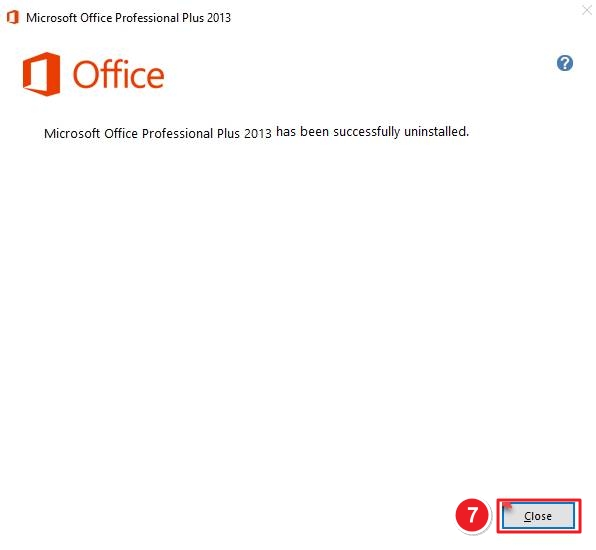
7. Once finished, click Close.
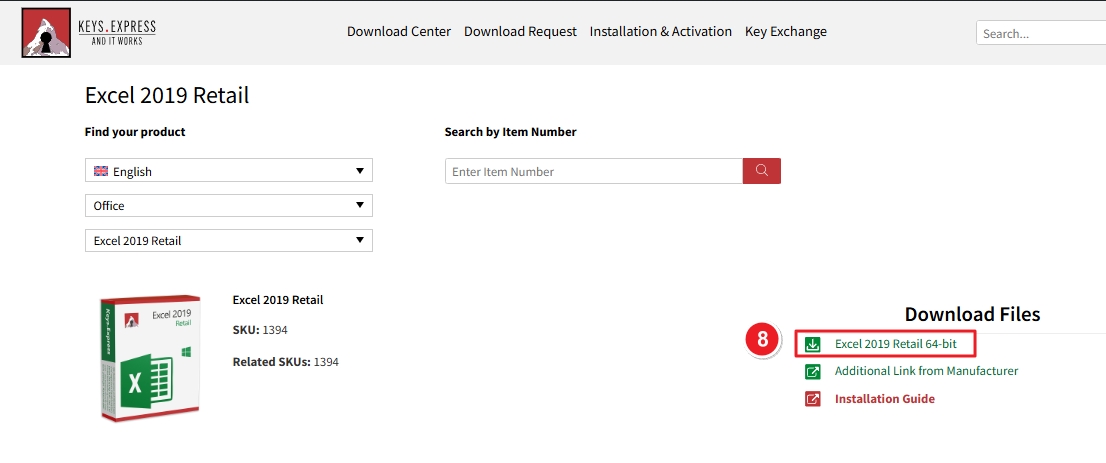
8. Go to the Download Center link from your order email. Click on Excel 2019 Retail 64-bit to start the download.
9. Once downloaded, open your Downloads folder and locate the file EN_Excel2019Retail.img.
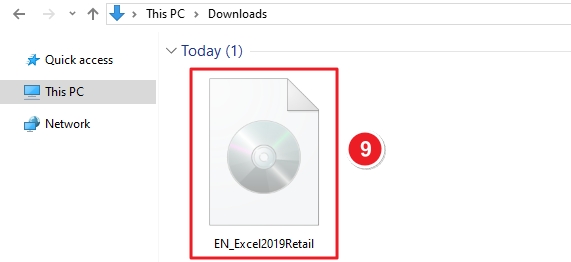
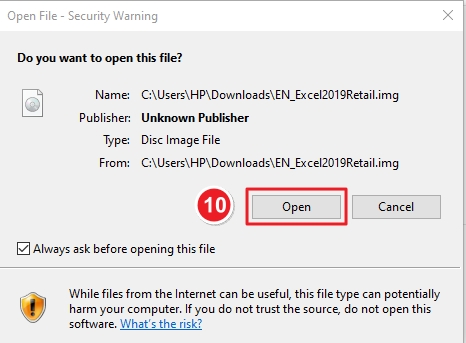
10. Double-click the file and click Open when the Security Warning appears.
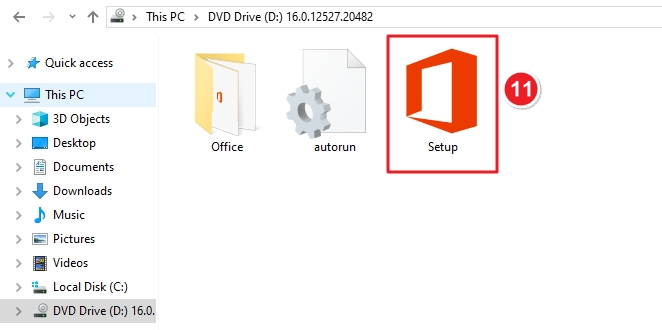
11. After opening the image file, a virtual DVD drive will appear under This PC.
Open DVD Drive (D:) and double-click the Setup icon.
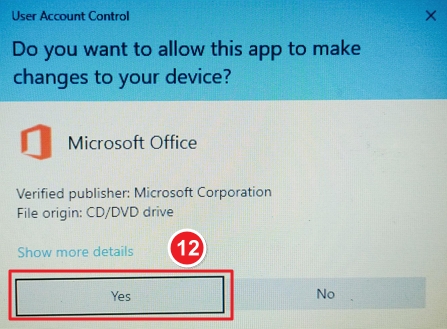
12. When asked by User Account Control to allow changes, click Yes.
13. The installation will begin automatically — wait while Office installs.
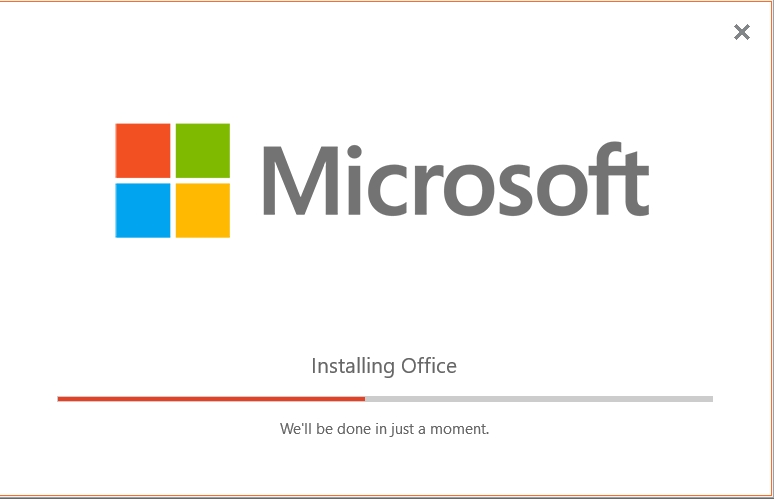
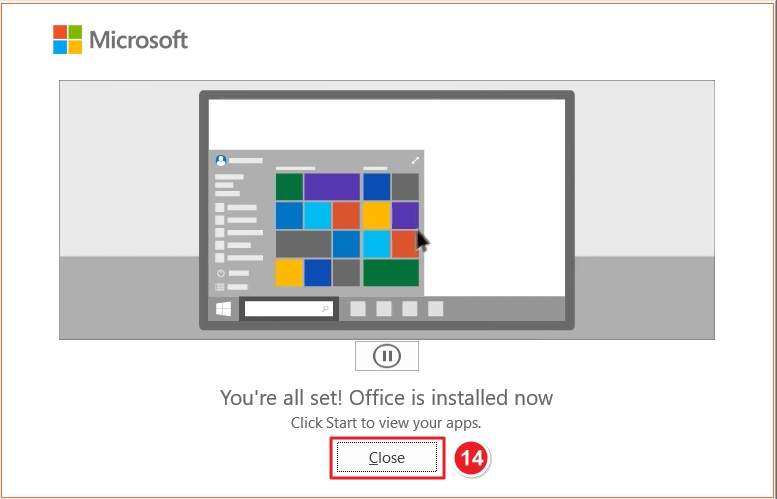
14. When installation completes, click Close on the success message.
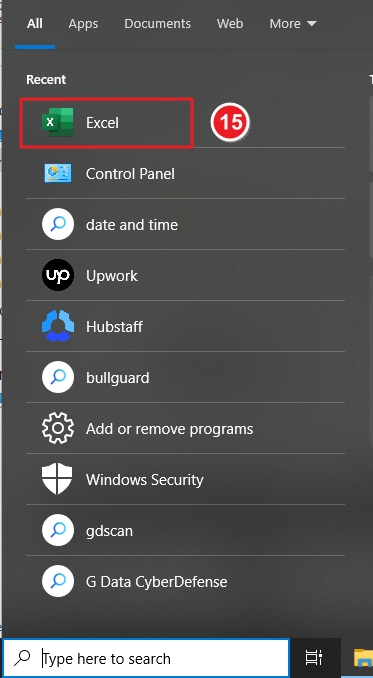
15. Open Excel from the Start Menu.
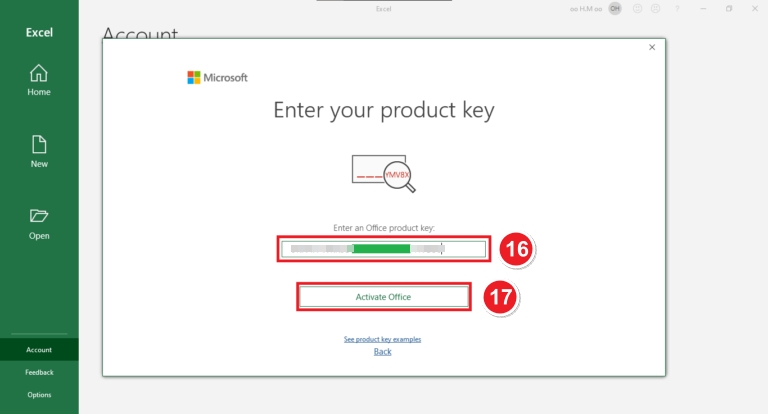
16. Enter your Product Key provided in your order email.
17. Click Activate Office to complete the activation.
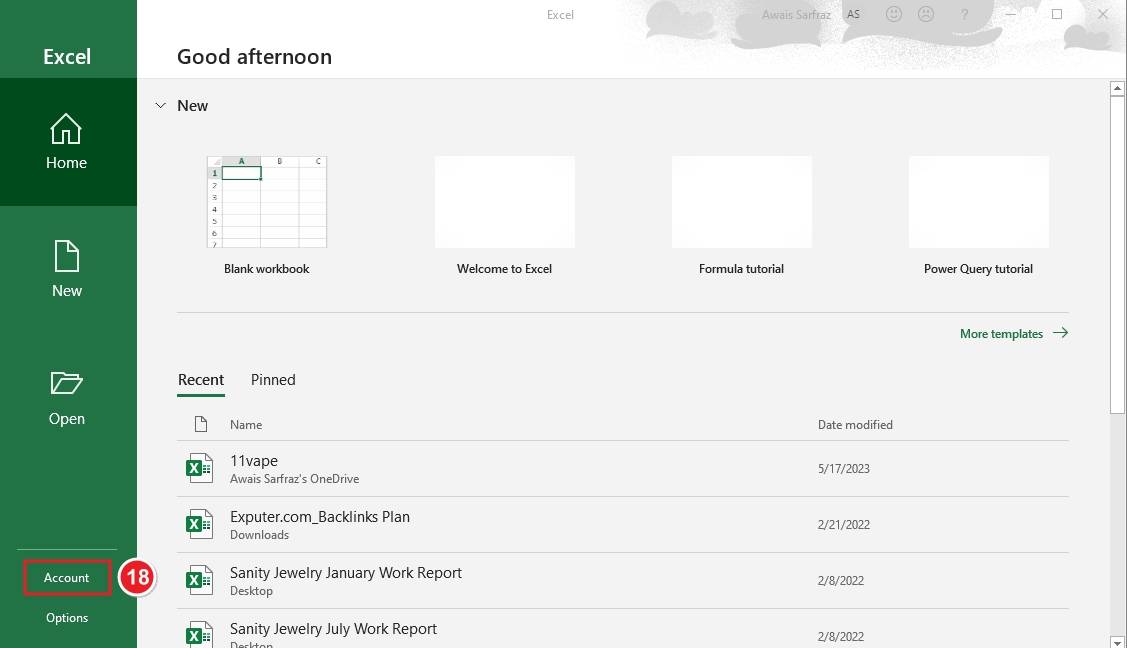
18. Inside Excel, click Account from the left-hand menu.
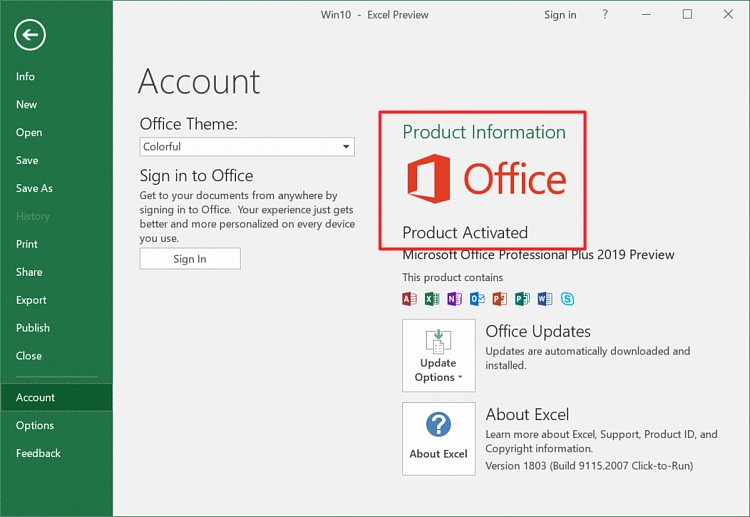
19. Under Product Information, confirm that Product Activated is displayed next to the Office logo.
If there are any further problems with the installation or activation, please write to us. Simply use our contact form and send a screenshot of the error message at the same time. We are happy to help you.
Your Keys.Express Team
SKU: 1491, 1394, 1494, 1391, 1392, 1492, 1497, 1397, 1470, 1398, 1393, 1495, 1395, 1396


