
For a detailed guide with screenshots, visit our step-by-step tutorial.
Follow the link in your invoice to our download center and download the version that matches your license:
In the download center, select your preferred installation language, then click the red Download button.
Save the setup file (for example: kaspersky_standard.exe) to your computer.
Double-click the downloaded setup file to start the installation.
If the User Account Control (UAC) window appears asking “Do you want to allow this app to make changes to your device?”, click Yes.
The Kaspersky installer will open.
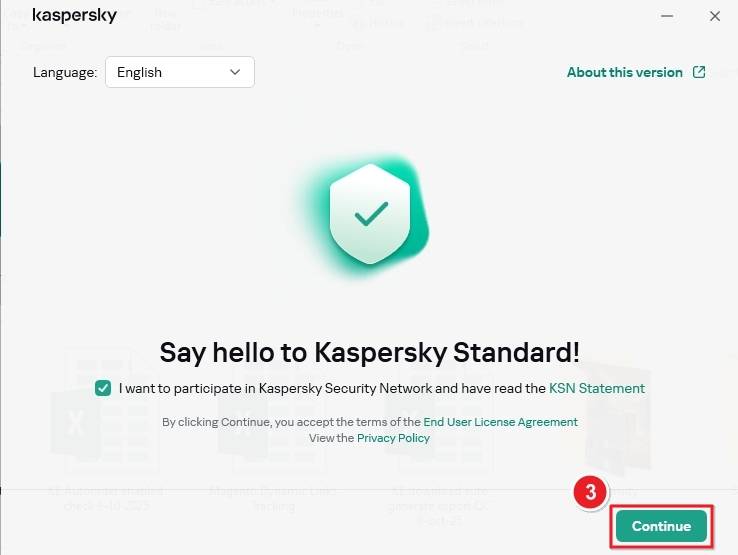
Click Continue to accept the license agreement and privacy policy, then choose Install.
The installation will begin and automatically download required files from Kaspersky servers.
When the process finishes, click Done to complete the setup.
After the installation is complete and verified, you can activate your Kaspersky product:
Once the activation is successful, your protection status will show “Your computer is protected.”
If prompted, restart your computer to finalize the setup.
Open the link from your invoice to access our Download Center. In the left menu, select your language, choose Security Solutions, then pick Kaspersky Standard, Plus, or Premium from the product list. Finally, click the green Kaspersky Standard download button.

Once the download is complete, go to your Downloads folder. You will see the setup file, for example: kaspersky4win2021.22.7.466ar_en_46686.exe
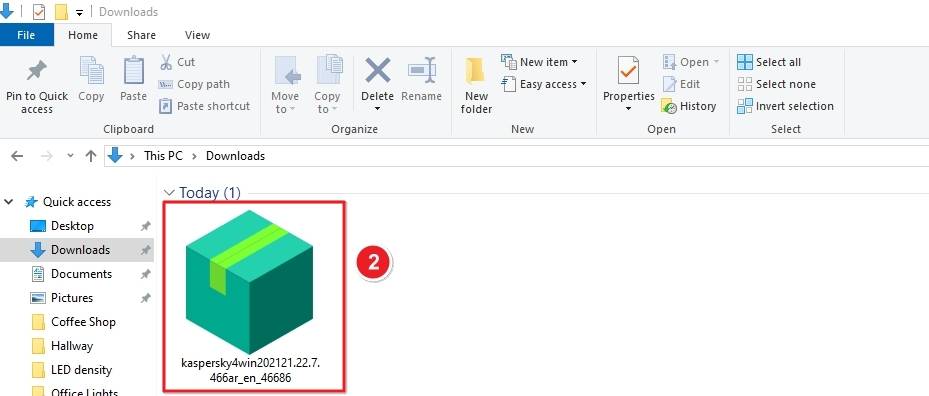
Double-click the downloaded file to launch the Kaspersky installer.
Display the welcome screen saying “Say hello to Kaspersky Standard!” and click Continue.
If the User Account Control (UAC) window appears asking “Do you want to allow this app to make changes to your device?” click Yes to proceed.

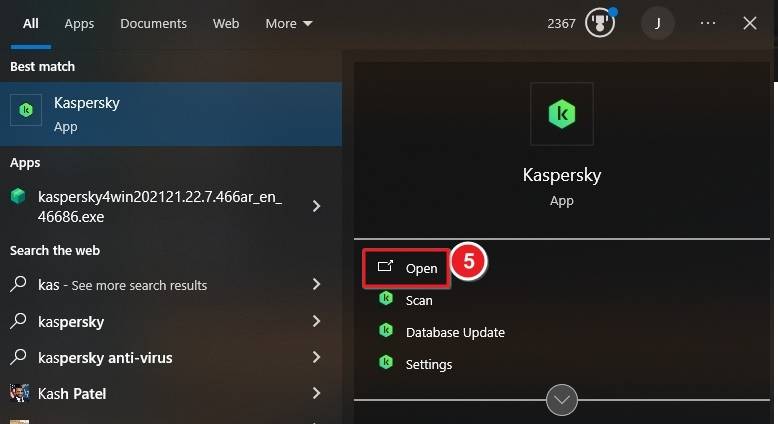
After installation is complete, Kaspersky will appear in your Start Menu. Search for Kaspersky, then click Open to launch the application.
When Kaspersky starts, you’ll see a welcome message that says “Perfect! You’ve successfully installed the app.”
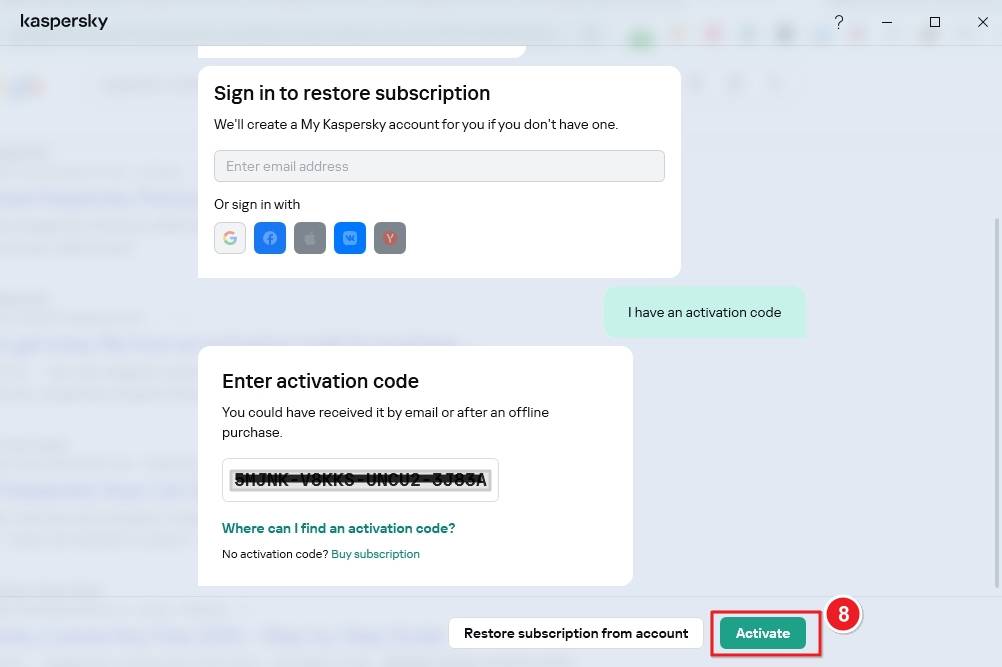
Click the option I have an activation code to begin activation

Enter the 25-character activation code from your invoice (for example:
XXXXX-XXXXX-XXXXX-XXXXX).
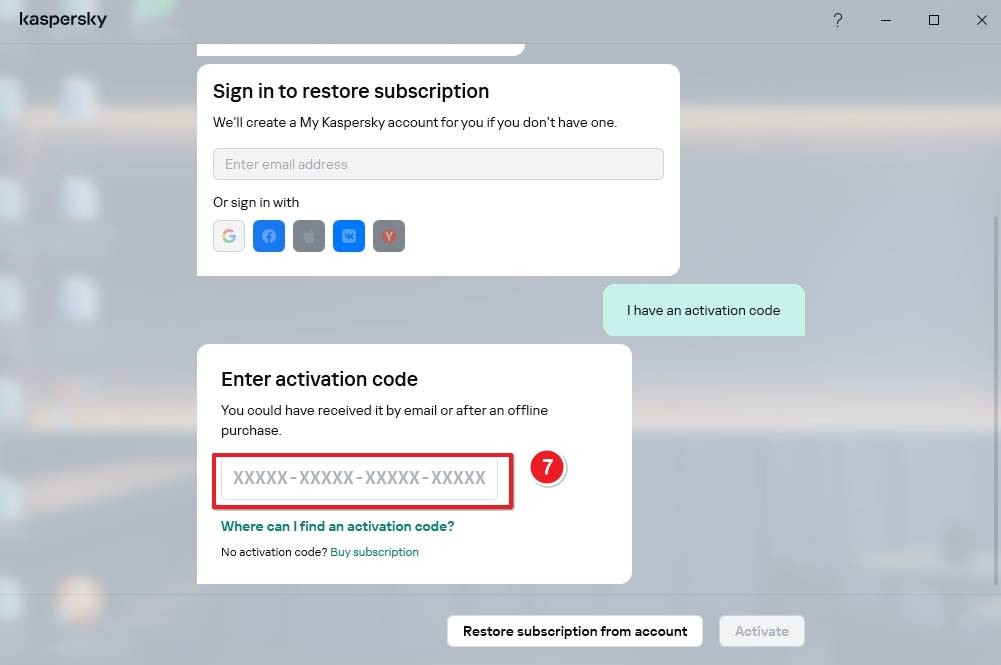
Click the Activate button to complete activation.
If you experience any issues during installation or activation, please contact us using our contact form and attach a screenshot of the error message so we can assist you quickly.
Your Keys.Express Team
SKU: 5409, 5410, 5034, 5025, 5036, 5037, 5038, 5039, 5475, 5040, 5476, 5477, 5041, 5042, 5043, 5044, 5045, 5635, 5914, 5919, 5406, 5903, 5911, 5904, 5905, 5906, 5907, 5908, 5909, 5910, 5912, 5913, 5915, 5916, 5917, 5918, 5920, 5921, 5922, 5877, 5923, 5924, 5925, 5195


