How to Fix Dropped Activation on Office 2021 & 2024 for Mac
If your Office 2021 or Office 2024 for Mac installation suddenly loses its activation status, flags the software as not activated, or prompts you for a personal Microsoft 365 account sign-in, this is could be caused by an automated software update conflict.
Microsoft uses a single, unified installer file for both subscription-based software and perpetual (permanent) licenses. If Microsoft AutoUpdate (MAU) inadvertently applies a standard retail update track to your Mac, the updated application files will override your permanent local license. This causes the software to revert to standard subscription behavior, triggering immediate activation prompts and locking apps into a read-only trial mode.
Follow this verified step-by-step resolution to completely flush the conflicting data, restore your permanent activation state, and prevent future disruption.
Step 1: Clear the Stale Retail Licensing Data #
Before restoring your software version, you must completely purge the conflicting retail tokens currently cached on your Mac.
- Close all Microsoft Office applications completely.
- Download the official utility from Microsoft: Microsoft Office License Removal Tool.
- Open the downloaded
.pkgfile and follow the on-screen installation wizard. Click Continue, then click Install to execute the script. - If prompted, enter your Mac’s administrator password.
- Once the tool finishes successfully, click Close. Do not open any Office applications yet.
Step 2: Install the Permanent Channel App Build #
To properly respect your permanent deployment, Office apps must remain on a designated perpetual branch rather than the standard monthly consumer update track.
- For Office 2024: Download and run the specific standalone installer package corresponding to your designated LTSC production branch (available in our Download Center)
- For Office 2021: Re-install the original static Office 2021 application bundle installer from our Download Center. Do not download the installation suite from the Mac App Store or consumer Microsoft 365 download portals.
Step 3: Run the Corresponding Serializer (Key) you received with your order #
The serializer applies the background cryptographic stamp to your local hard drive that tells the applications your license is permanently valid.
Step 4: Disable Automatic Updates (Crucial) #
To permanently lock in your activation state and prevent future retail updates from breaking the license again, you must turn off automated background updates.
- Open Finder, navigate to Applications, and launch Microsoft Word.
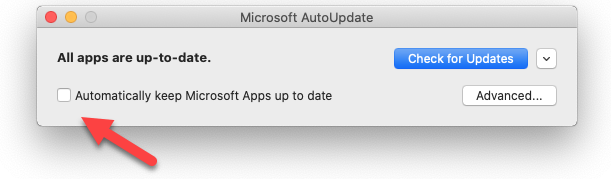
- In the top Mac menu bar, click Help, then select Check for Updates. This will launch the separate Microsoft AutoUpdate window.
- Locate the checkbox labeled “Automatically keep Microsoft apps up to date”.
- Uncheck this box completely.
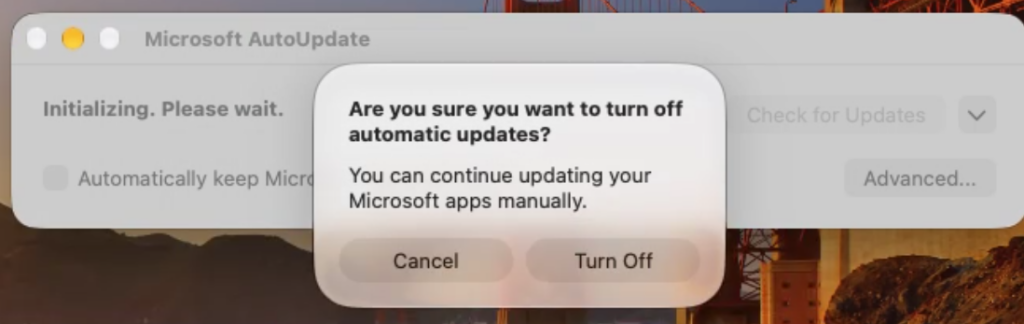
- When the system displays a confirmation prompt asking if you want to turn off automatic updates, click Turn Off.
- Close the update utility. Your activation status will now remain stable indefinitely.