
For a detailed guide with screenshots, visit our step-by-step tutorial.
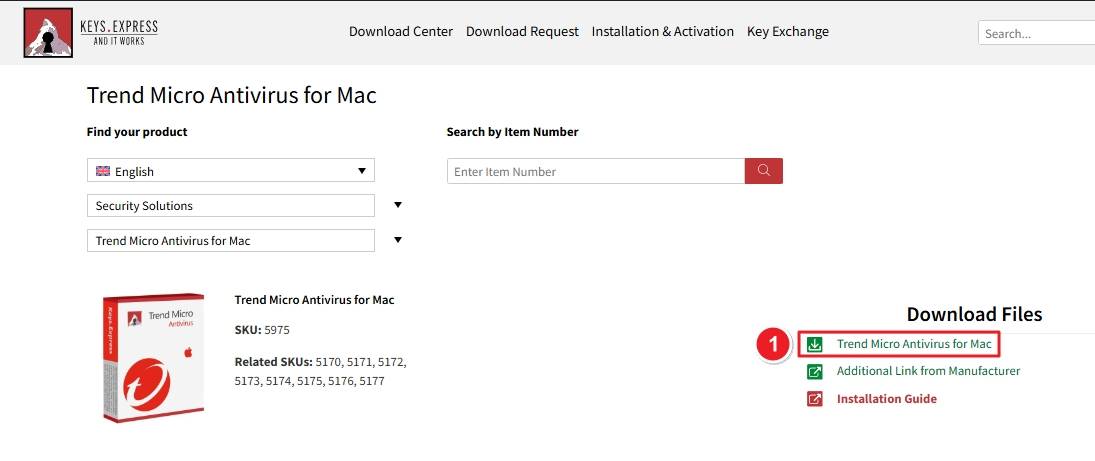
.dmg file on your desktop or Downloads folder and double-click it.From the official or authorized source (such as Keys.Express): Click Download next to Trend Micro Antivirus for Mac.
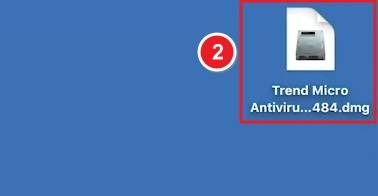
Find the file named:Trend Micro Antiviru..dmg Double-click to open the disk image.
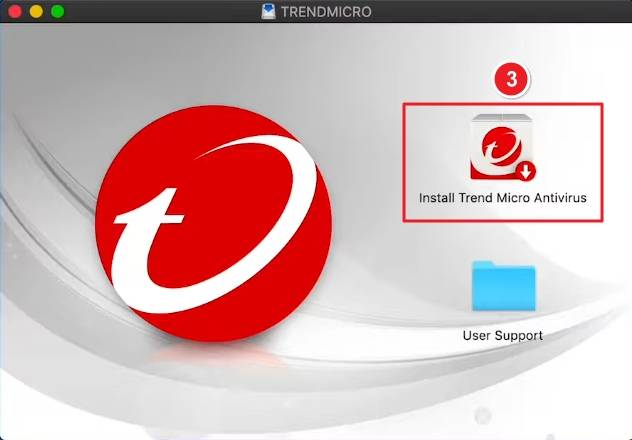
Inside the mounted image, double-click: Install Trend Micro Antivirus
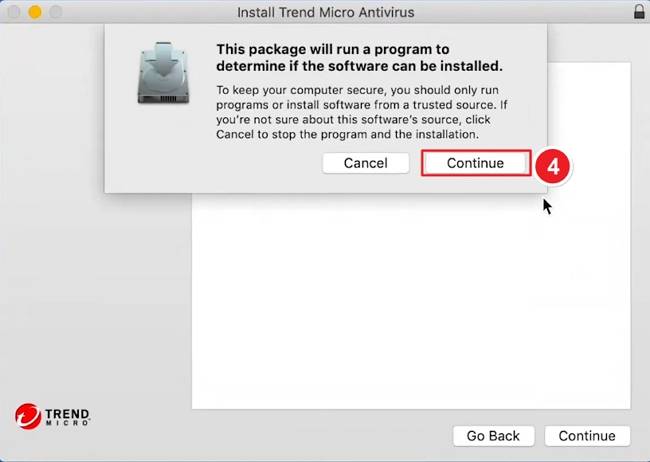
A prompt appears: “This package will run a program to determine if the software can be installed.” Click Continue to proceed.
The installer will open with an introduction about Trend Micro Antivirus. Click Continue.
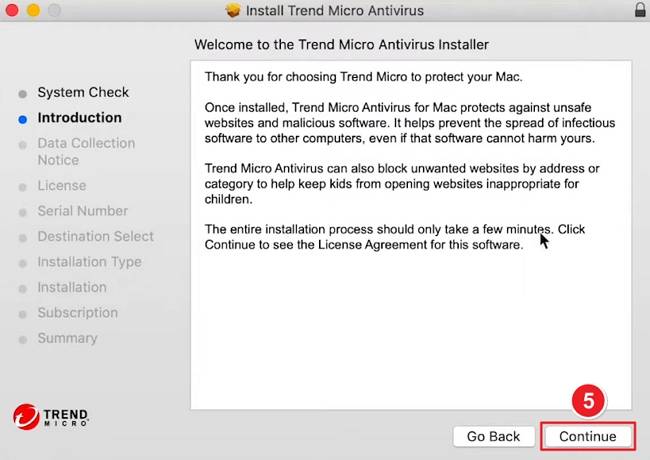
Read the terms and click Continue, then choose Agree to proceed.
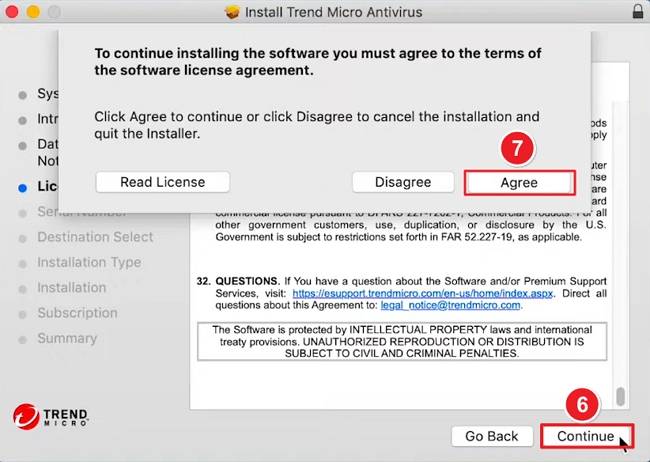
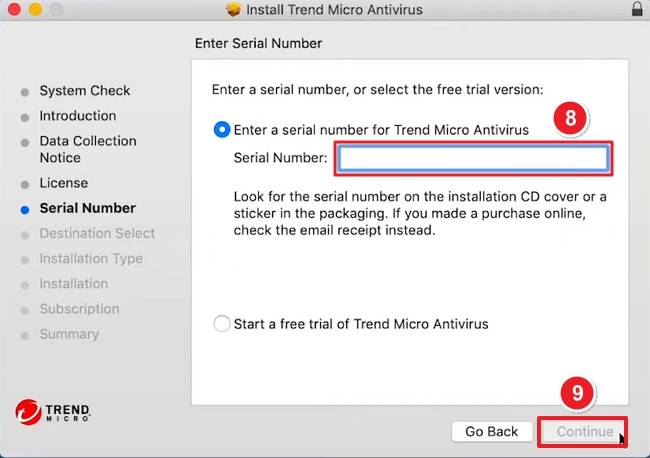
Select: Enter a serial number for Trend Micro Antivirus, then input your product key. Click Continue to proceed.
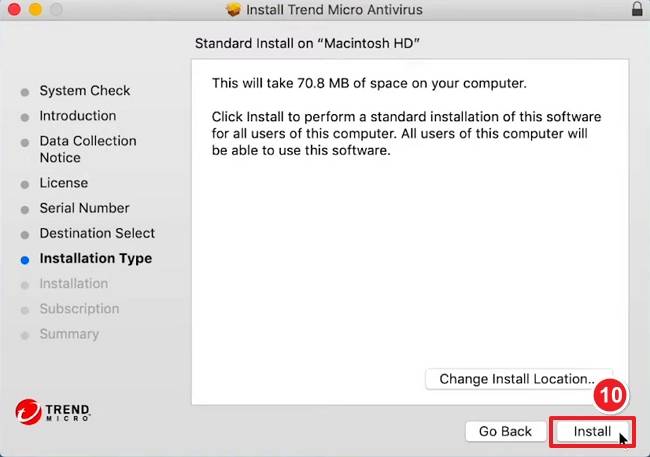
You’ll see: “This will take 70.8 MB of space on your computer.” Click Install to perform a standard installation.
Enter your Mac administrator username and password, then click Install Software.
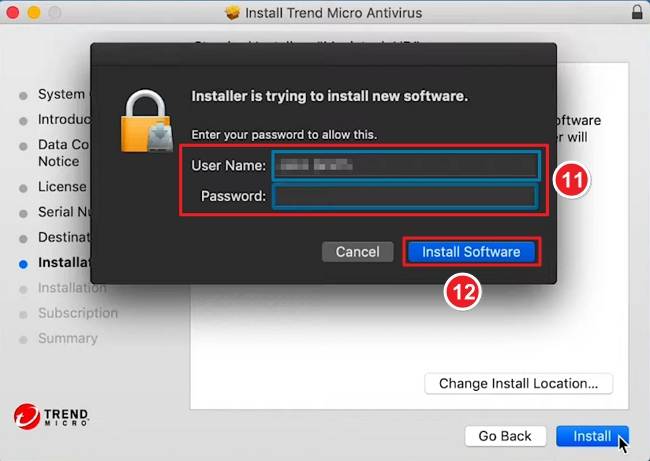
The installer will copy the necessary files. Wait until the process completes. Once done, you’ll see a confirmation screen.
When finished, you’ll see a green checkmark screen saying: “Installation Successful – Trend Micro Antivirus now protects you.” Click Close to exit the installer.
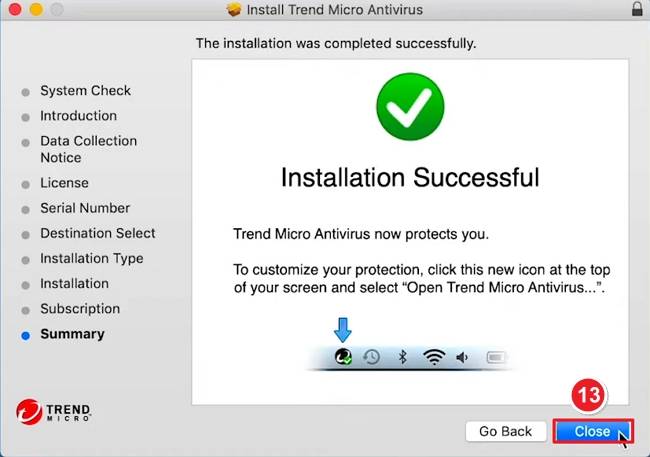
Check your Mac’s menu bar (top-right corner) for the Trend Micro icon (a red “T”). Click it and select “Open Trend Micro Antivirus…” to launch and customize your protection.
If you have any further problems with the installation or activation, please write to us. Simply use our contact form and send a screenshot of the error message at the same time. We will be happy to help you.
Your Keys.Express Team
SKU: 5975, 5170, 5171, 5172, 5173, 5174, 5175, 5176, 5177


