
For a detailed guide with screenshots, visit our step-by-step tutorial.
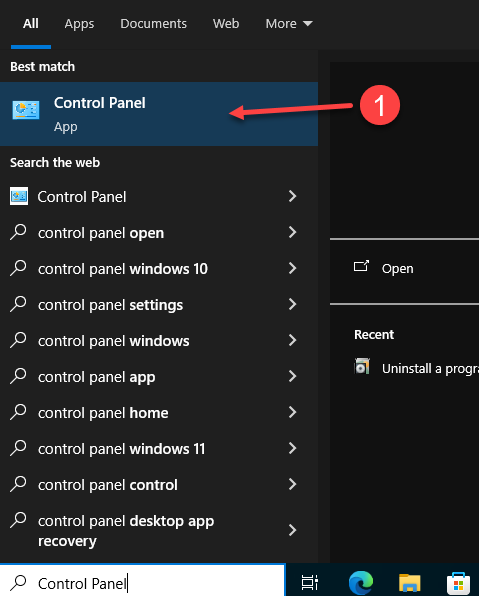
1. Uninstall older Office versions: In the Windows search bar, type Control Panel and select it.
2. Go to Programs and click Uninstall a program to remove any previous versions of Microsoft Office.
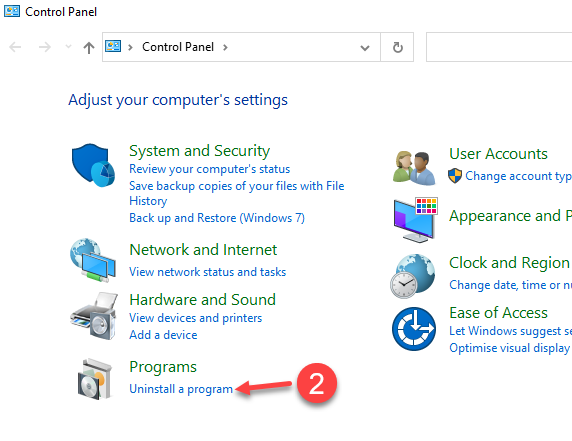
3. Click on the Office version, and then click on Uninstall

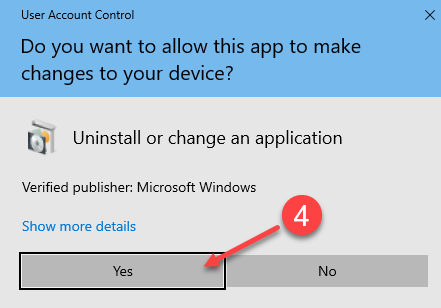
4. On the User Account Control Popup click Yes to answer "Do you want to allow this app to make changes to your device"
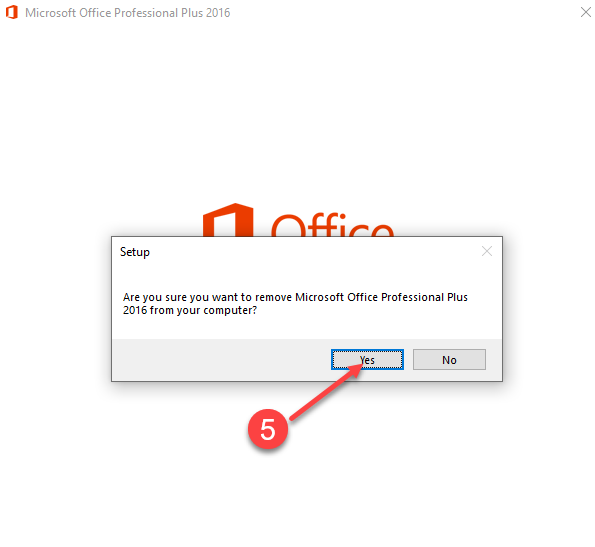
5. Click Yes
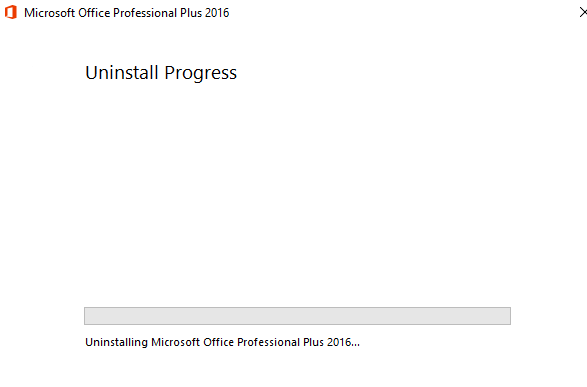
6. Waiting Uninstall Progress
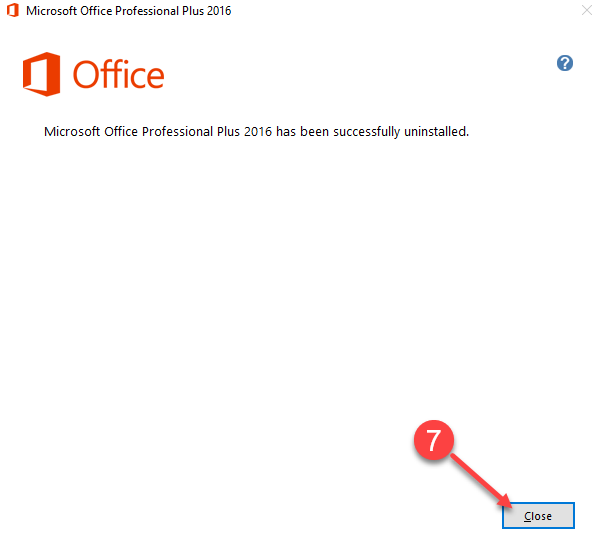
7. Click Close
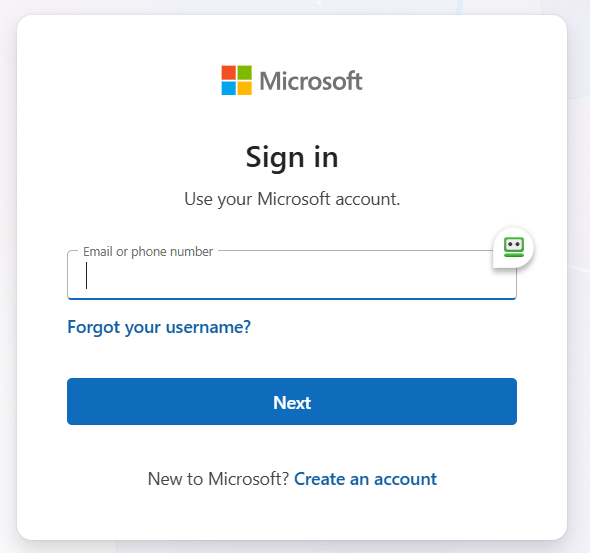
8. Go to setup.office.com and sign in with your Microsoft account.
10. Enter the email address associated with your Microsoft account and Next
11. Microsoft may send you a one-time code to the registered email address. Copy that code.
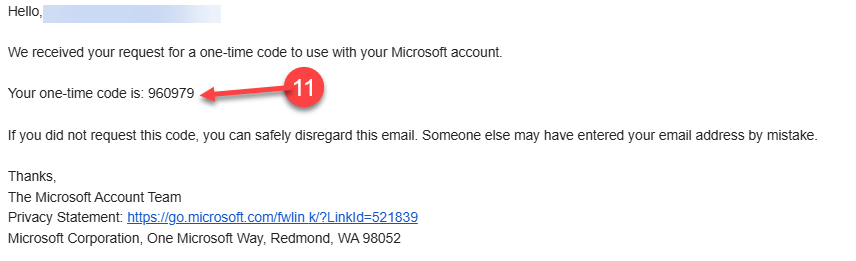
12. In the Writing Code pop-up, paste the code and click the Login button.
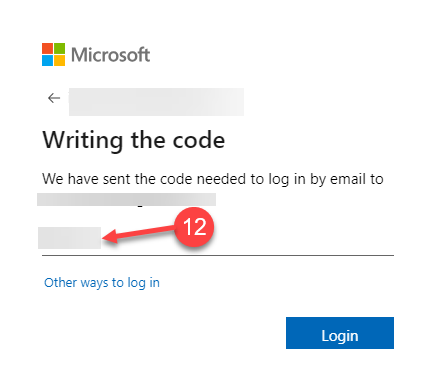
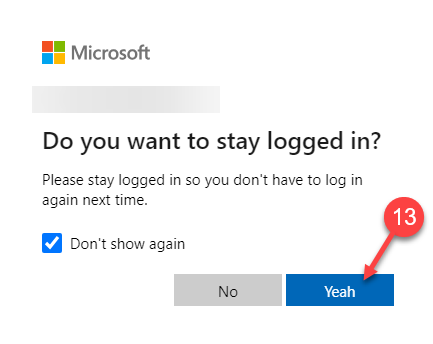
13. In the next pop-up, click Yes
14. A Product Key pop up will appear
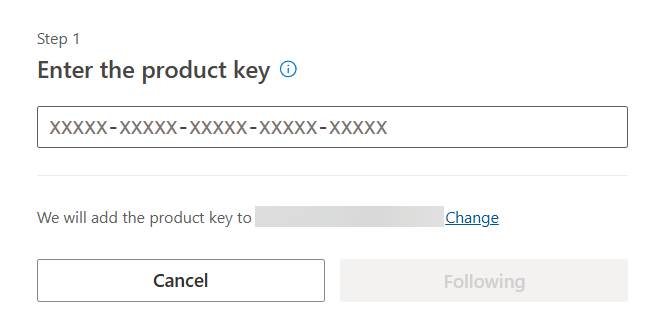
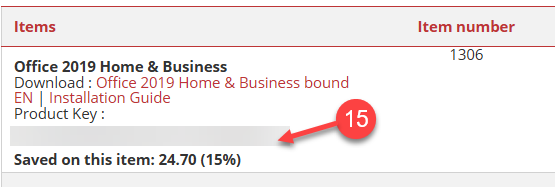
15. Copy the Product Key that we sent to your email. Please note that the delivery of this code may take several hours following the confirmation of your purchase.
16. Paste the Product Key into the pop-up and click Following button
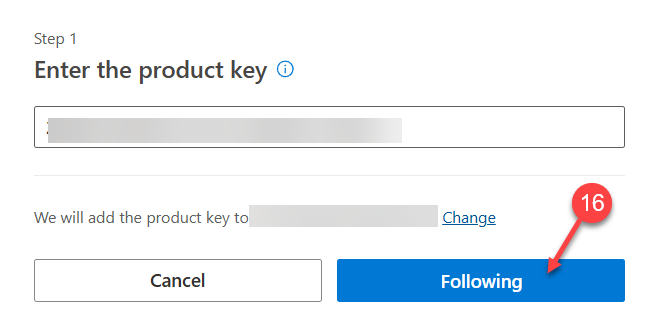
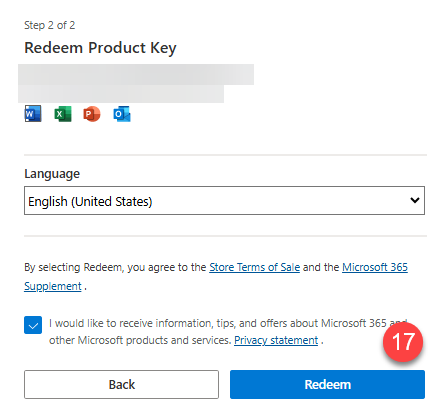
17. In the Redeem pop-up window, check the box to mark it, and then click the Redeem button
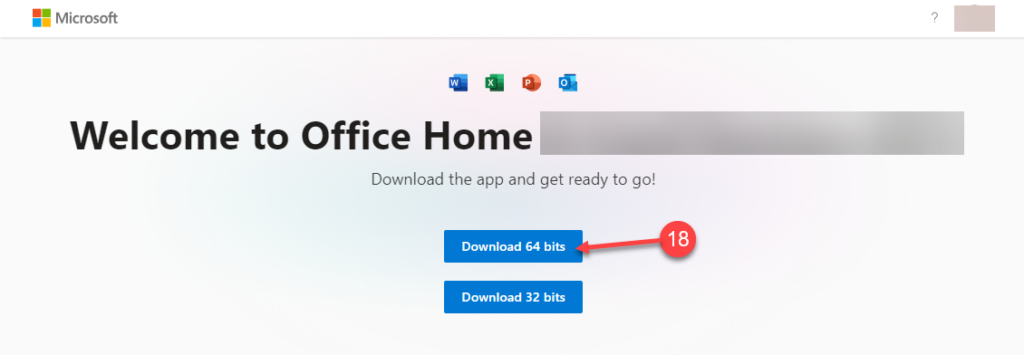
18. In the Welcome pop-up window, click the Download 64-bit button
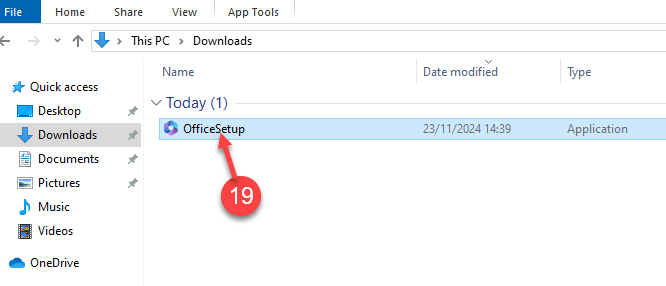
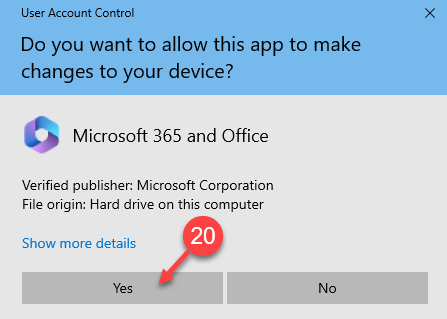
19. Once you have downloaded the .EXE file, go to your Downloads folder and click on the Office setup file
20. In the pop-up window, click Yes
21. Wait for a moment
22. In the Windows Start menu, on the right-hand side, click on the Office logo. There, you can check the progress of the installation.
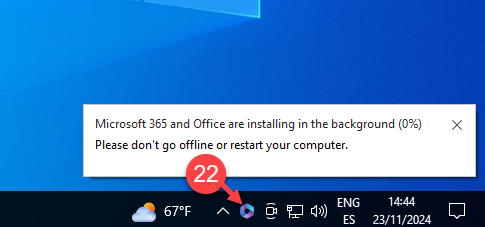
23. Please stay online while the installation process continues
24. Wait for a moment
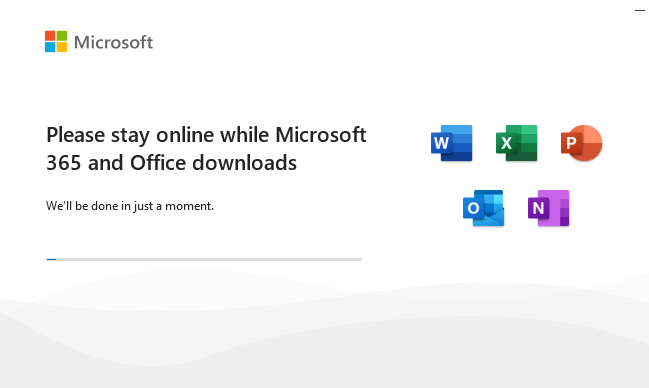
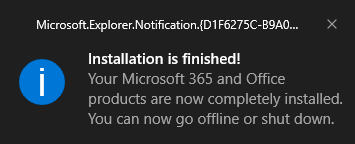
25. A pop-up window will appear confirming the successful installation.
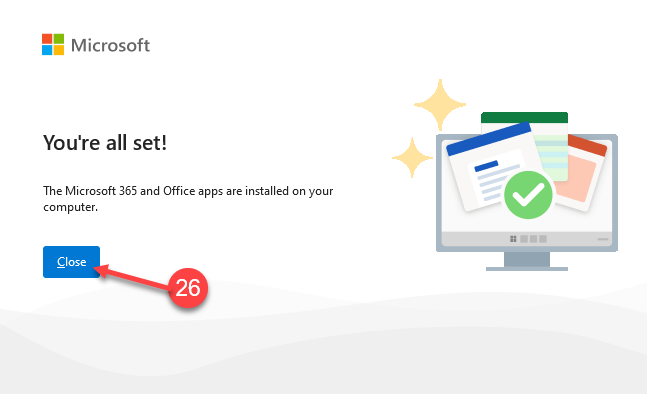
26. Microsoft 365 has been successfully installed. Click Close to finish.
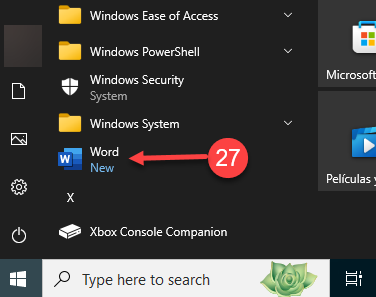
27. Click on the Start Menu in Windows, then search and click on Word
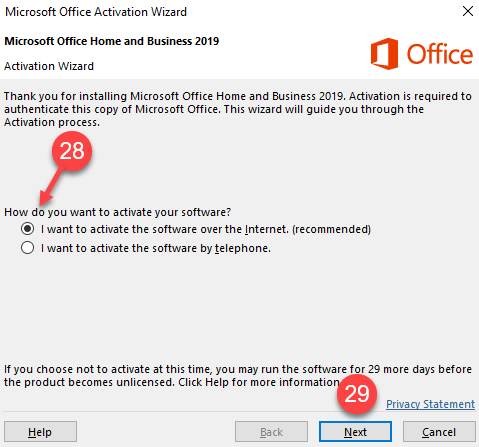
28. and 29. Click on I want to activate software over the internet. Then, click on Next button
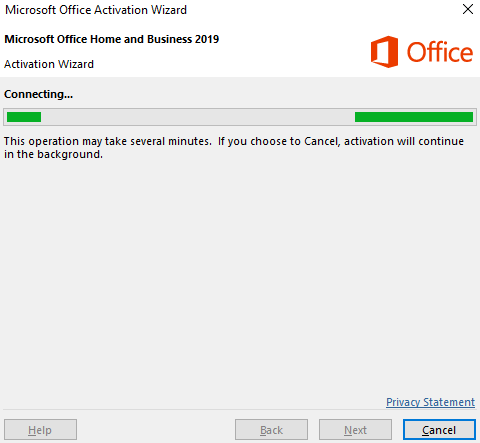
30. Wait for a moment
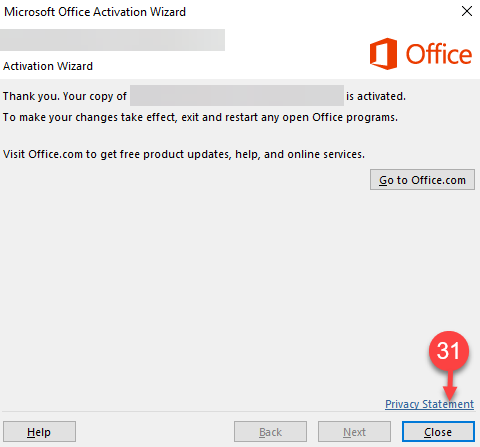
31. In the Activation Wizard pop-up, click Close
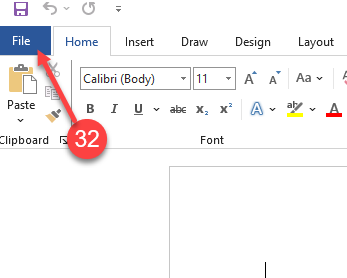
32. Click on File
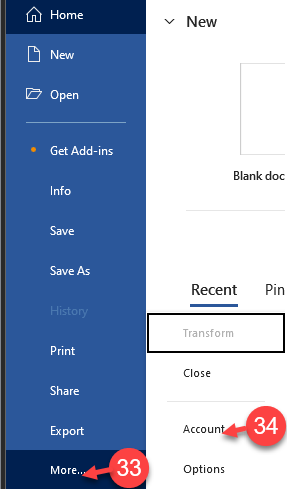
33. and 34. Click on More, then select Account
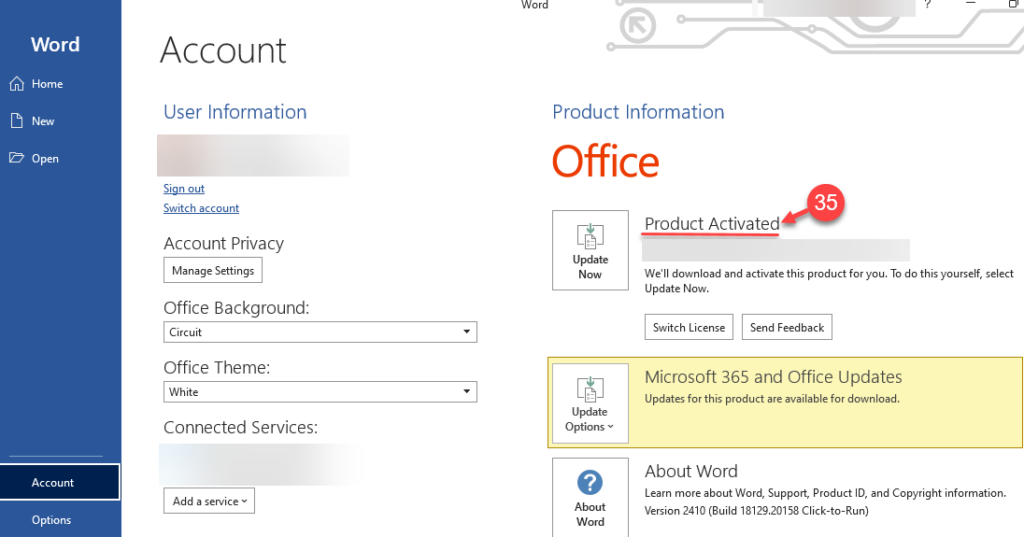
35. Check the right side of the screen to see if the Product Activated message is displayed
If there are any further problems with the installation or activation, please write to us. Simply use our contact form and send a screenshot of the error message at the same time. We are happy to help you.
Your Keys.Express Team
SKU: 1306, 1590, 1317, 1490


