
Please Note: Kaspersky Security Cloud was replaced by Kaspersky Plus. Your key will activate the newer Kaspersky Plus version.
For a detailed guide with screenshots, visit our step-by-step tutorial.
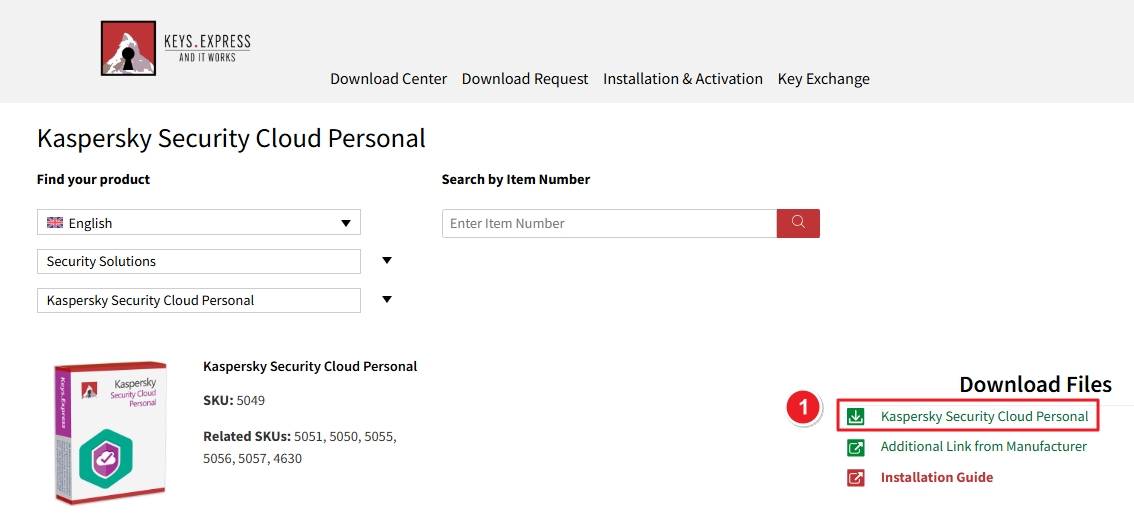
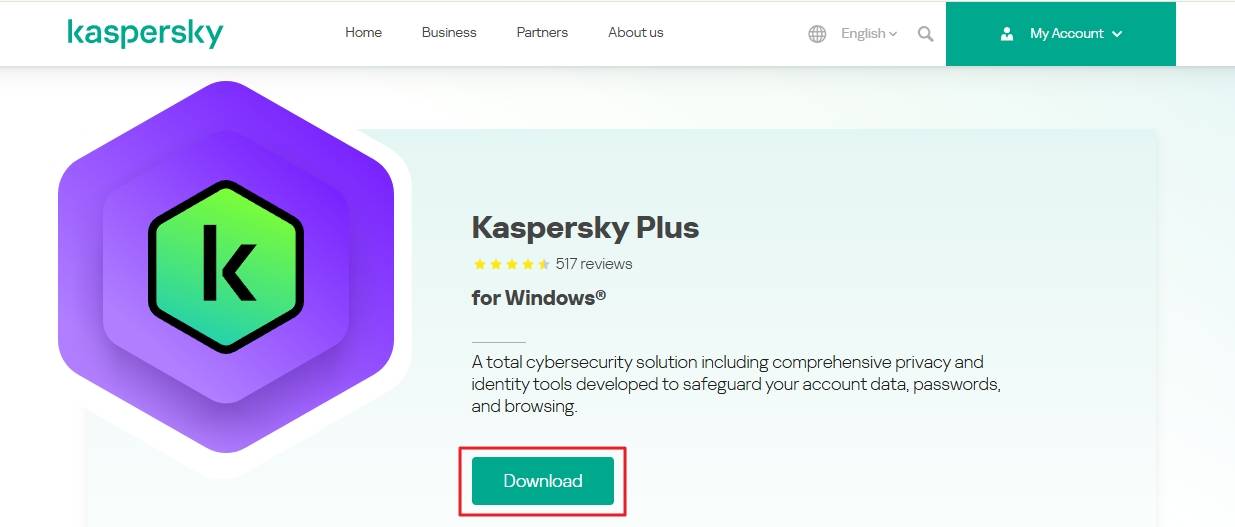
Click on the download button in the Download Center or Go to the Kaspersky Plus page on the official website. Click the green “Download” button to get the setup file for Windows.
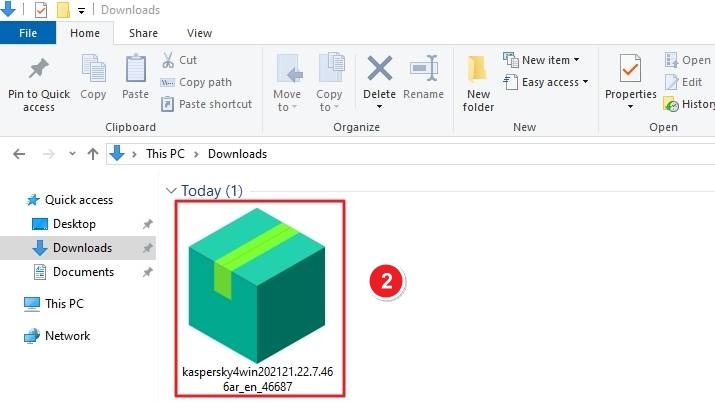
After downloading, navigate to your Downloads folder and find the installer file, which looks like a green box icon (e.g., kaspersky4win202121.22.7.46_6ar_en_46687.exe).
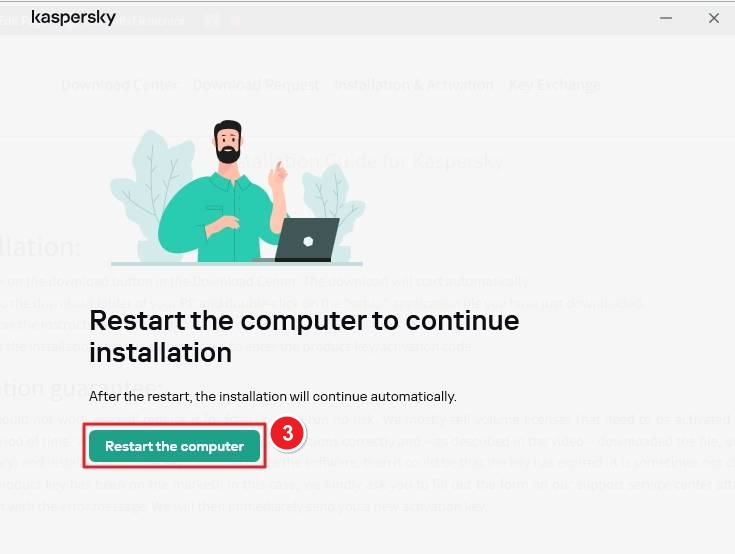
Click “Restart the computer” to continue installation.
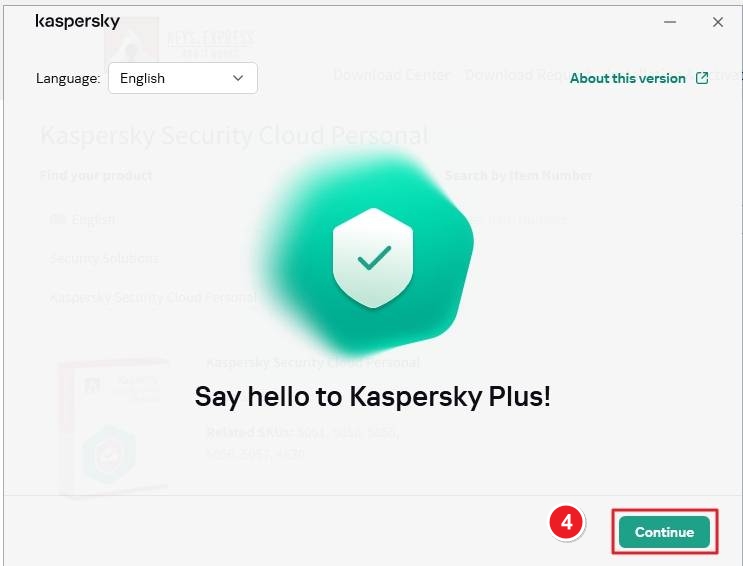
Once the setup launches, you’ll see a welcome screen saying “Say hello to Kaspersky Plus!” Click “Continue.”
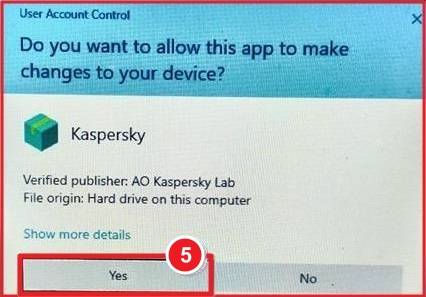
If Windows prompts a User Account Control window, click “Yes” to allow Kaspersky to make changes to your device.
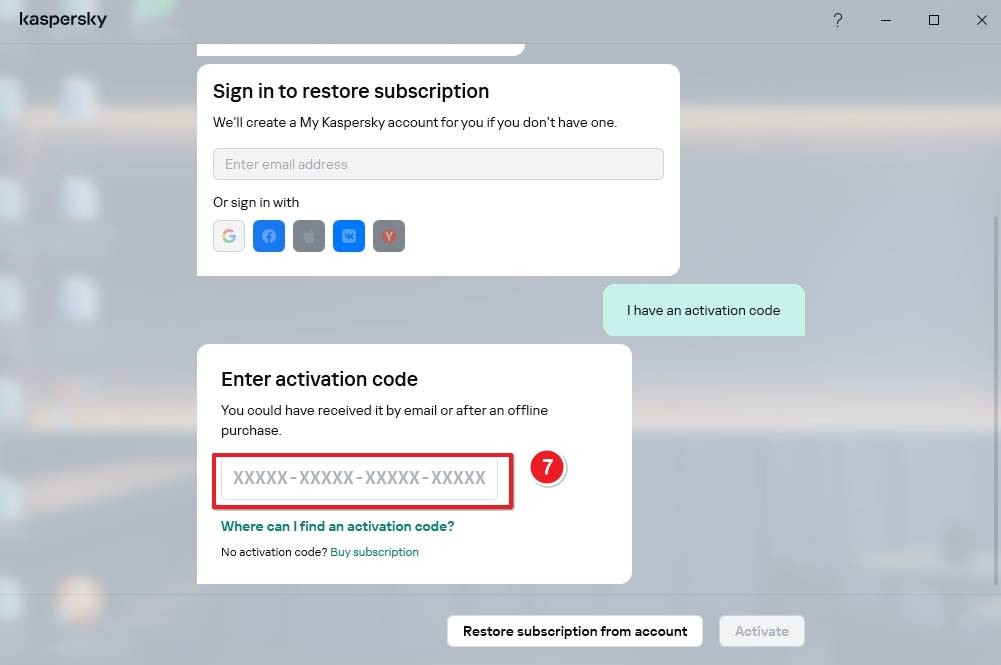
Once restarted, launch Kaspersky. You’ll see the activation window. Click “I have an activation code.”

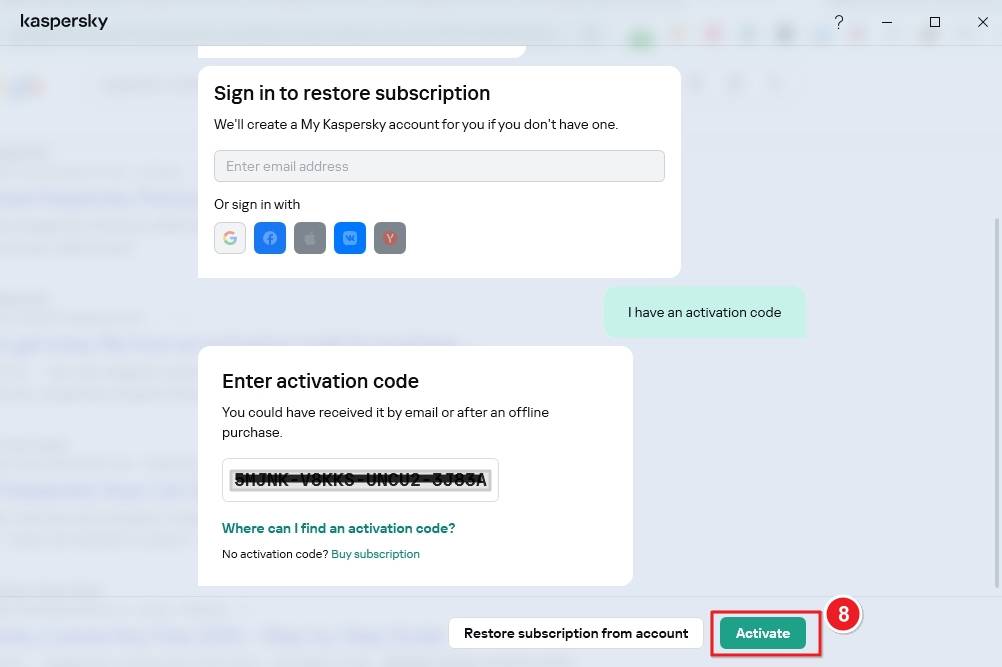
Enter your activation code (e.g., XXXXX-XXXXX-XXXXX-XXXXX)
Click the Activate button to complete activation.
If there are any further problems with the installation or activation, please write to us. Simply use our contact form and send a screenshot of the error message at the same time. We will be happy to help you.
Your Keys.Express Team
SKU: 5049, 5051, 5050, 5055, 5056, 5057


