Installation Guide for eset Mobile Security for Android
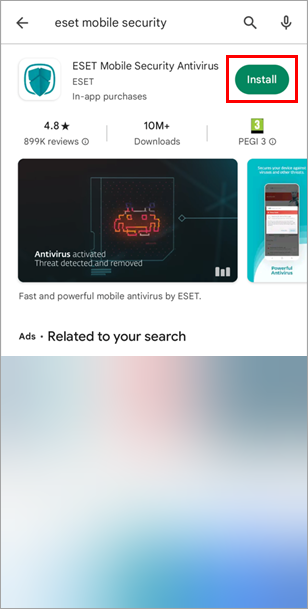
On your Android device, open the Google Play app and search for ESET Mobile Security. You can also use your computer to visit the Google Play store and trigger your product to download to your device remotely. Alternatively, use your Android device to scan the QR code below using a camera or QR-scanning app. You will be redirected to the Google Play app.
Tap Install. Figure 1-1
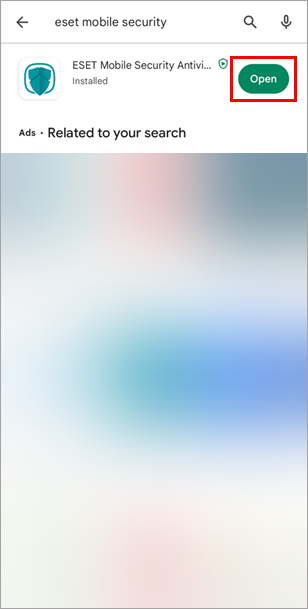
Wait for the installation to finish and tap Open. Figure 1-2
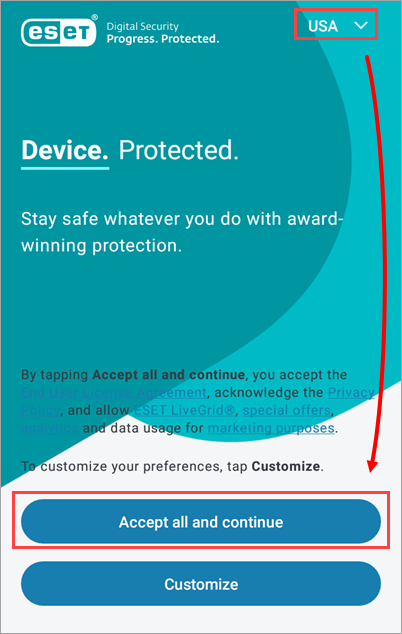
Confirm the correct country is selected and tap Accept all and continue to agree to the End User License Agreement and acknowledge Privacy Policy, and to allow ESET LiveGrid, special offers, analytics, and data usage for marketing purposes. Tap Customize to customize your preferences. Figure 1-3
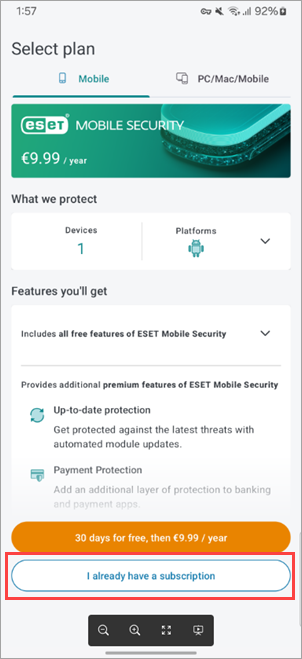
Tap I already have a subscription. Alternatively, you can tap Continue for free and add a subscription later. Figure 1-4
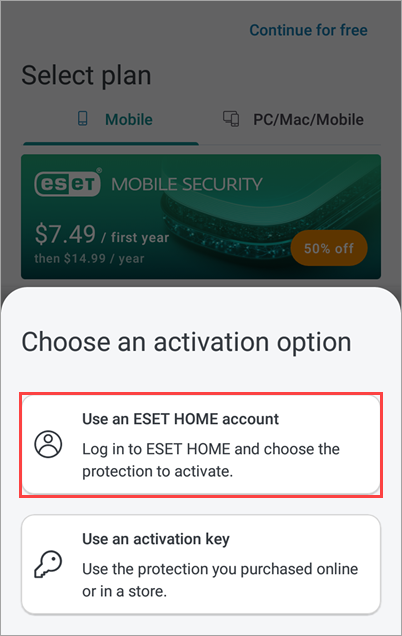
Tap Use an ESET HOME account. You must create an ESET HOME account to activate ESET Mobile Security. If you have an ESET HOME account, follow the on-screen instructions to log in. Alternatively, tap Use an activation key. Figure 1-5
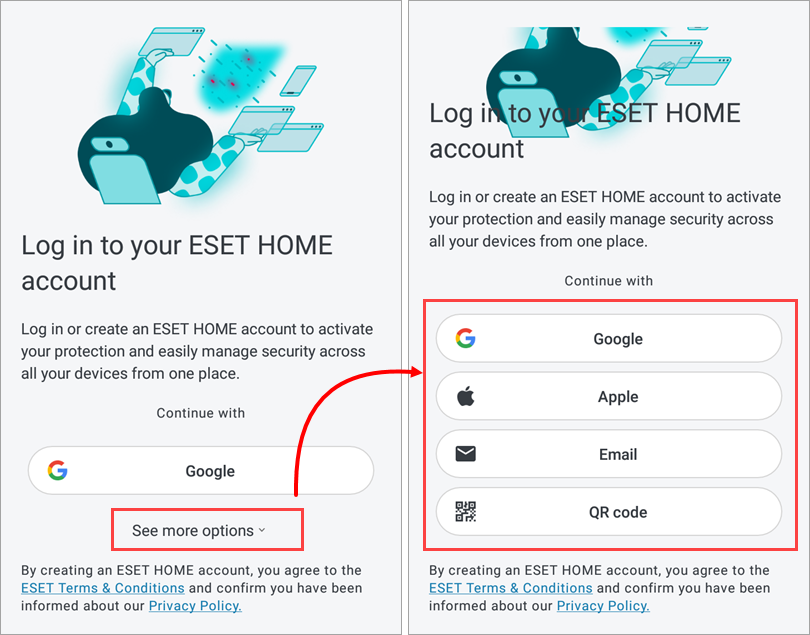
Tap See more options to view all options for logging into ESET HOME.
Tap Google to sign in using your Google account connected to your ESET HOME account.
Tap Apple to sign in using your Apple ID connected to your ESET HOME account.
Tap Email to create an ESET HOME account or log in directly.
Tap QR code to generate a QR code in ESET HOME and scan it with your device to connect it to ESET HOME.