
For a detailed guide with screenshots, visit our step-by-step tutorial.
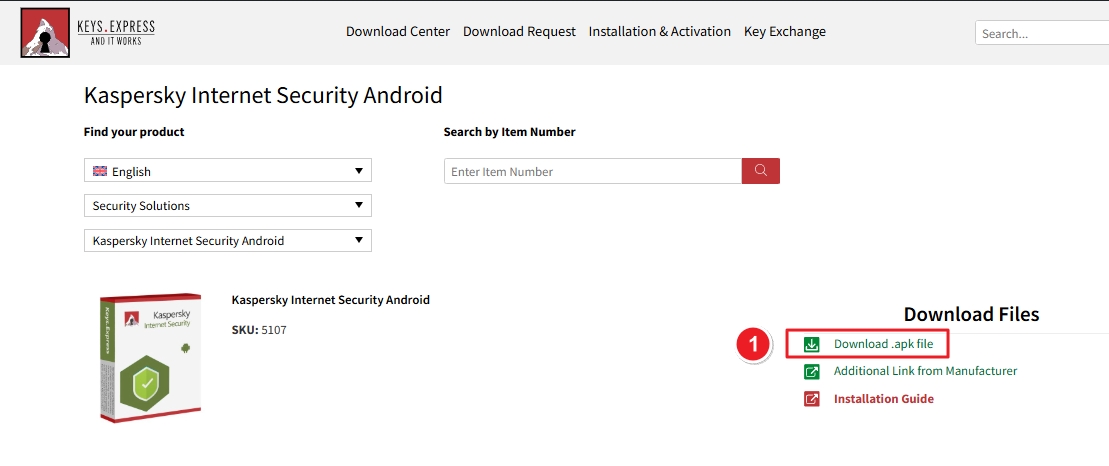
1. Open the Download Center link provided in your order email. Click Download .apk file to begin downloading.
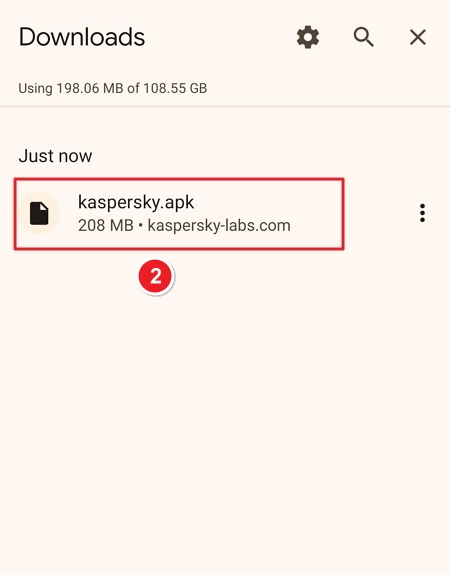
2. Once downloaded, locate the file kaspersky.apk in your device’s Downloads folder.
3. Tap on the kaspersky.apk file to start the installation.
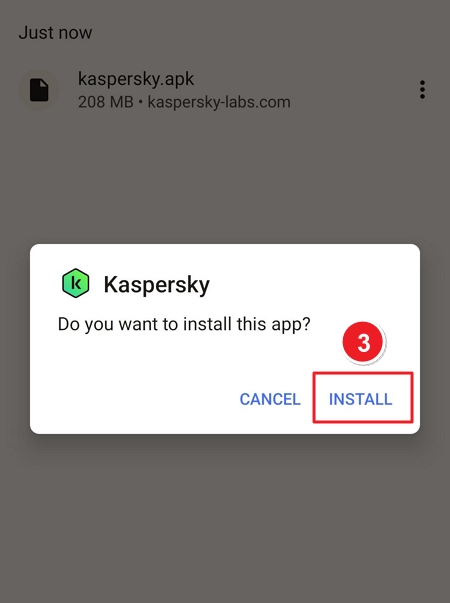
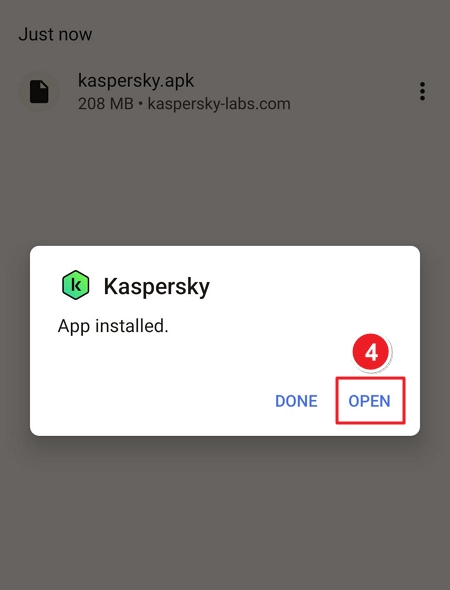
4. When prompted, tap Install, then tap Open once the app is installed.
5. Tap Next to accept the License Agreement, Privacy Policy, and KSN Statement.
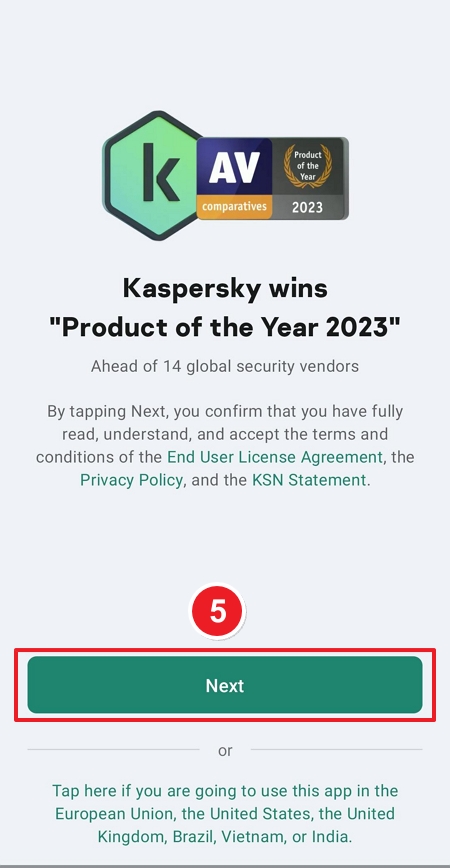
6. On the next screen, grant app permissions such as Access to Storage, then tap Next.
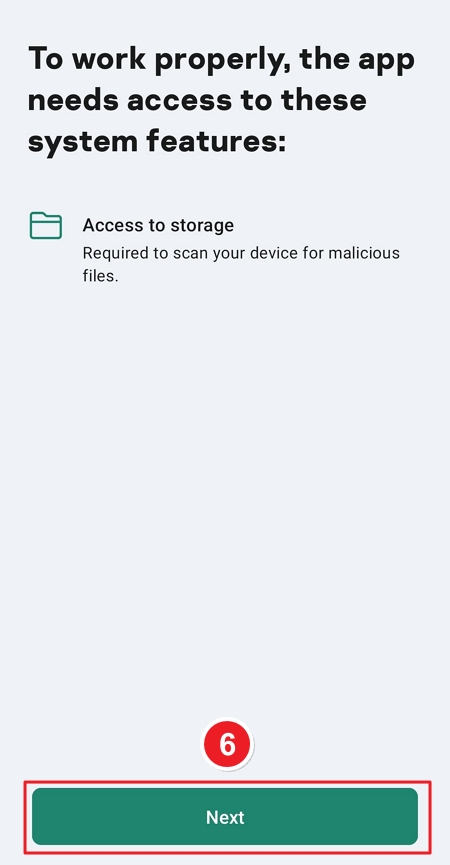
7. Select I have a subscription to begin activation.
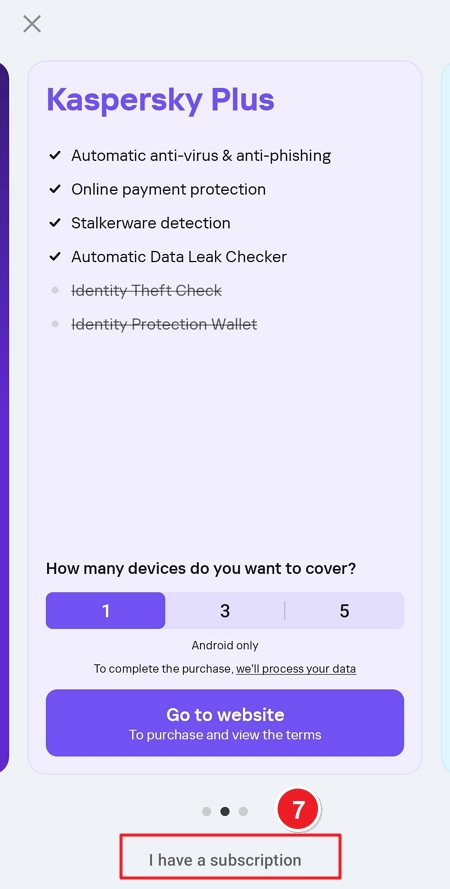
8. Tap Enter the activation code under the activation section.
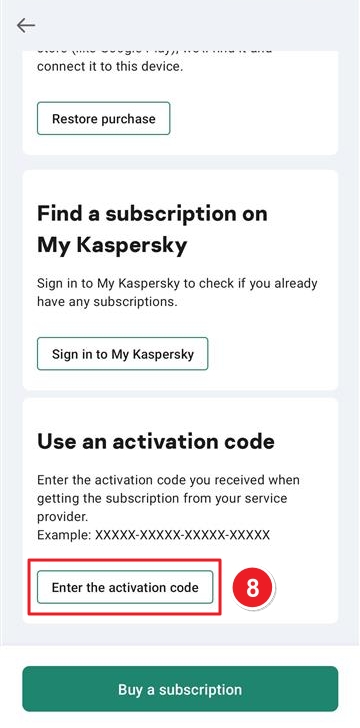
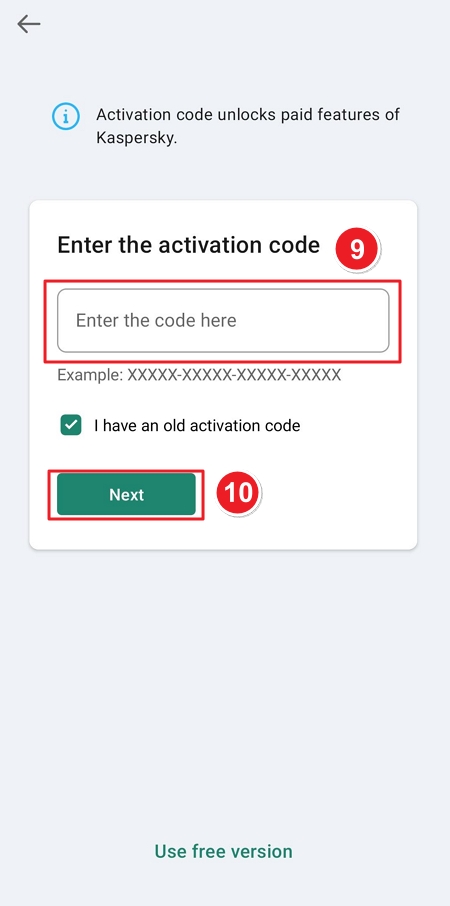
9. Enter your Activation Code in the provided field. Tap Next to validate and activate your subscription.
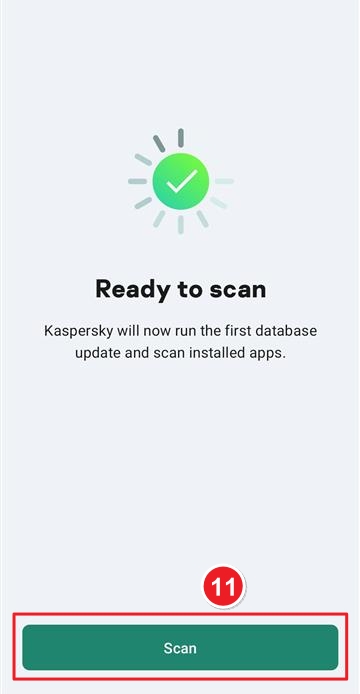
10. Once activation is complete, tap Scan to run the first database update and scan all installed apps.
If there are any further problems with the installation or activation, please write to us. Simply use our contact form and send a screenshot of the error message at the same time. We are happy to help you.
Your Keys.Express Team
SKU: 5107, 5108, 5109, 5110, 5111, 5112, 5113, 5114, 5115


