
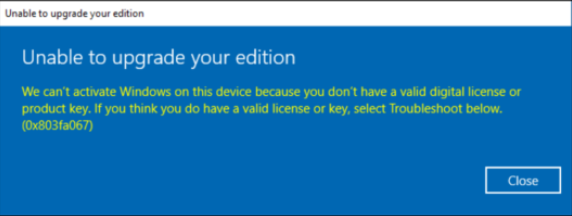
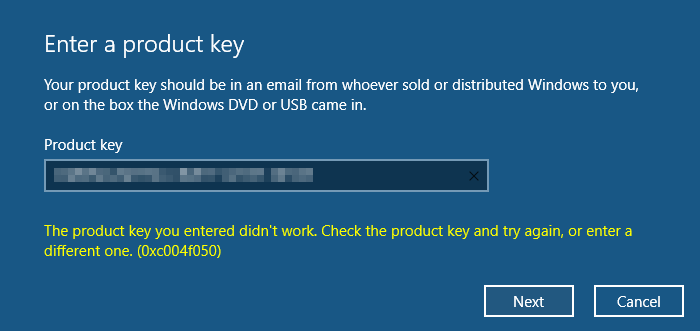
What causes the 0x803FA067 or 0xc004f050 error code? #
- Problems with an overloaded activation server are usually resolved automatically by the operating system after a short time. If this does not happen, you can perform the activation yourself again in the system settings.
- The activation error with the code 0x803FA067 or 0xc004f050 usually occurs when upgrading from Windows Home to Windows Professional if the license key (Windows Product Key) for activating the upgrade version is not recognized. Fortunately, there is a tried and tested trick that can be used to work around and solve this problem – we will show you how and where below.
The starting point is Windows activation using a key. A Windows license is only valid for one PC and is required to unlock the corresponding functions of the operating system to be activated on the PC. Therefore, an upgrade from the Home to the Pro edition of Windows 10 also requires activation, because although both use the same installation media, the respective key alone determines which functions are unlocked.
For this upgrade, you need a free, valid Windows product key. If this is not recognized for any reason, activation error 0x803FA067 or 0xc004f050 will occur.
The upgrade process from Windows 10 Home to Windows 10 Home is the same as from Windows 11 Home to Windows 10 Pro. Please read the entire instructions and save them as an image or screenshot, because your internet connection will be interrupted during the process. Also, make sure that your Windows Home is up to date by installing all updates in Windows Home. It is also recommended that you disable your virus scanner for the process, as it may produce an error message.
Make sure that the PC is not disconnected from the power supply during the update process.
- Log in with an account that has administrator rights.
- Open your Windows settings.
- Click on “Network and Internet”.
- Click on “Change adapter options.”
- Disable all network adapters displayed by right-clicking on them and selecting “Disable.”
- Close all menus.
- Open your Windows settings.
- Click on “Update & Security.”
- Select “Activation” on the left side.
- Click on “Change product key.”
- Enter the key “VK7JG-NPHTM-C97JM-9MPGT-3V66T” and click on continue.
- Start the upgrade process.
- Wait until the upgrade is complete. The computer will restart during the upgrade.
- Open your Windows settings.
- Click on “Network & Internet.”
- Click on “Change adapter options.”
- Activate all network adapters that you deactivated in step 4 by right-clicking on them and selecting “Deactivate.”
- Close all menus.
- Open your Windows settings.
- Click on “Update & Security.”
- Select “Activation” on the left side.
- Click on “Change product key.”
- Make sure that the Windows edition has changed to the Professional version.
- Enter a valid Windows 10 Pro key for activation and click on Continue.
Solution 2: Offline activation (proven trick!) #
As already mentioned, this problem can be solved very easily by using a little trick and (as paradoxical as it sounds) performing the activation offline. To do this, proceed as follows:
- Open the Windows settings and go to Update & Security > Activation > Change product key.
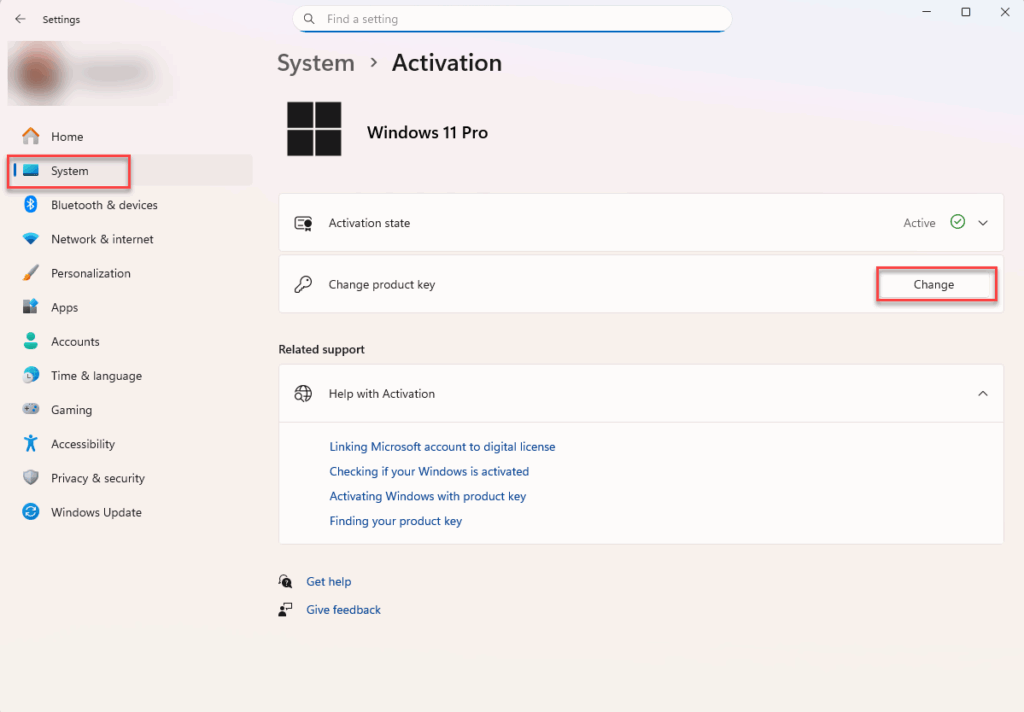
- In the next window, enter the license key you received from us when you purchased the Pro version. Do not click on anything else!
- Now, BEFORE clicking “Start,” disconnect your network connection.
- Now press Start and let the upgrade run. After restarting the system, the Pro features should be activated without a 0x803FA067 error message.
Solution 3: Activation by phone #
What many people don’t know: Windows can still be activated by phone. So if the conventional online activation fails and the network disconnection trick doesn’t work in the long term, you can upgrade by phone. To do this, proceed as follows:
- Open the Windows command prompt (search for it in the Start menu or press [Win]+[R] and enter “cmd” in the Run bar).
- Enter the command “slui 4” and confirm with [Enter].
- After entering your country selection, a window will appear showing you two phone numbers. However, the toll-free number can only be called from a landline.
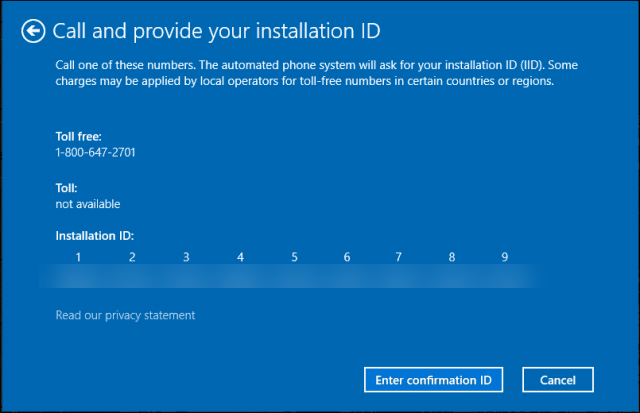
4. You will then be connected to a voice computer that will ask you to enter the installation ID displayed in the window on your telephone keypad.
5. You will then receive a confirmation ID, which you must enter on your PC. Finally, Windows 10 Pro Edition will be activated.
Solution 4: Microsoft Activation Portal #
If telephone activation is no longer available in your country, please use Microsoft’s activation portal. You can find the Microsoft portal for activation here: https://visualsupport.microsoft.com/ or https://aka.ms/aoh.
Sign in with your Microsoft account or create one. Then follow the on screen instructions to activate the software.
If you have any further questions or problems, we will be happy to help. Please use our contact form.
Your Keys.Express Team


