The goal is to rank on the first page on Google with our products and blogs. We have a tool to do our SEO Keyword research: BiQ. This tool will allow us to find the best keyword opportunity to make the most out of our content (blog, product description, FAQ etc.). This study of keywords requires some time and effort but it will pay off in the long run, bringing organic (free) visitors to our website.
Login to BiQ #
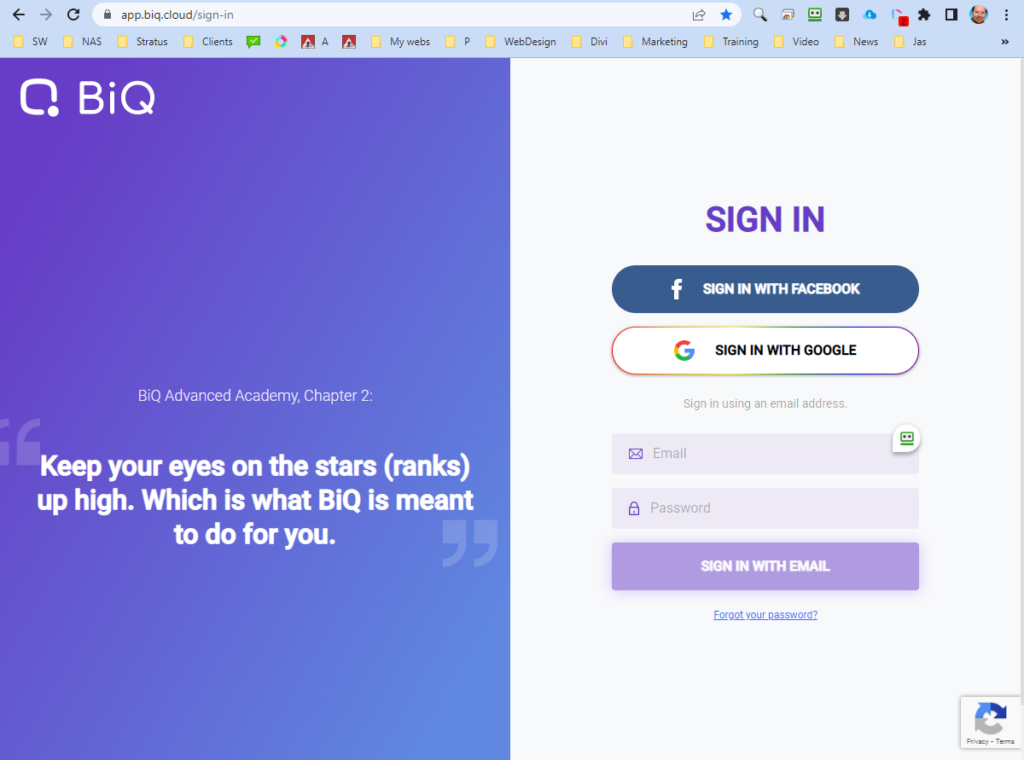
Open the BIQ app in your browser and login to start the keyword research: https://app.biq.cloud/sign-in
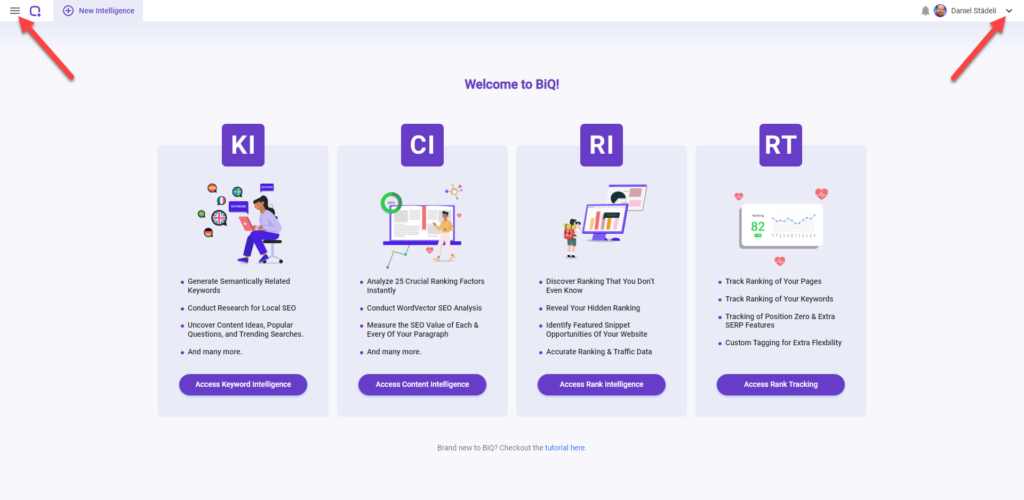
The Welcome Screen opens. There is a menu on the left and on the right
BIQ Tutorials #
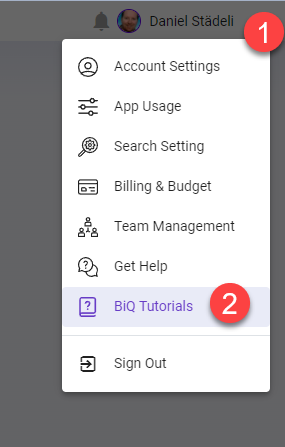
Click on the right menu next to your name and select BiQ Tutorials to access the BiQ help library.
BiQ Help Library #
Keyword Research / Keyword Intelligence #
Note: We recommend you first create a keyword collection (see the bottom of this tutorial), before starting with these steps.
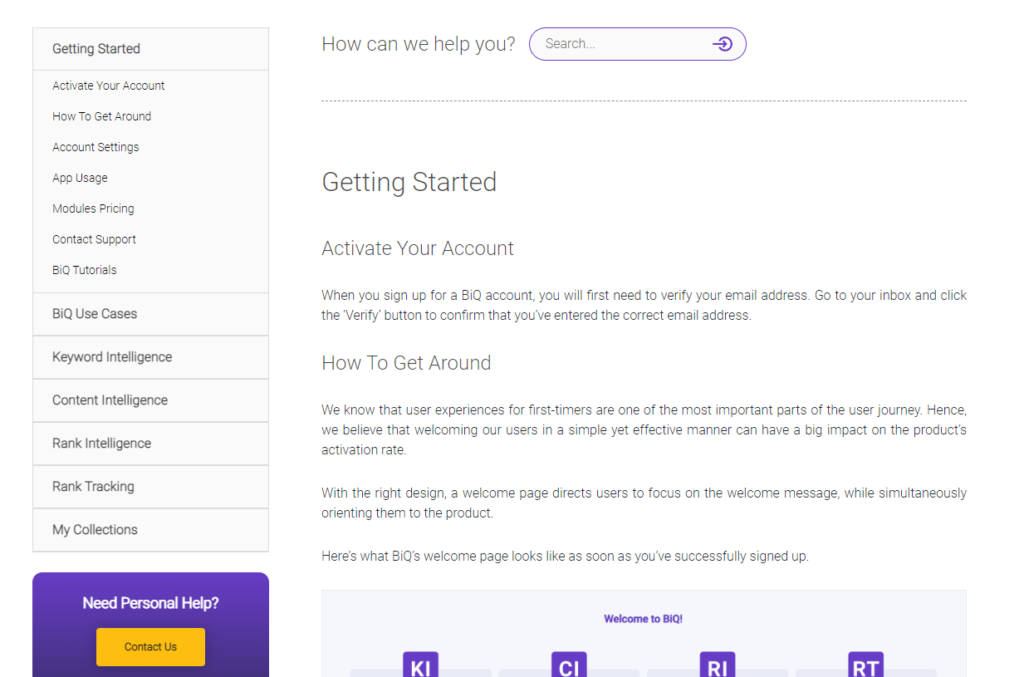
On the main screen click on KI to access the Keyword research screen
1. Type the Keyword you want to SEO optimize for, normally this is the product name
2. Select the Google Search Engine Region, e.g. Germany
3. Select the language of the keywords, e.g. German
4. Click Find Keywords
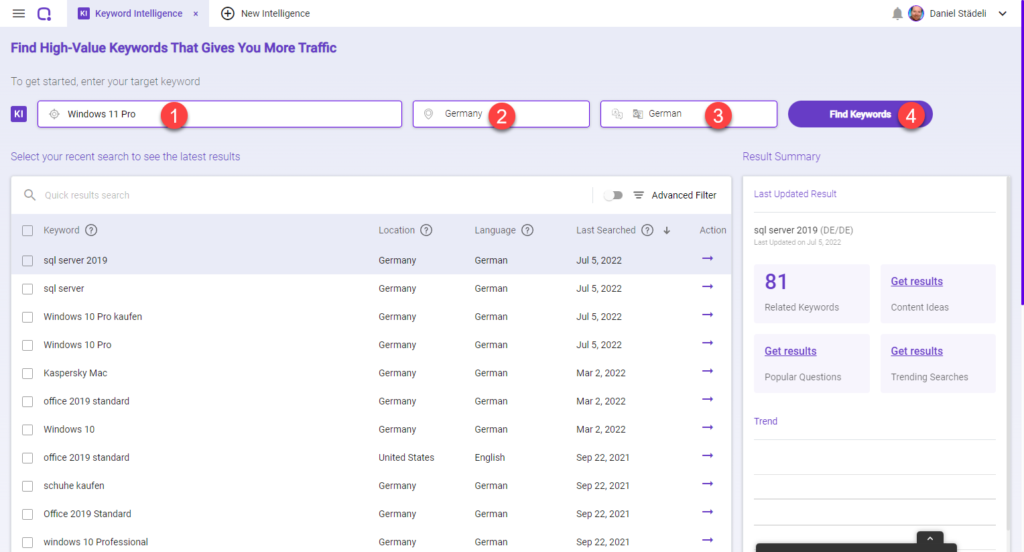
Related Keywords Results
5. You will find some important data here, like total Search volume for your keyword (incl. related)
6. List of related keywords – these are other keywords that should be considered when writing an SEO text
7. This shows approx. how many searches are done every month for this keyword. The higher the volume, the more chance you have to be found
8. The value indicates which related keywords we should focus on. You can click on this header to sort the list by value and you could pick the top 3-5 keywords
9. some of the keywords include the words “free” (kostenlos). Maybe we don’t want to focus on such visitors?
10. You can use the Advanced Filter to exclude the word “kostenlos” from this keyword study.
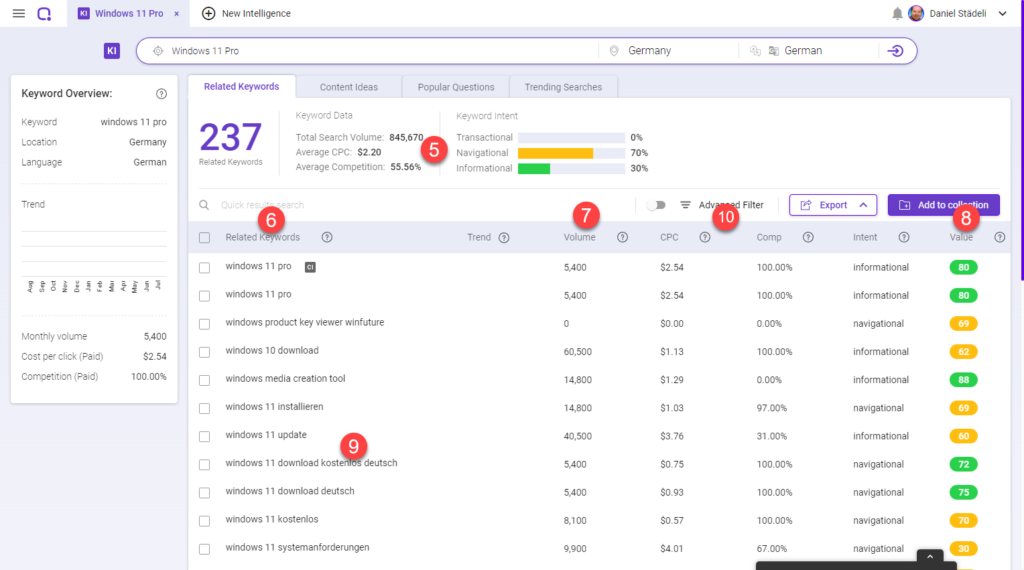
11. write the words you want to exclude from the study. Maybe we want to exclude Windows 10 to focus only on people who look for Windows 11 specifically. You may also want to include certain words, like buy.
12. in the advanced filter you can set the Relatedness of the keywords found to close or loose
13. Click to update the filter.
you have some more options to explore:
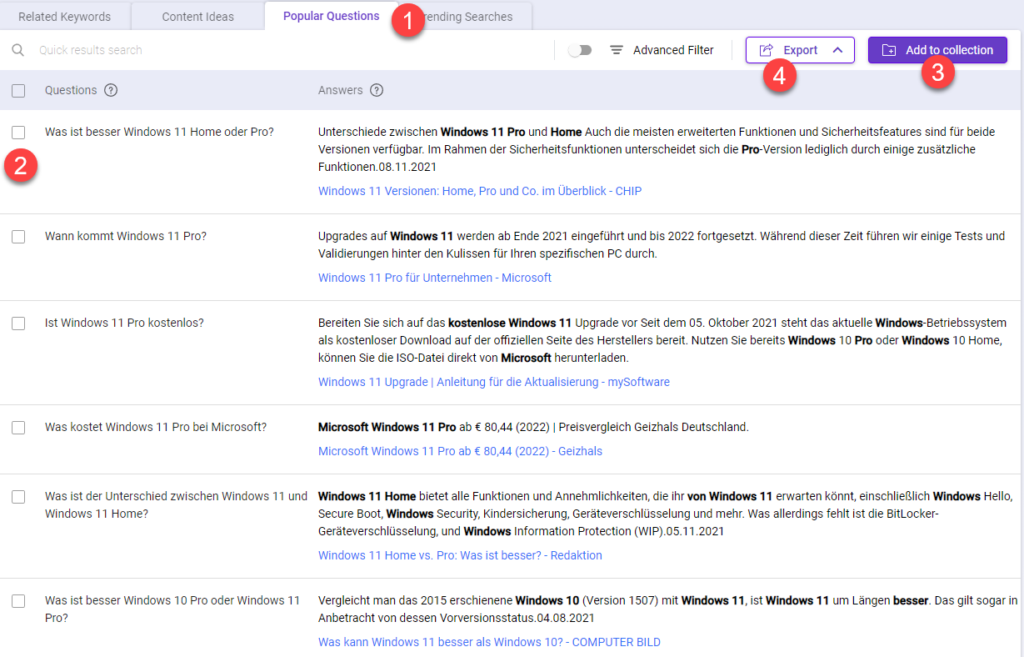
14. check the tabs for content ideas and popular questions, which could be helpful in the FAQ section. These are questions a lot of people ask on Google. If you can answer them in your text, you have a high chance of getting visitors to your site.
15. allows you to export the result list to Excel for further refinement.
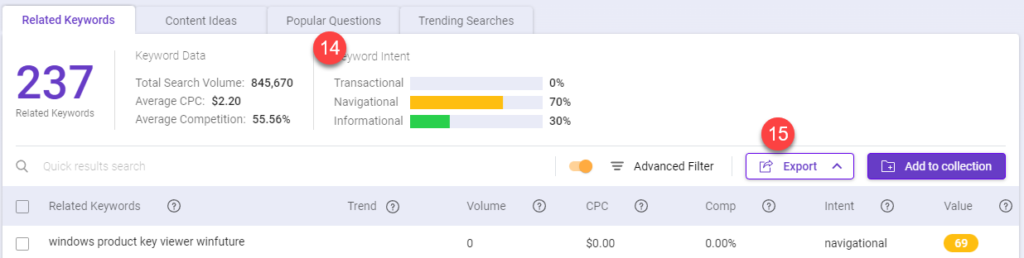
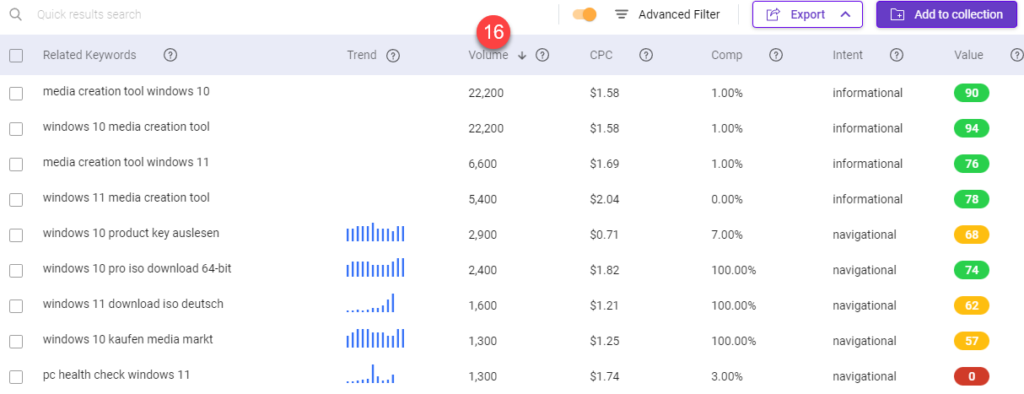
16. Sort the list by Volume (click on the header) and examine the list of your keywords. Media creation tool is a big winner with 44,400 searches per month. But this does not include our target audience. we can still use this term once in our text.
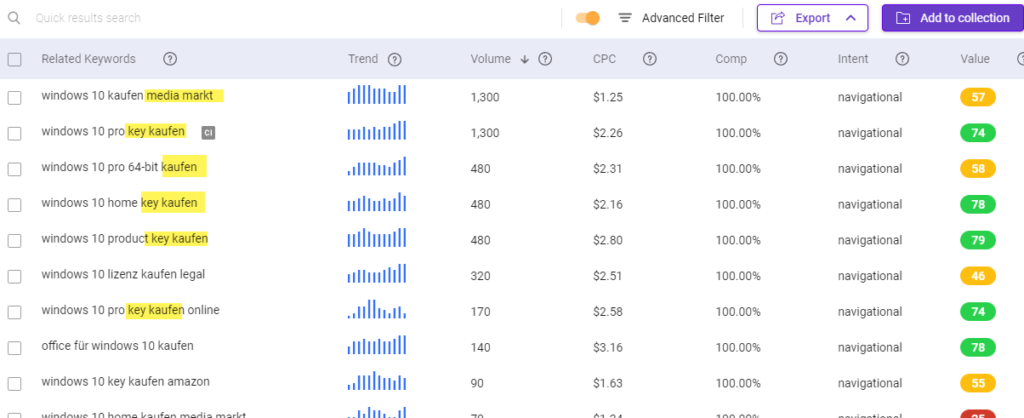
After changing the filter to include the word buy (kaufen) I get a completely different list. But this is closer to our buyer profile. We should consider including the words media markt and windows 10 pro key kaufen. Notice how the term key is used a often:
Keep playing with the list and keywords to find more results. Try adding the word key in the search bar on top. There are more than 100k users who search for download and update related to Window 11, so if we can mention that we offer a free download with our keys and that it’s easy to update to Windows 11, it would potentially bring a lot of traffic to our site.
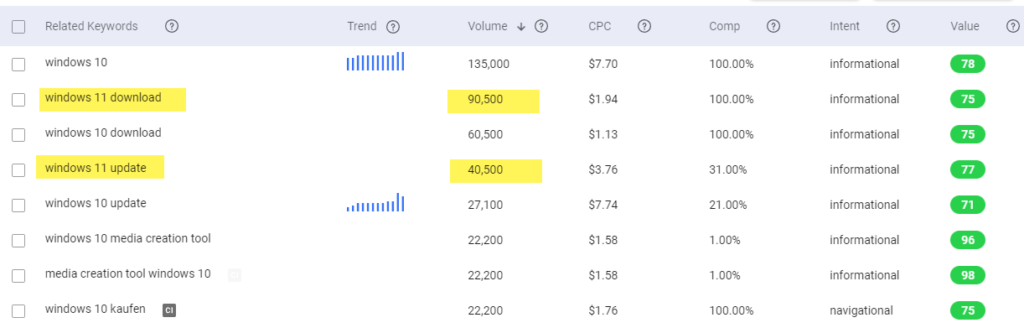
So try to incorporate these words into the product description in a sentence that makes absolute sense to the visitor and allows Google to pick it up and rank us higher. We can also add these keywords to a collection to keep working with them more in depth:
- Windows 11 download
- Windows 11 update
- Media Markt (beware of trade mark issues when using another brand or company name)
- Windows 11 kaufen
Create keyword collection #
Create a collection to save your research results and work more in depth with these words and/or track them.
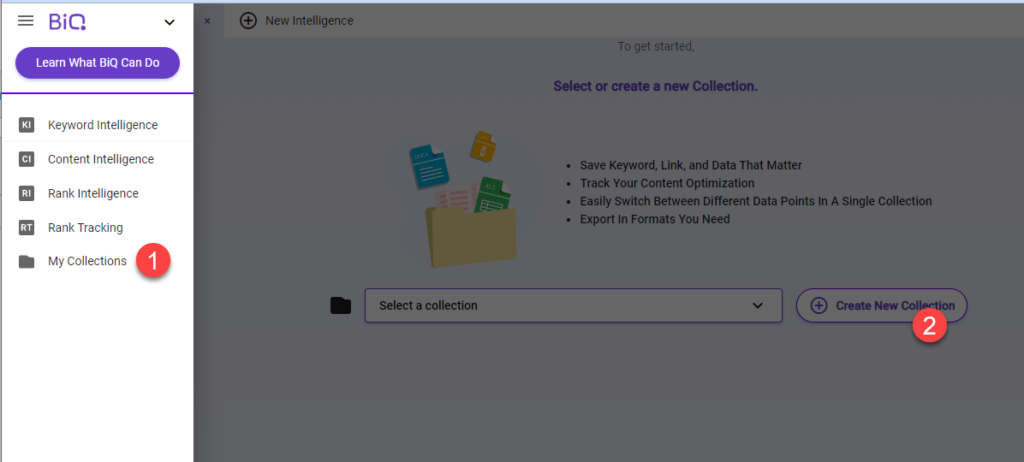
- Go to the left menu > My Collections
- Check that the collection is not already there in the drop down menu, then click on + Create New Collection
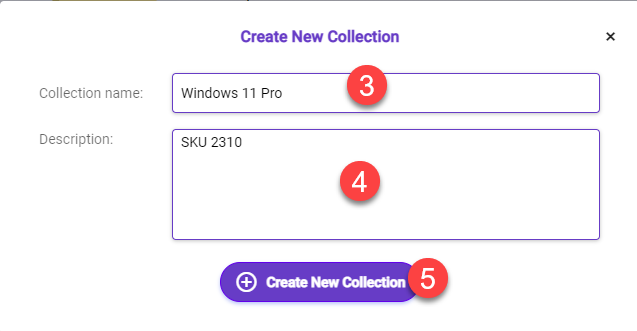
3. Give it a name
4. Enter a description (optional)
5. Click Create New Collection
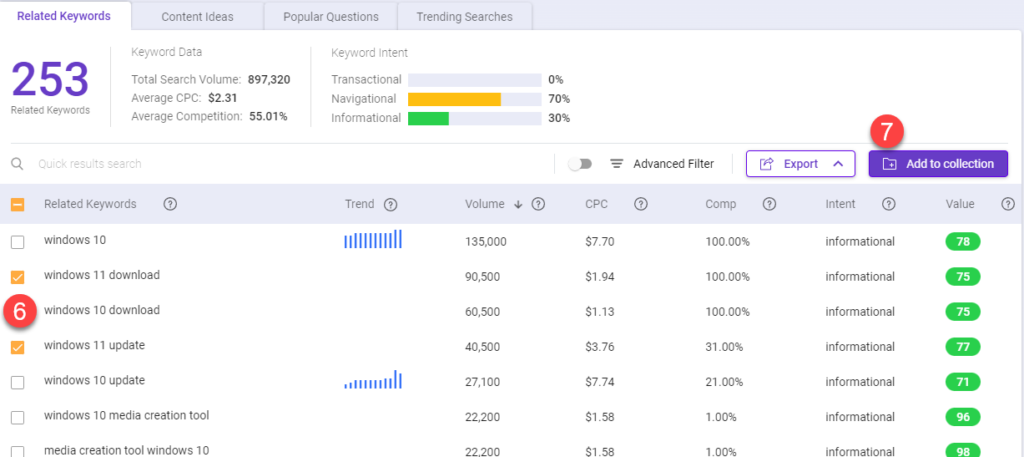
- Check the keywords you want to add to a collection
- click Add to collection
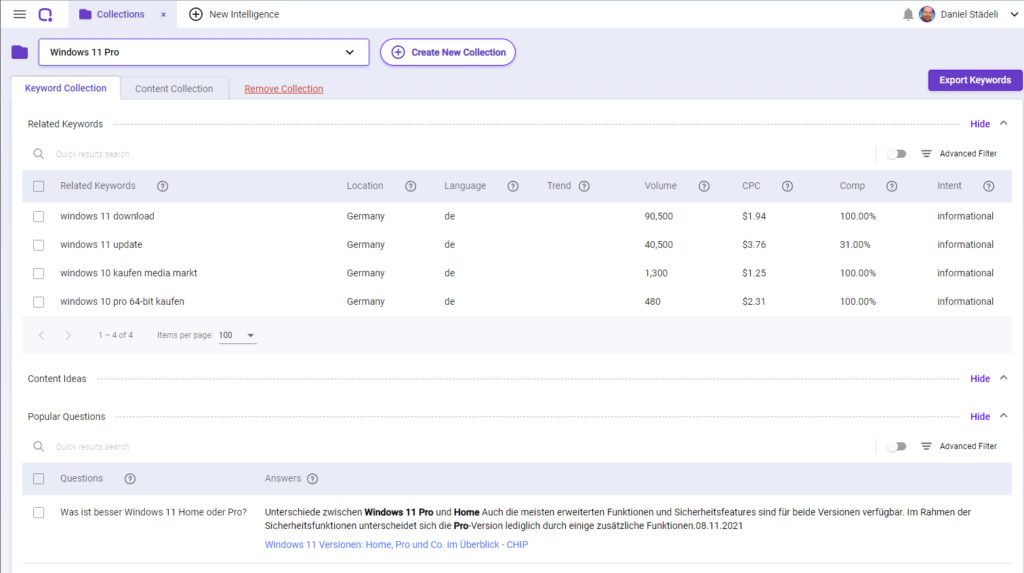
You can go back later to the collection and see your saved keywords and questions:
Popular Questions #
- Click on the Popular Questions tab to find out what people are asking on Google related to Windows 11 Pro
- You can select certain questions you want to save…
- and add them to a collection
- or export them to Excel.