
For a detailed guide with screenshots, visit our step-by-step tutorial.
Go to the Download Center: Click CorelDraw Graphics Suite 2024 MAC under Download Files to begin downloading.

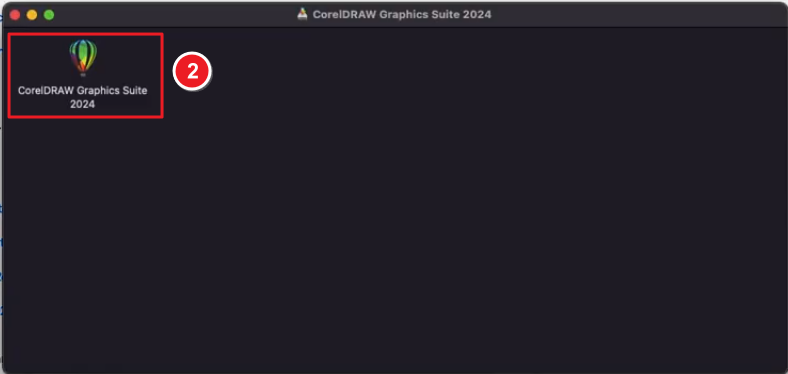
Locate the downloaded .dmg file → Double-click it → Click CorelDRAW Graphics Suite 2024 to open.
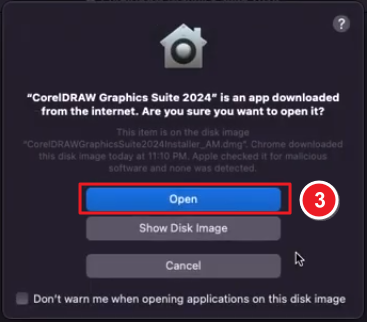
A security dialog will appear → Select Open to continue.
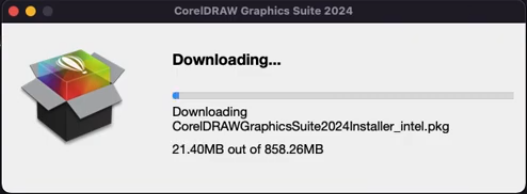
The CorelDRAW installer downloads necessary files. Wait for the progress bar to finish.
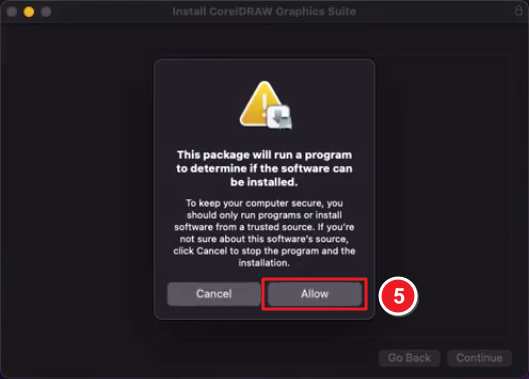
macOS will ask to verify the package → Click Allow to proceed.
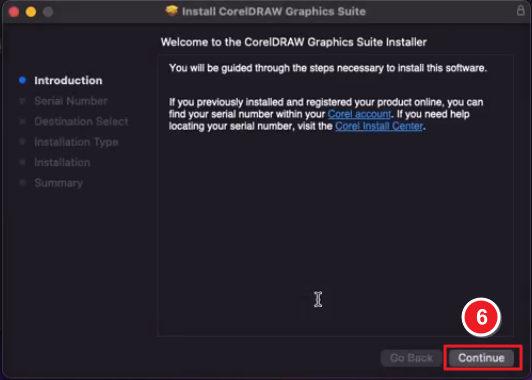
The setup wizard opens → Click Continue on the welcome screen.
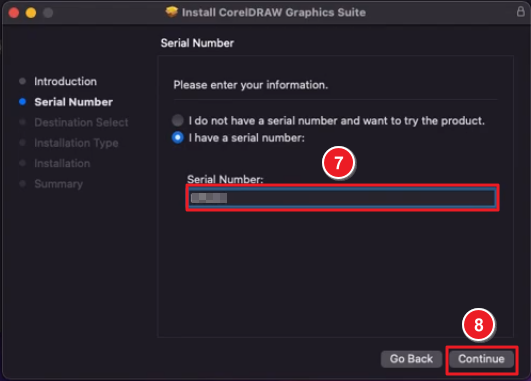
Choose “I have a serial number”, enter your product key, then click Continue.
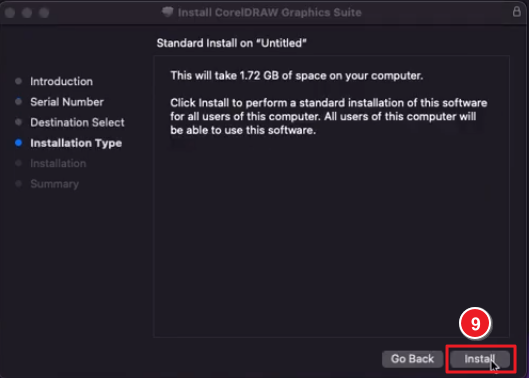
Review disk space requirements → Click Install for standard setup.
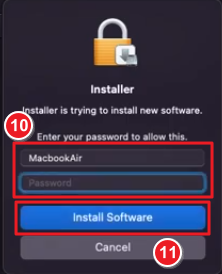
Input your Mac username and password → Click Install Software to authorize installation.
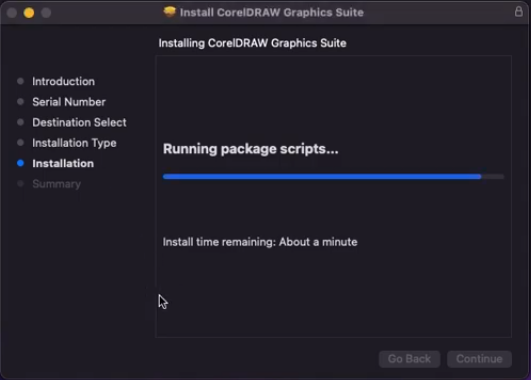
The installer will run package scripts and copy files. Wait until the progress bar reaches 100%.
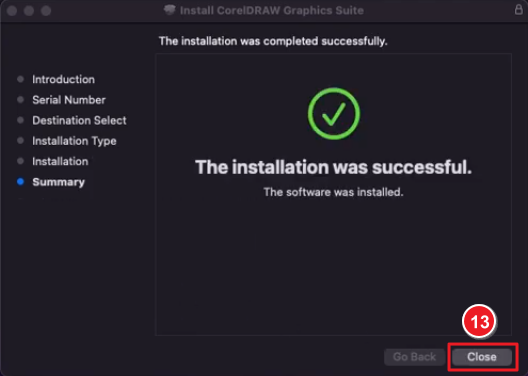
Once finished, you’ll see “The installation was successful.” Click Close to exit the wizard.
Open CorelDRAW Graphics Suite 2024 from your Applications folder or Spotlight search to begin using it.
If there are any further problems with the installation or activation, please write to us. Simply use our contact form and send a screenshot of the error message at the same time. We are happy to help you.
Your Keys.Express Team
SKU: 7025, 7023, 7343, 7029, 7031


