What are the main features and key advantages of IObit iTop Screen Recorder Pro?
HD Recording – Captures clear screen video with smooth results.
Game Capture – Records gameplay with responsive, low-lag performance.
Audio Control – Captures system sound and microphone together.
Webcam Overlay – Adds facecam video for tutorials and presentations.
Quick Editing – Trims and enhances recordings with less effort.
Creative Freedom – Supports consistent long-term content creation and sharing.
Download: IObit iTop Screen Recorder Pro

Flexible Recording Modes – Capture full screen, region, window, or webcam.
Watermark-Free Export – Removes the default mark, adds custom watermark.
Built-in Video Editor – Trim, split, add transitions, text, effects.
Game Mode Capture – GPU acceleration records gameplay without lag.
Performance Metric – Records up to 4K UHD (4096×2160) resolution.
Important – Windows only; no Mac or mobile app.
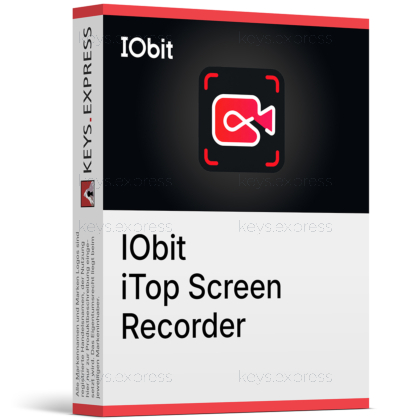
IObit iTop Screen Recorder Pro is a Windows screen and webcam capture tool with a built-in editor for tutorials, gameplay, and meeting recordings. The Pro upgrade removes the watermark and lifts the free version's recording limit.
Clean Exports – No watermark on finished tutorial videos.
Unlimited Recording – Capture long webinars without a time cap.
Smooth Game Capture – GPU acceleration keeps gameplay recording lag-free.
Streaming Recording – Enhanced Mode avoids black-screen on protected video.
Built-in Editing – Trim, annotate, and export in one place.
AI Voice Changer – Disguise voiceovers with ten-plus voice filters.
It records on-screen activity, webcam, and system or microphone audio on Windows, then lets you edit and export the result. You can capture in full screen, a selected region, a single window, a fixed 16:9 or 4:3 ratio, plus dedicated webcam, game, and audio-only modes. Recordings export to MP4, AVI, FLV, MKV, MOV, TS, or GIF, with audio up to 320 kbps. A built-in screenshot tool also grabs full screen, active window, or scrolling-window captures. This makes it a practical single tool for building software tutorials, recording Zoom sessions, and saving gameplay clips without juggling separate capture and editing apps.
The Pro version removes the default product-name watermark, lifts the free version's 10-minute recording limit, and unlocks the full advanced editor. The free edition is capped at shorter clips and stamps each export with a watermark, which makes it unsuitable for published or client-facing content. Pro also adds a custom watermark option supporting both text and image, useful for protecting branded tutorials. Frame rate and resolution headroom are higher on Pro, so it suits 4K tutorials and high-motion gameplay rather than quick internal clips. If you only need a short bug-report capture for a colleague, the free version is enough; for anything you publish, the watermark alone forces the upgrade.
| Feature | Free | Pro |
|---|---|---|
| Watermark-free export | ✕ | ✓ |
| Recording time | 10 min | Unlimited |
| Max resolution | 1080p | Up to 4K |
| Advanced video editor | Limited | ✓ |
| Custom watermark | ✕ | ✓ |
No, iTop Screen Recorder Pro runs only on Windows, with full support on Windows 10 and 11; there is no native macOS, iOS, or Android application. If you work primarily on a Mac, you need a different recorder, as the Windows licence does not cross over. It can, however, mirror and record an iOS or Android screen by connecting the phone to your PC over a USB cable through the device recording mode. That covers capturing mobile app demos or game footage onto your computer, but the recording, editing, and export all stay on Windows. Buyers planning to record directly on a phone or Mac should treat this as a hard limitation before purchasing.
Pro includes a Quick Editor for fast trimming and an Advanced Editor with transitions, text overlays, speed adjustment, stickers, subtitle import (.srt, .ass, .stl), and frame-by-frame multi-track visual editing. On the audio side it adds a Denoiser for removing background noise and an AI Voice Changer with more than ten voice filters for voiceovers. A built-in Video Compressor with batch processing shrinks file sizes before sharing to YouTube, Facebook, Instagram, or Twitch. These tools handle most tutorial and gameplay cleanup without a separate editor. They do not, however, extend to keyframing, multi-track audio mixing, or professional colour correction, so heavy post-production still belongs in a dedicated suite like Camtasia or DaVinci Resolve.
It fits Windows users who produce tutorials, course videos, gameplay clips, or meeting recordings and want capture plus light editing in one app. Educators and trainers benefit from the teleprompter, on-screen annotation, and magnifier tools that keep a narrated walkthrough clear without a second program. Gamers gain from Game Mode, which uses NVIDIA, AMD, or Intel hardware acceleration to record at low CPU load and avoid frame drops. It is a weaker fit for anyone needing layered timeline editing, since the editor stops short of multi-track audio and keyframing. The deciding factor for most buyers is the watermark-free, unlimited export that the free tier withholds.
Yes, its Enhanced Mode is built to record protected streaming video from services such as YouTube, Netflix, and Prime Video without the common black-screen problem. This matters when you need to save a webinar replay or reference clip that normally blocks standard capture. Note that recording copyrighted content for redistribution can breach a platform's terms of service.
Yes, you can set an exact start and stop time so a recording begins and ends automatically. This is useful for capturing a live webinar or recurring online event when you cannot be at the keyboard. The app does need to stay running in the background for the schedule to trigger.
Yes, because it captures the screen at the system level, it records Zoom and similar meetings as a normal participant without sending an in-app notification. This lets you keep a personal copy of a call or course for later review. Local laws on recording other people vary, so confirm consent requirements before you record.
| Operating Systems | Windows 11: Home / Pro / Education / Enterprise Windows 10: Home / Pro / Education / Enterprise Windows 8.1: Core / Pro / Enterprise Windows 8: Core / Pro / Enterprise Windows 7: Starter / Home Basic / Home Premium / Professional / Ultimate / Enterprise |
| Processor | 1 GHz processor or faster |
| Memory RAM | 512 MB RAM minimum. 1024 MB RAM recommended. |
| Hard Disk | 129 MB installer size. Additional free space required for recordings, screenshots, edited videos, and exported media files. |
| Display | Standard display compatible with the respective operating system. |
| Special Features | Screen recording with audio and webcam. 4K and 1080p recording up to 120 FPS. Hardware acceleration with NVIDIA, AMD, and Intel graphics. Game recording with no lag and no FPS drop. Webcam recording with virtual background. AI voice changer and audio denoiser. AI text-to-speech with 50 plus voices in Pro edition. Screen recording for connected iPhone, iPad, and Android devices on PC. Drawing, annotation, magnifier, spotlight, and teleprompter tools. Quick Editor and Advanced Editor for recordings and videos. Export formats for video: MP4, AVI, FLV, MKV, MOV, TS, WEBM, GIF. Export formats for audio: MP3, AAC, AC3, FLAC, WMAV2. Screenshot formats: JPG, PNG, WEBP, BMP, TIF. Enhanced Mode for recording streaming video without black screen. No recording time limit in Pro edition. No default watermark in Pro edition. Custom text, logo, or image watermark support in Pro edition. Scheduled auto start and stop recording in Pro edition. Video compression and 4K export in Pro edition. |
| Note | Desktop application is Windows only. Mobile device screen recording is supported by mirroring iPhone, iPad, or Android screens to a Windows PC. Internet connection required for download, activation, updates, online services, and AI tools. No separate Microsoft .NET Framework, browser, or driver dependency is requirements. |