
For a detailed guide with screenshots, visit our step-by-step tutorial.
Visit the Keys.Express Download Center. Click Malwarebytes Premium under the Download Files section.

Open your Downloads folder. Locate the file MBSetup. Double-click to run the installer.

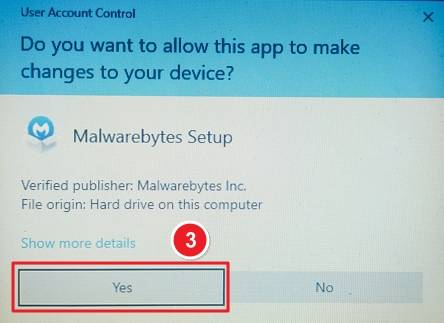
A User Account Control window will appear. Click Yes to allow Malwarebytes Setup to make changes to your device.
The Malwarebytes Setup Wizard will open. Click Install to begin installation.

Select the type of protection: Click Next to proceed.

The setup will download and install Malwarebytes Premium files. Wait until progress reaches 100%.

A success message appears: “Now let’s clean and protect your computer for good.” Click Open Malwarebytes.

On the Welcome screen, click Activate Subscription.

Enter your License Key or MB Code in the provided field. Click Activate to finalize activation.

If you have any further problems with the installation or activation, please write to us. Simply use our contact form and send a screenshot of the error message at the same time. We will be happy to help you.
Your Keys.Express Team
SKU: 5201, 5465, 5319, 5698, 5408, 5969, 5373, 5374, 5320, 5202, 5321, 5371, 5699


