
For a detailed guide with screenshots, visit our step-by-step tutorial.
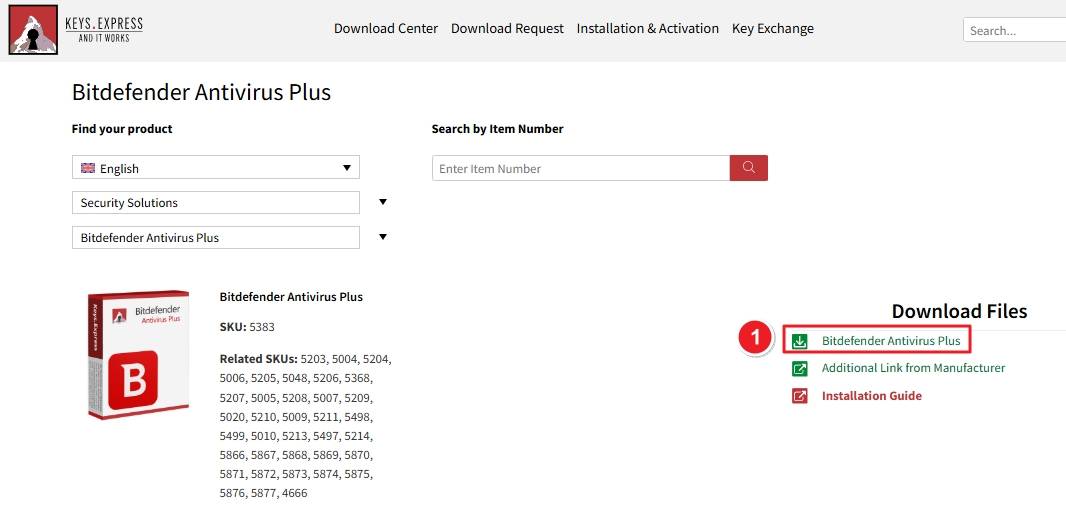
Visit the Keys.Express Download Center → Then click “Bitdefender Antivirus Plus” under Download Files.
Go to central.bitdefender.com. Enter your email address and click Next. If you don’t have an account, click Create one and follow the registration steps.

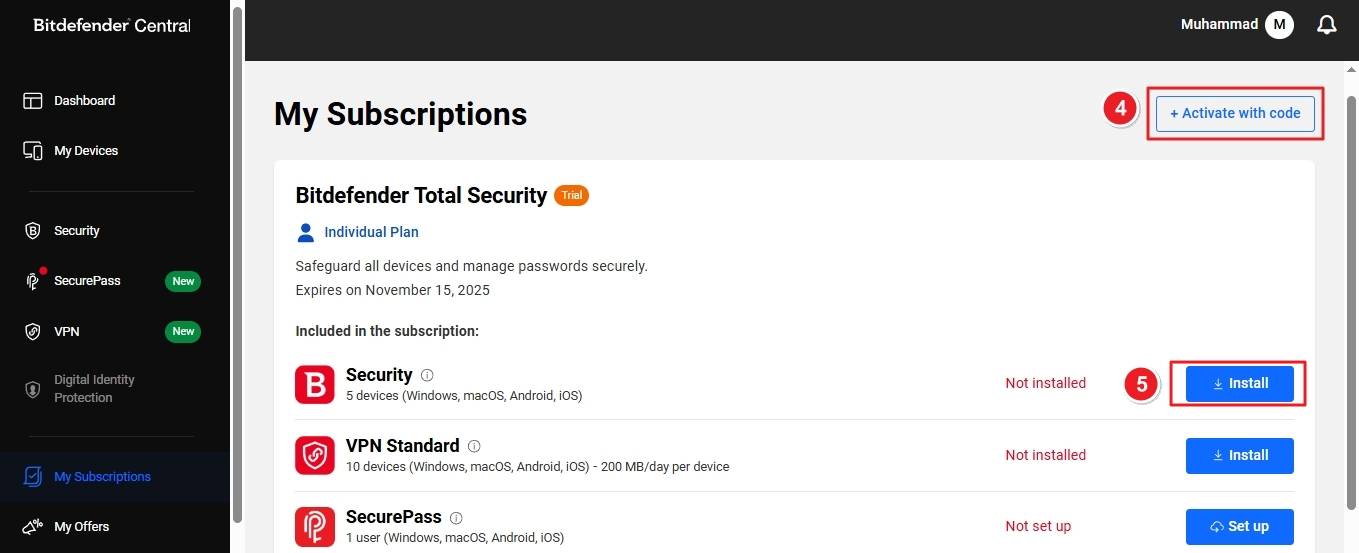
After signing in, you’ll be directed to your Bitdefender Central dashboard. Click My Subscriptions in the left panel to view or activate your plan.

Click Activate with code in the top-right corner. Enter your license key and confirm. Alternatively, if your plan is already active, click Install next to Bitdefender Product.
Locate the downloaded bitdefender.exe file in your Downloads folder. Double-click to open it.

When prompted by User Account Control, click Yes to allow the installer to make changes.

Check the box to accept the Subscription Agreement and Privacy Policy. Click Install to begin setup.

Bitdefender will start downloading the required installation files.

Once the installation completes, you’ll see a confirmation screen: “Bitdefender is now installed.” You can click Start Device Assessment to scan your system or select Skip to continue directly to the main interface.

If there are any further problems with the installation or activation, please write to us. Simply use our contact form and send a screenshot of the error message at the same time. We will be happy to help you.
Your Keys.Express Team
SKU: 5383, 5203, 5004, 5204, 5006, 5205, 5048, 5206, 5368, 5207, 5005, 5208, 5007, 5209, 5020, 5210, 5009, 5211, 5498, 5499, 5010, 5213, 5497, 5214, 5866, 5867, 5868, 5869, 5870, 5871, 5872, 5873, 5874, 5875, 5876, 4666


