
For a detailed guide with screenshots, visit our step-by-step tutorial.
Visit the Download Center from your order confirmation email. Click CorelDraw Graphics Suite 365 WIN 1Y 64-bit (or 32-bit) to download.

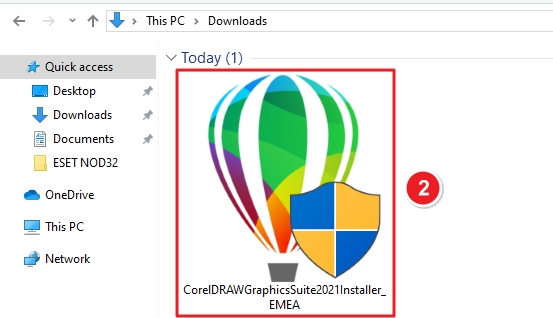
Once the download completes, open your Downloads folder and locate the file named
CorelDRAWGraphicsSuite2021Installer_EMEA.
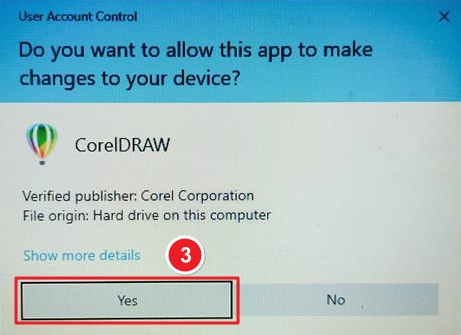
Double-click the installer file. When prompted by User Account Control, click Yes to allow the installer to run.
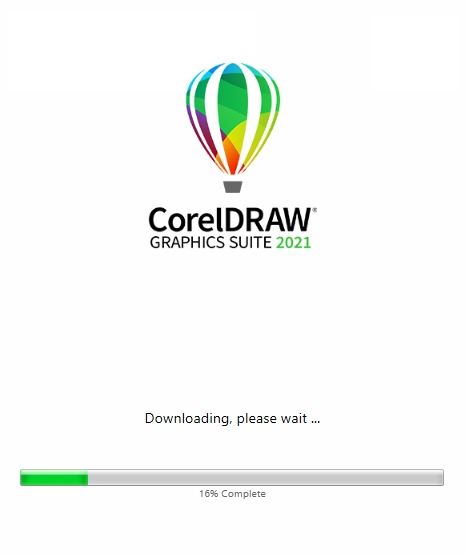
The installer will launch and start preparing files.
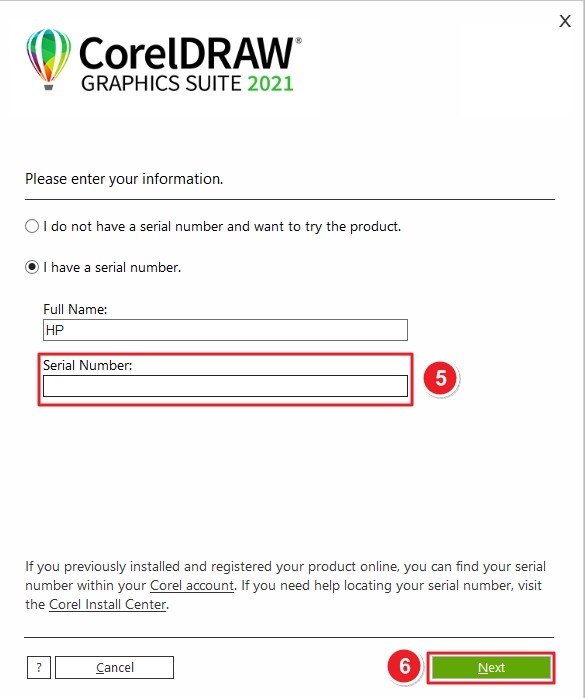
Choose I have a serial number and fill in your Full Name and Serial Number provided in your purchase email. Click Next to proceed.
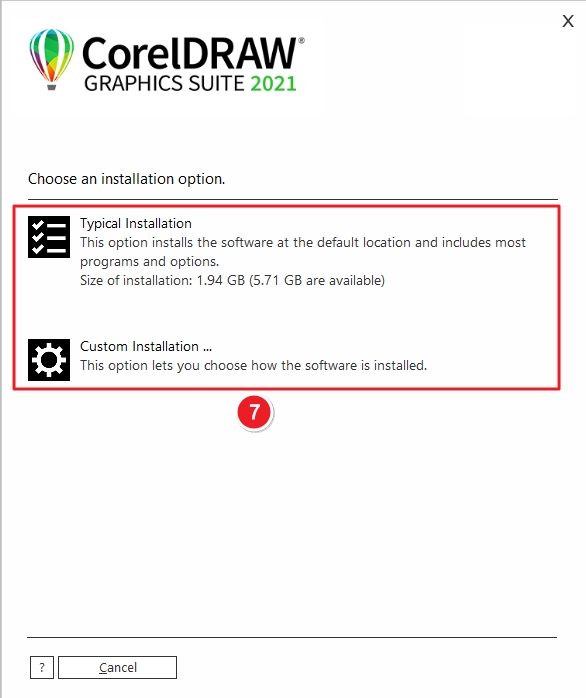
Select Typical Installation (recommended) to install CorelDRAW with default settings, or choose Custom Installation if you want to change installation paths or components.
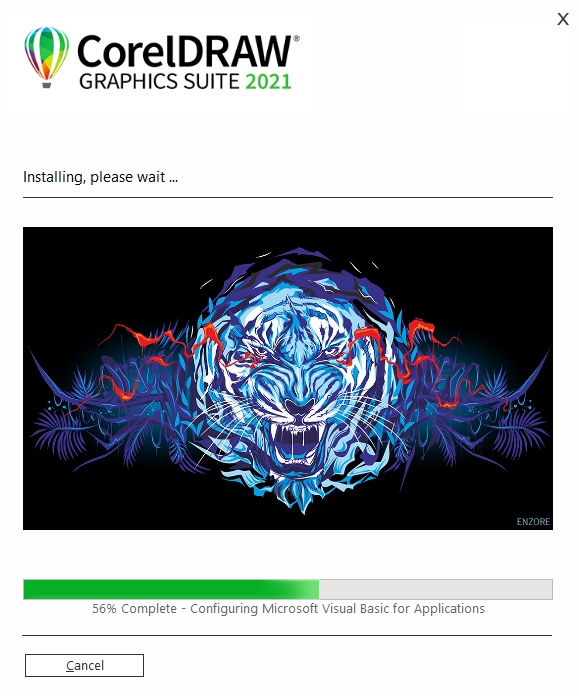
Wait while CorelDRAW downloads and installs necessary components. This may take several minutes depending on your internet speed.
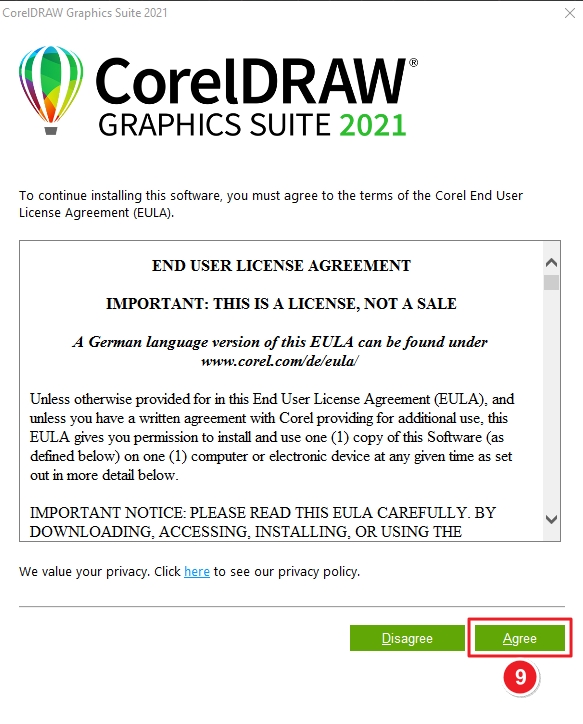
Read the End User License Agreement (EULA) carefully. Click Agree to continue.
If you don’t already have an account, fill in your Email, Password, and Country, or check the box I already have an account to log in. Click Continue to complete account setup and activation.

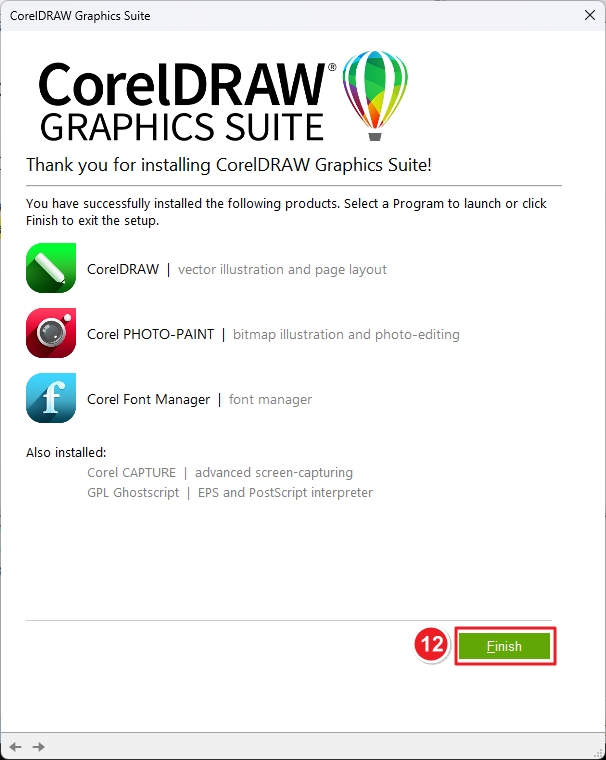
Once installation is complete, you’ll see the success screen listing installed Corel applications (CorelDRAW, PHOTO-PAINT, Font Manager, etc.). Click Finish to close the installer.
If there are any further problems with the installation or activation, please write to us. Simply use our contact form and send a screenshot of the error message at the same time. We are happy to help you.
Your Keys.Express Team
SKU: 7035, 7024, 7342, 7022, 7028, 7030, 7034, 7122


